Create a Policy Template
A Tenant Administrator or a Configuration Administrator can create and manage policy templates in the Calibo Accelerate platform. You can also create a custom role to manage policy templates. See Creating Custom Roles.
To create a policy template, follow these steps:
-
Go to Configuration > Platform Setup > Standards > Policy Templates > + New Policy Template.
-
Template Name
Provide a unique name for the policy template. This name will appear in a dropdown list for selection at the product or portfolio level. -
Description
Provide a description for your policy template. Description helps you identify the correct template especially when you create multiple templates. -
The following table contains configuration steps for setting up policy templates across various tabs for each area of the Calibo Accelerate platform.

Note:
The connection configurations of various tools saved and the technologies selected on the Cloud Platforms, Tools, and Technologies screen are available for selection on various tabs while defining a policy template.
Note:
If you do not enforce a policy template at the product or portfolio level, default connection configurations of tools are used across the Define, Design, Develop, and Deploy phases of product development. However, when you enforce a policy template, configurations selected in the template supersede the default configurations.
Area Tab Configuration Steps General Assessment Categories Choose categories to include in the team maturity assessment questionnaire. Enable toggles for the categories you want to include. Collaboration Tools Enable the Use Collaboration Tool toggle to allow teams to use collaboration tools like Microsoft Teams. Features Set the maximum number of features that can be created within a product in the Calibo Accelerate platform. Once this limit is reached, users cannot create new features in the product on which you enforce the policy template.
This helps manage scope and ensures projects stay focused and manageable. It prevents feature overload, helping in better project planning and resource allocation.
Define Turn on the Use Agile Management Tool for Ideas or Business Requirements option and then select the agile planning tool configuration to be used for project execution and management. You can select one configuration per template. Design Document Management Tools Turn on the Use document management tool for design artifacts option and then select the document management tool configuration to be used for document management and knowledge sharing for a product. You can select one configuration per template. Develop Source Code Management In this section, you can standardize the source code repository tool to be used for each technology added to a product in the Calibo Accelerate platform. You can select one source code repository tool per template.
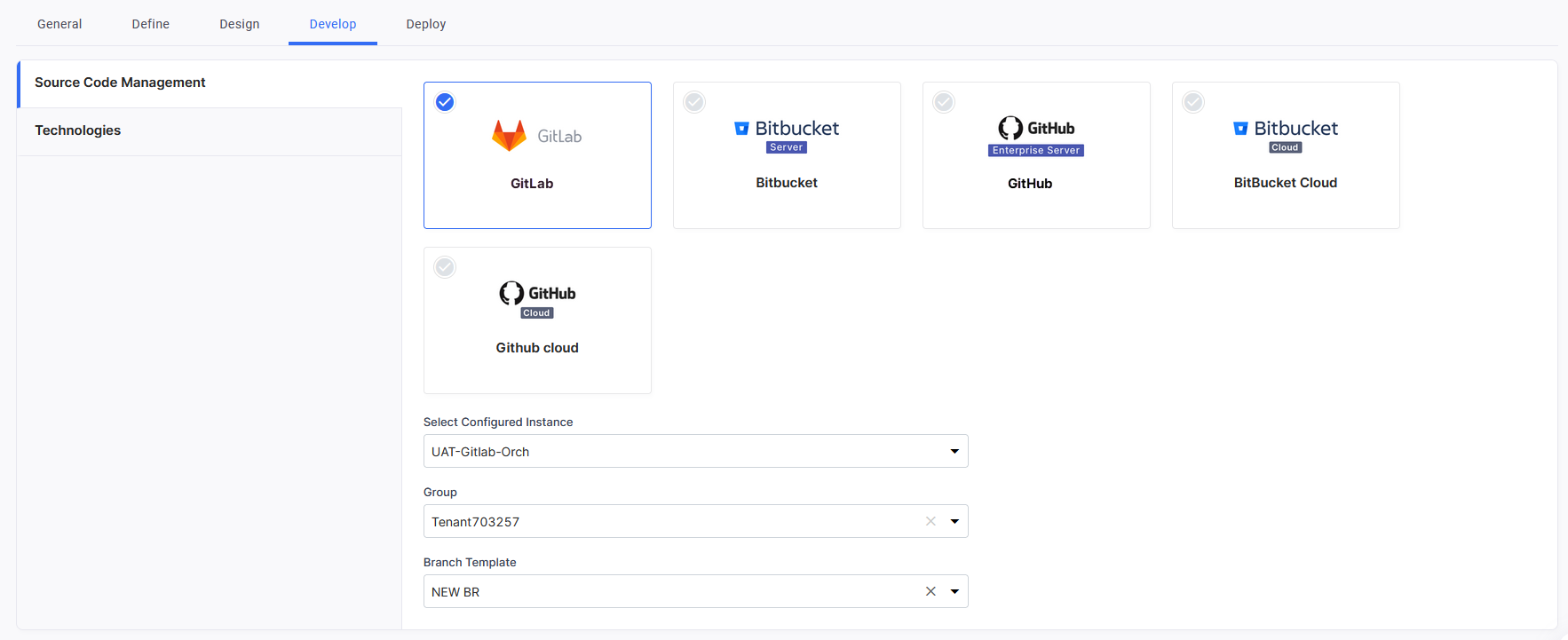
Here are the available options and the configuration details required for each:
 GitLab
- Select Configured Instance: Select from the list of your configured GitLab instances.
-
Group: The groups within the selected instance are fetched and are available for selection in a list. Select your desired group. Repositories are created under the specified GitLab group when developers add technologies in the Develop phase.
-
Branch Template: Select a branch template that aligns with your team's branching strategy.
Bitbucket Server
-
Select Configured Instance: Select from the list of your configured Bitbucket Server instances.
-
Branch Template: Choose a branch template that aligns with your branching strategy.
GitHub Enterprise Server
-
Select Configured Instance: Select from the list of your configured GitHub Enterprise Server instances.
-
Organization: Choose the organization within the selected GitHub Enterprise Server instance.
-
Branch Template: Select a branch template that aligns with your branching strategy.
Bitbucket Cloud
-
Select Configured Instance: Select from the list of pre-configured Bitbucket Cloud instances.
-
Branch Template: Choose a branch template that aligns with your branching strategy.
GitHub Cloud
-
Select Configured Instance: Select from the list of your configured GitHub Cloud instances.
-
Organization: Choose the organization within the selected GitHub Cloud instance.
-
Branch Template: Select a branch template that aligns with your branching strategy.
Technologies Specify which back-end, front-end, and data technologies should be allowed for use within a product. These technologies will be visible to developers in the Develop phase.
You can search for a specific technology by its name. Additionally, you can use the dropdown filter to narrow down your search.
Deploy Deployment Mode Select which deployment modes should be available at the stage level of the deployment workflow. Depending on your requirements, you can choose from the following options:
-
Docker
-
Kubernetes
-
OpenShift
-
Serverless
-
Terraform
Cloud Platform Accounts Select the cloud service provider accounts that you want to make available for your team. When configuring or editing a deployment stage in the deployment flow, users can choose from the accounts you select here. Kubernetes Cluster Configurations Specify Kubernetes cluster configurations that you want to make available for your team. When configuring or editing a stage in the deployment flow, users can choose from the Kubernetes cluster instances you select here. OpenShift Configurations Specify OpenShift configurations that you want to make available for your team. When configuring or editing a stage in the deployment flow, users can choose from the OpenShift cluster instances you select here. Terraform Configurations Specify Terraform configurations that you want to make available for your team. When configuring or editing a stage in the deployment flow, users can choose from the Terraform configurations you select here. Machine Configuration Options
Note:
To view the machine configuration options on this tab, make sure you have selected the Docker deployment mode earlier.
Enable the predefined cloud instance configuration options based on your application's needs and performance requirements. They vary in terms of their memory (RAM) and the number of virtual Central Processing Units (vCPUs). The options you enable here are available to developers when they add cloud instances for Docker deployments in a deployment stage.
The following configurations are available.
-
Large - 8 GB RAM 2 vCPU
-
Medium - 4 GB RAM 2 vCPU
-
Small - 2GB RAM 2 vCPU
-
Custom- 64GB RAM 16vCPU
For each enabled configuration option, you can set the maximum number of instances that can be provisioned across the product. By setting this maximum limit, you can control and manage infrastructure costs more effectively. This prevents users from unintentionally provisioning excessive instances, which could lead to unexpected expenses.
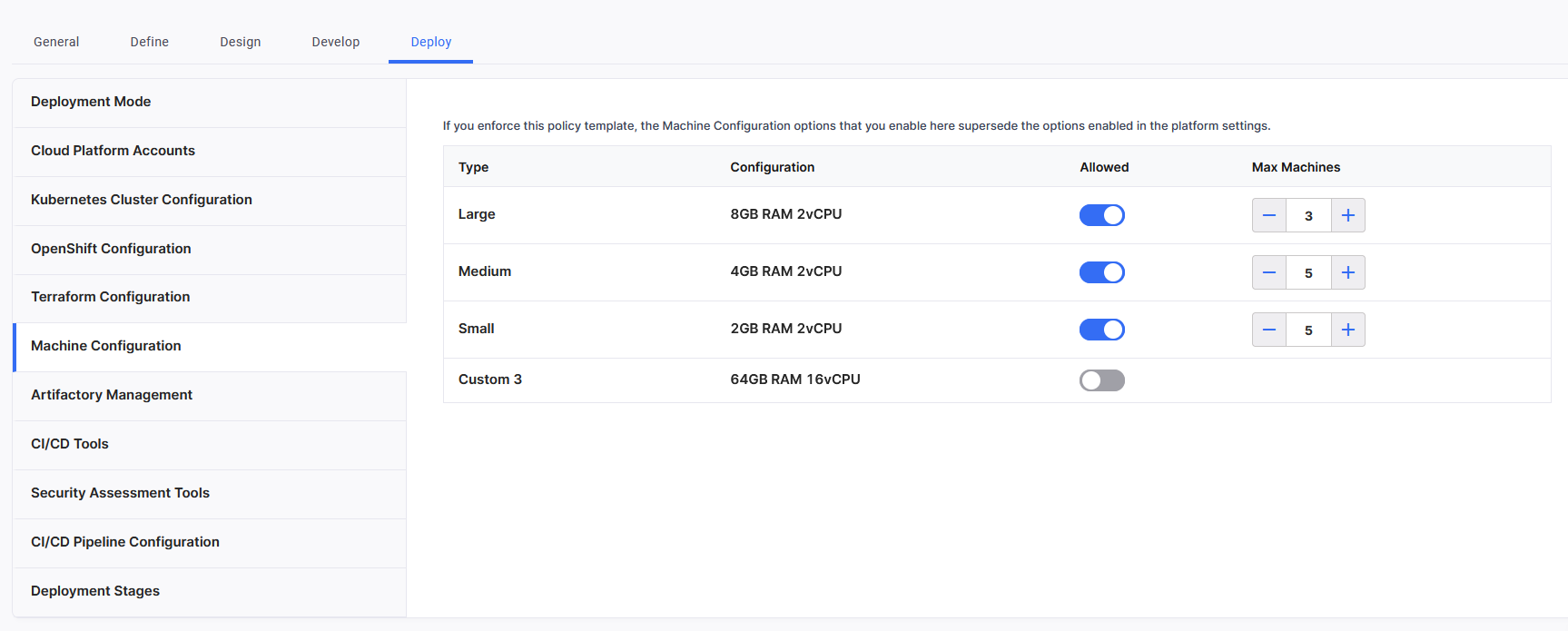
When you enforce this policy template to a product, the machine configuration options that you enable here supersede the options enabled in the global settings.
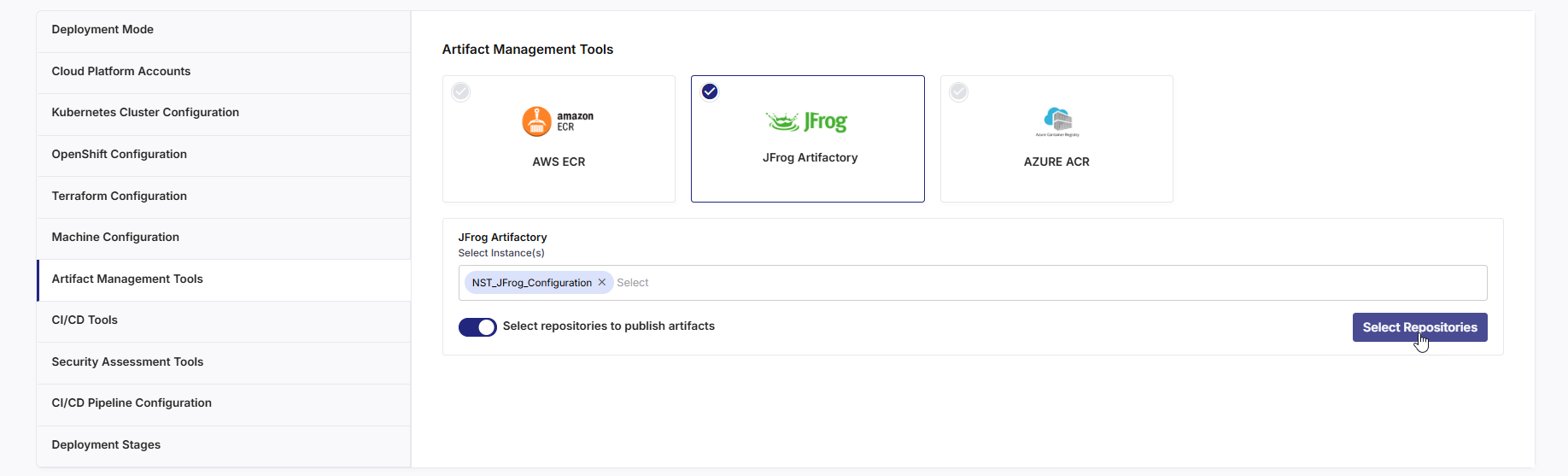
Artifact Management Tools Select the artifact management tools to be used for storing, deploying, sharing, and managing binaries and artifacts generated during your software development life cycle and their metadata. Select from the following options:
-
Amazon ECR
-
JFrog Artifactory
-
Azure ACR
The configured instances of these tools are available for selection in the list. Select your desired instances. You can select multiple instances of a tool as per your requirements.
When configuring or editing a stage in the deployment flow, users can choose from the artifact management tool instances you select here.
Selecting Allowed Repositories for Artifact Publishing in Artifactory
For JFrog Artifactory, after you select a saved Artifactory configuration, enable the Select repositories to publish artifacts toggle. Then click Select Repositories to open the side panel.
In the Select Artifact Repositories for Publishing drawer, choose the appropriate Artifactory instance, repository type (Maven, Gradle, or NPM), and select the local and/or release repositories from the available list. Click Add to confirm your selection.
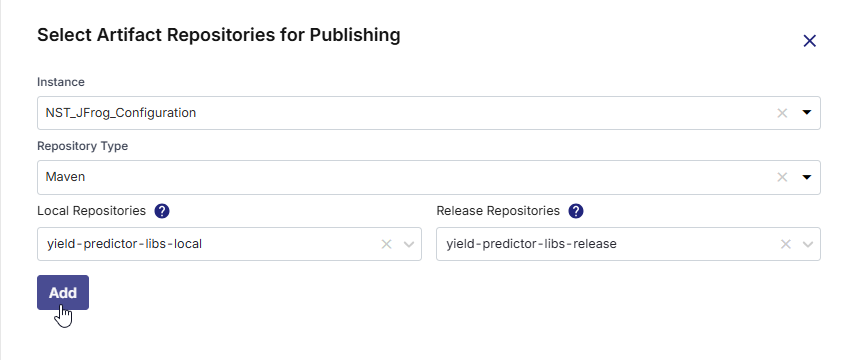
This setup allows administrators to restrict repository access and ensure that teams publish only to the designated repositories, maintaining control over artifact distribution.
CI/CD Tools Select which Jenkins and GitHub Actions instances should be available to users for automating the continuous build, test, and deployment of applications. When configuring or editing a stage in the deployment flow, users can choose from the CI/CD tool instances you select here.
Security Assessment Tools Select which code quality and vulnerability management tool instances should be available to users.
-
Code Quality: You can select one instance of SonarQube per policy template.
-
Vulnerability Management: Select your desired Qualys and Snyk instances. You can select multiple instances of a tool as per your requirements. When configuring or editing a stage in the deployment flow, users can choose from the vulnerability management tool instances you select here.
CI/CD Pipeline Configuration On this tab, you can add or remove CI/CD pipeline steps for the deployable technologies added on the Develop tab.
Click the + icon to add a step to the pipeline. You can continue adding steps as needed to define your CI/CD process. After you add all the steps, to change the sequence of steps, you must first remove at least one optional step. This allows you to readd steps and adjust the sequence as required.
This allows you to customize the CI/CD workflow, ensuring that each technology follows the appropriate steps during deployment, from code integration to final deployment.
Deployment Stages Allow users to create stages in the Deployment workflow
Enable this option to allow modifications in stage configuration in the Deploy phase. If this option is disabled, users cannot add, edit, or delete stages in the Deploy phase.
Configuring a deployment stage
Begin with configuring the Dev stage. This is the default stage for feature development and initial testing.
To configure a deployment stage, do the following:
-
Click the ellipsis (...) and then click Edit.
-
In the stage configuration side drawer, you cannot change the type of the default Dev stage. However, you can change its name.
For all subsequent stages in the deployment flow, you can enter your desired stage name and select or enter the desired stage type (Demo, UAT, Prod, and so on).
After a stage (other than the default Dev stage) is created, you cannot modify its type. You can, however, change the stage name while editing that stage. -
Deployment Mode
Select the desired deployment modes from the dropdown list. The modes you selected earlier on the Deployment Mode tab are available for selection in this dropdown list.Docker
If you select the Docker deployment mode, you need to configure the following options.
Cloud Platform Account
Select the cloud platform account for deploying technologies on Docker containers. You have the flexibility to select multiple cloud accounts, allowing separate Docker deployments for different technologies across various accounts.Select Load Balancer Creation Type
In the context of Docker deployments, load balancers ensure efficient utilization of resources and maintain high availability by distributing requests across various containers. Choose whether you want to create a load balancer manually or let the Calibo Accelerate platform create one automatically.Select load balancer scheme type
For automatic load balancer, choose whether to create a private (internal) load balancer or public (internet-facing) load balancer.Tag Policy
This section allows you to manage tags applied to various cloud resources such as cloud instances, load balancers, and more that are created from within the deployment stage.-
Predefined Tags
Calibo Accelerate provides a set of predefined tags that are automatically applied to all resources. These tags are prefixed with the term "Lazsa" to distinguish them. The predefined tags include:
-
Portfolio: Identifies the portfolio to which the resource belongs.
-
Project: Specifies the project associated with the resource.
-
Release: Indicates the release version.
-
Feature: Marks the specific feature linked to the resource.
-
Stage: Denotes the deployment stage (e.g., Dev, QA, Prod).
-
Source: Identifies the source of the resource.
-
User: Tags the user responsible for the resource.
-
These predefined tags are applied by default and help in organizing and tracking resources effectively.
-
Custom Tags
You can also create your own custom tags to meet specific needs. Create tags in key-value pairs. Do not use "name" as a key to prevent conflicts.
Custom tags are mandatory if your organization enforces tag policies at the organization level. This means if your organization's tag policy requires certain tags to be used for all cloud resources, you must add these custom tags during the deployment stage configuration. Otherwise resource creation may fail.
Machine Configuration
The options that you enabled on the Machine Configuration tab are visible in this section. You can edit your preferences to allow or restrict instance creation at the stage level.Kubernetes
Kubernetes Cluster
The Kubernetes clusters you selected earlier on the Kubernetes Cluster Configuration tab are available for selection in this dropdown list. Select one or more cluster configurations as per your requirements.
OpenShift
OpenShift Cluster
The OpenShift clusters you selected earlier on the OpenShift Configuration tab are available for selection in this dropdown list. Select one or more cluster configurations as per your requirements.
Terraform
Terraform Configuration
The configurations you selected earlier on the Terraform Configuration tab are available for selection in this dropdown list. Select one or more Terraform configurations as per your requirements.
-
-
Select Continuous Integration Tool
Select the continuous integration tool instance from the dropdown list. The instances that you selected earlier on the CI/CD Tools tab are available here for selection. -
Artifact Management Tool Select the artifact management tool to be used within the stage. The instances you selected earlier on the Artifact Management Tooltab are available here for selection.
Artifactory Environment (Optional)
You see this option if you select JFrog Artifactory instance as the artifact management tool for your deployment stage and if, in the saved connection details of this instance, you have chosen to use a project for repository management.
In the Artifactory Environment list, select an environment (for example, development, staging, production) to which you want to associate the repositories in JFrog Artifactory. If you do not specify an environment, the repository will not be associated with any project.
To create a new custom environment in Artifactory from within the Calibo Accelerate platform, type the name of the environment. Custom environments are supported for JFrog Artifactory 7.53.1 or later versions.
-
Code Analysis Tool (Optional)
You see this option if, on the Security Assessment Tools tab, you have selected the code quality tool instance (Currently SonarQube is supported in this section). Select the code analysis tool to be used in the CI/CD pipeline for the deployment stage. -
Container Image Scanning Tool (Optional)
You see this option if on the Security Assessment Tools tab, you have selected the vulnerability management tool instance (Currently Qualys and Snyk are supported in this section). Select the container image scanning tool to be used in the CI/CD pipeline for the deployment stage. -
Click Create to save your changes. The stage is created.
To add and configure the next deployment stage, click the
 icon, and then follow the steps 2 to 8 mentioned earlier. You can add as many deployment stages of various types (QA, demo, UAT, prod, and so on) as you require.
 -
Save Draft or Publish Template
After you configure a policy template, you can save it as a draft and publish it later or publish it immediately. You can also manage access to a policy template, ensuring that only authorized users can view or modify it. A published template is visible to users who have been granted access by the template creator. -
All policy templates (both drafts and published) are listed on the Policy Templates tab. You can view the template details such as template name, user who created the template, date when it was created, the products in the Calibo Accelerate platform where the template has been enforced, and the Draft or Published status of the template.
In the search box, you can search for a policy template by its name.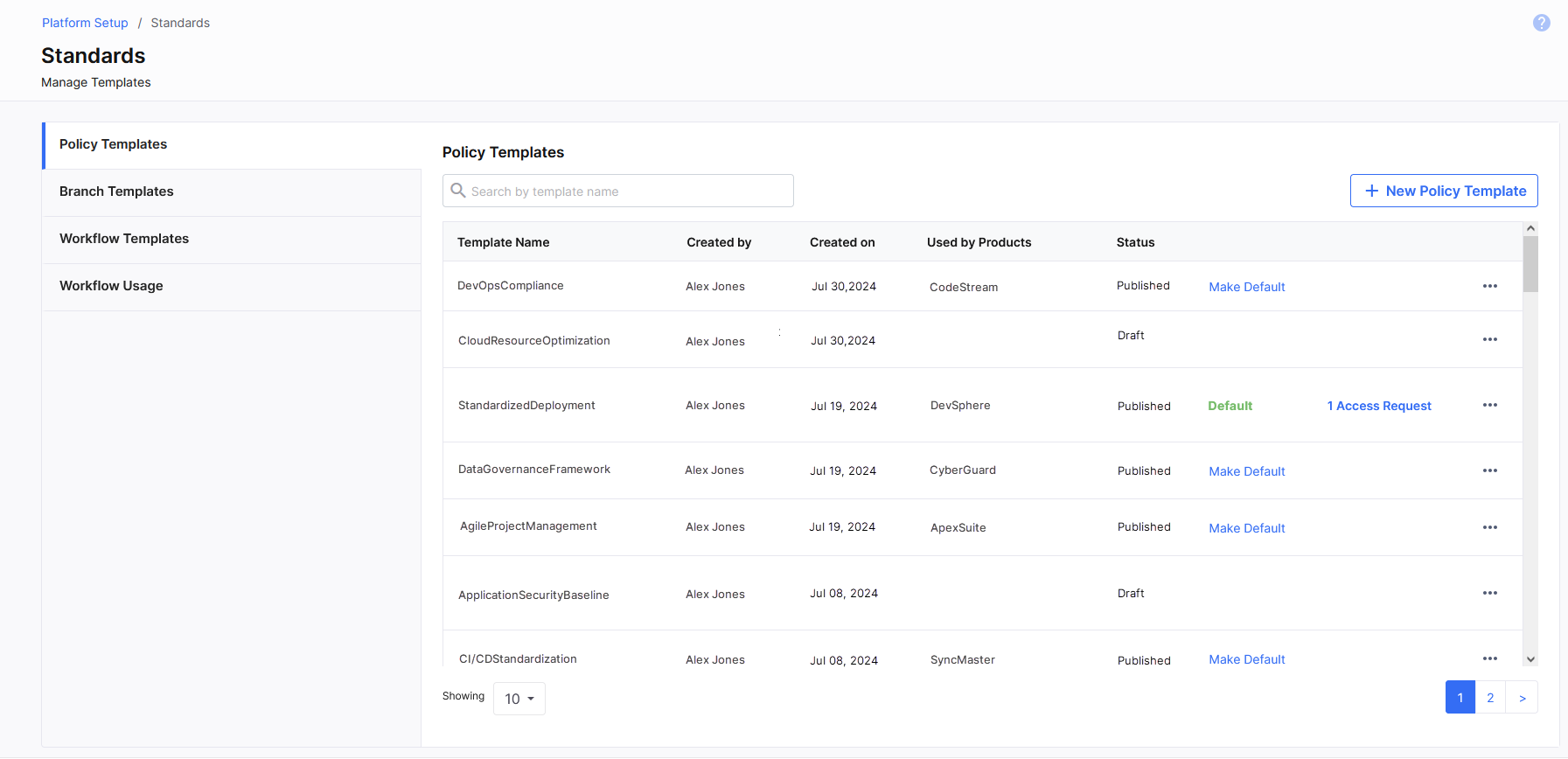
-
You can also make one policy template as the default template. The default template is available for enforcement to all users who have permissions to create or edit a product in the Calibo Accelerate platform. There is no need to request access to the default template. Otherwise, at the product level, a policy template is available for enforcement only to the template creator and to users having access to the template.
| Recommended Topics
|
What's next? Manage Access to a Policy Template |