Manage Access to a Policy Template
To control who can access and manage a policy template, follow these steps:
-
In the template details row, click the ellipsis (...) on the extreme right.
-
Select Manage Access from the dropdown menu.

-
In the Manage Access side drawer, do the following:
Tab Description Administrators If you are the template creator, your name will already be listed as an Administrator. You cannot remove yourself from this list. To facilitate collaborative management, you can add other administrators. Save your changes after you add desired users as administrators. This is useful when multiple users need to manage the template. Pending Requests If other users have requested access to your policy template, their requests will appear here. You can approve or reject these requests as necessary. Approved users will appear in the list of administrators.
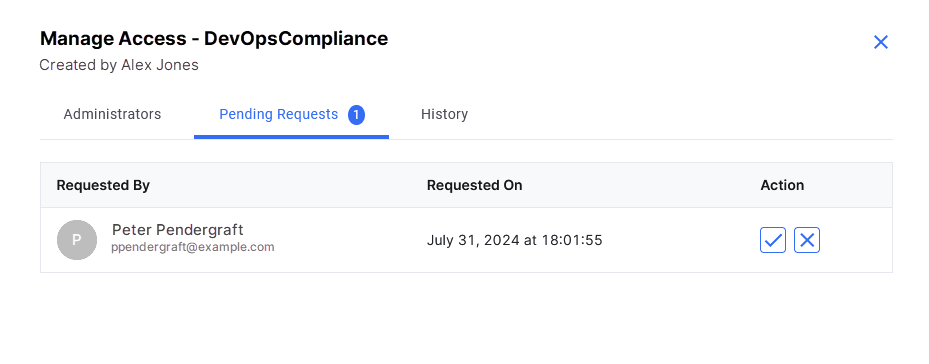
Whenever a user requests access to your policy template, you receive a notification. Click the bell icon in the left navigation pane to view the notification. Click the policy template name in the notification. The Pending Requests tab is displayed. You can approve or reject these requests as necessary.
History This tab displays the history of access requests, including approvals and rejections, providing transparency and accountability. By managing access effectively, you can ensure that only authorized users can manage policy templates. This access control helps you adhere to your organization's standards and governance policies.
 Recommended Topics Recommended Topics
|
What's next? Request Access to a Policy Template |