Product Portfolio Approval Workflow
Calibo Accelerate platform allows users to select or change the product portfolio approval workflow template during new product portfolio creation. This feature gives portfolio owners more flexibility by letting them choose the most relevant approval workflow at the time of product portfolio setup. Instead of using a default workflow assigned in the global level, you can now retain the system-assigned default approval template, or select a different workflow template that better matches your business needs.
This enhancement ensures that product portfolio approval processes are aligned with organizational priorities right from the start, saving time and improving governance.
Prerequisites
Before you create or submit a product portfolio for approval in Calibo Accelerate, ensure the following requirements are met:
 1. You are assigned the appropriate role.
-
You must have a system‑defined or custom role that grants access to product portfolios. see Roles in Calibo Accelerate platform.
2. A product portfolio workflow template is created.
-
This template defines how product portfolio approvals are processed. See Designing a Global Workflow Template.
3. The Product Portfolio Creation event is enabled at the global level.
-
This event must be enabled so that the workflow triggers automatically when a new product portfolio is submitted for approval. See Enabling Global Workflows.
4. The Product Portfolio is created.
-
A product portfolio must exist before you can submit it for approval. See Create a Product Portfolio.

Note:
The Product Portfolio Creation event ensures that the approval workflow starts automatically when a new product portfolio is submitted.
How Does the Workflow Work ?
To understand the workflow execution process, let us continue with the Product Portfolio example. The workflow execution process are similar for the following entities:
-
Product Creation
-
Feature Creation
-
Idea Creation
-
User Feedback Creation
-
Policy Template
-
Product Portfolio Budget.
After you enable a workflow for the Product Portfolio Creation event and attach a workflow template to it, the following actions take place:
Product Portfolio Status : Draft
When a new Product Portfolio is created, it is placed in a Draft state. Portfolio owner can change the Product Portfolio Approval Workflow Template in a Draft state as follows:
-
Within the Product Portfolio screen, click on the ellipsis (…) and then click View Details or Edit.
-
On the Edit Product Portfolio screen, under the Overview tab, on the Product Portfolio Approval Workflow Template drop-down list, select another workflow template.
-
Click Save to apply the changes.
Portfolio owner must click Submit for Approval button to initiate the review process.
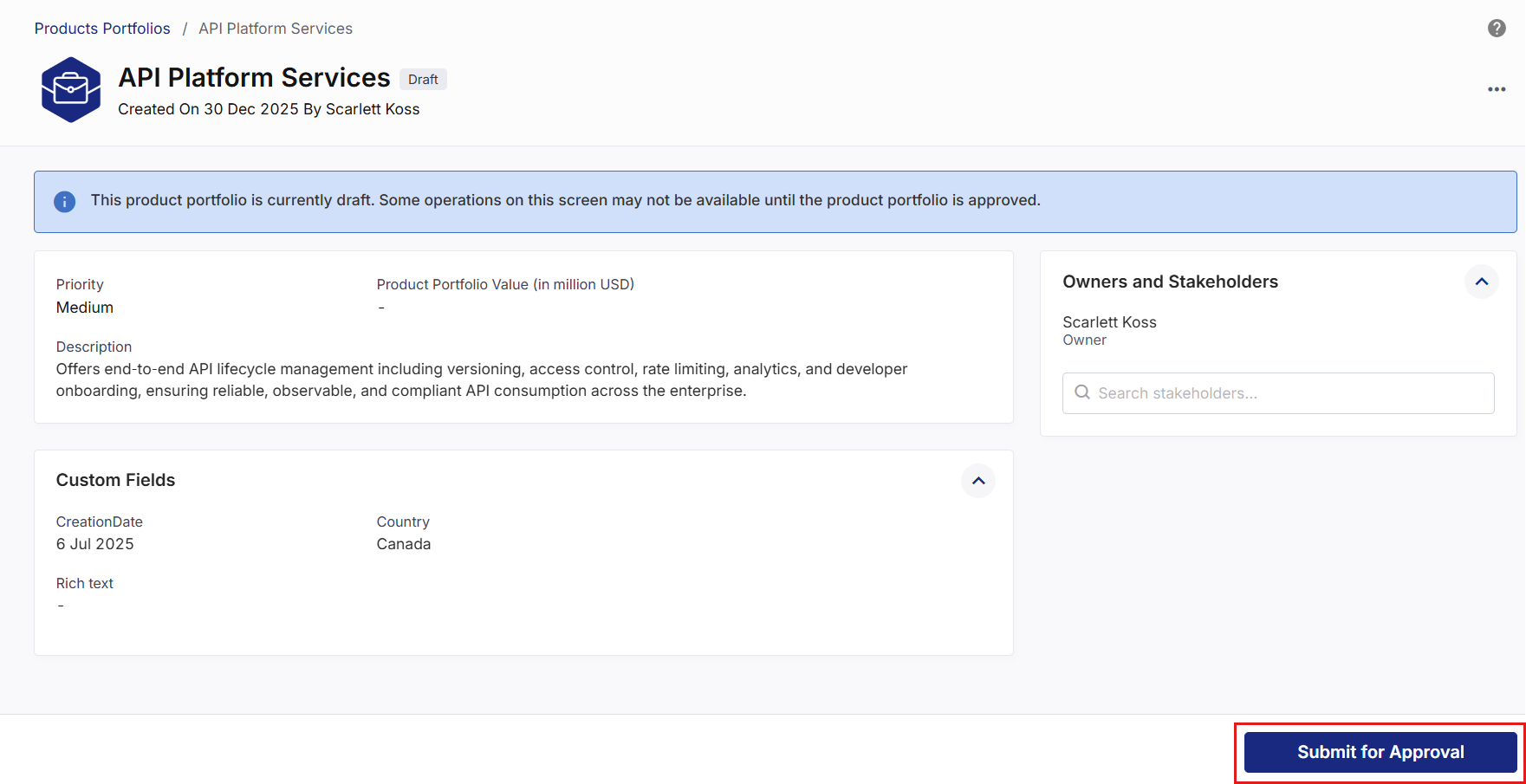
Once the product portfolio is submitted, its status changes to In Review. You will receive an email confirming the submission, and the assigned reviewer will receive a system notification and an email alert.
Product Portfolio Status : In Review
Until approvals are received, the product portfolio shows the In Review status. Approvers can Approve-, Reject- or Sent for Rework. No products can be added to the portfolio until the request is approved. However, you can delete the portfolio before approval or you can cancel the approval request.
Product Portfolio Status : Canceled
When the product portfolio status is In Review status and modifications are required before approval, the portfolio owner can cancel the approval workflow.
To cancel the workflow, follow these steps:
-
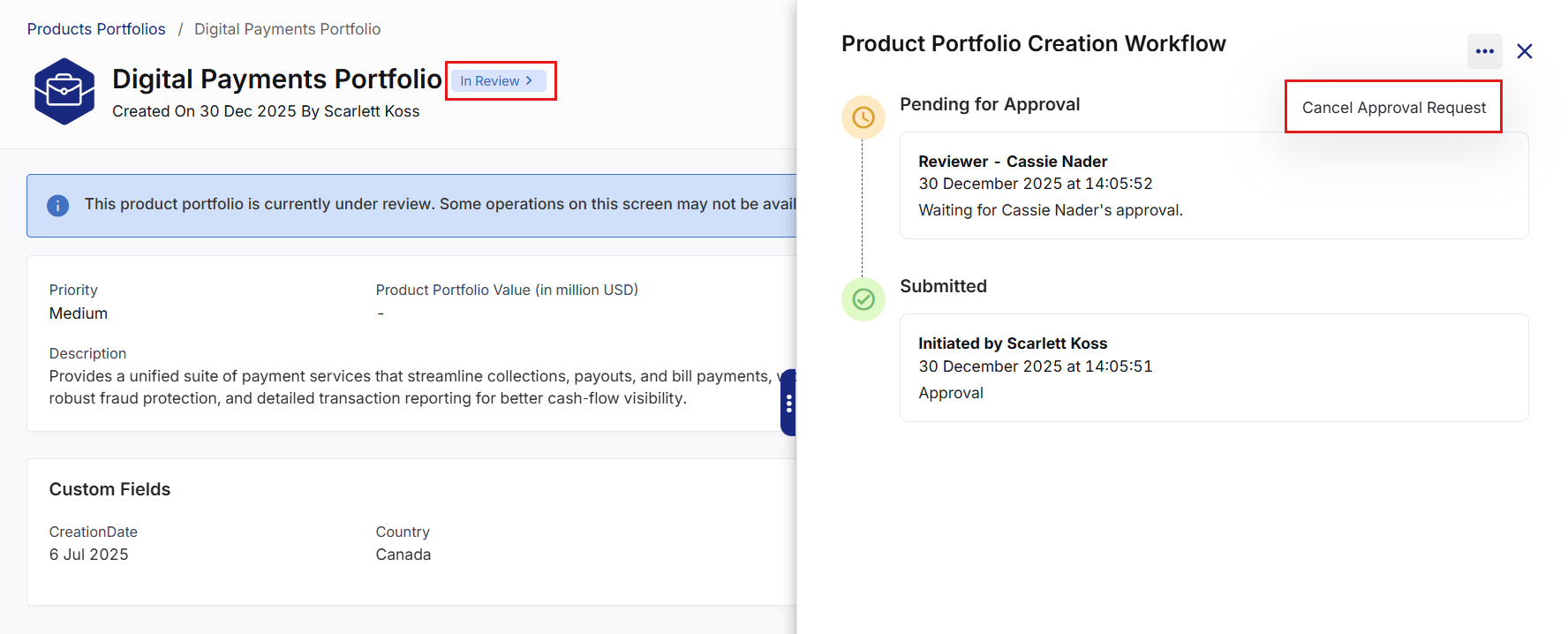
Click the In Review label on the product portfolio to open the Product Portfolio Creation Workflow panel.
-
In the panel, click the ellipsis (…) in the top-right corner, then select Cancel Approval Request.
The Cancel Approval Request option is available only when the product portfolio status is either In Review or Scheduled for Approval.
-
In the confirmation dialog box, enter your comments and click Submit.
-
The product portfolio status changes from In Review to Canceled, allowing the portfolio owner to make the necessary modifications.
-
After incorporating the changes, the product portfolio can be resubmitted for approval.
Product Portfolio Status : Approved
When all reviewers approve the request:
-
The product portfolio status changes to Approved.
-
The portfolio owner can now add products to the product portfolio.
-
The workflow history becomes available and can be viewed by selecting the Approved status label.
If your attached workflow template contains an approval stage with the type Service Provider - servicenow, as soon as the approval request is submitted, a servicenow ticket is automatically created. The product portfolio shows the Approved status. Click this status link to view the workflow history where you can view the servicenow ticket ID.
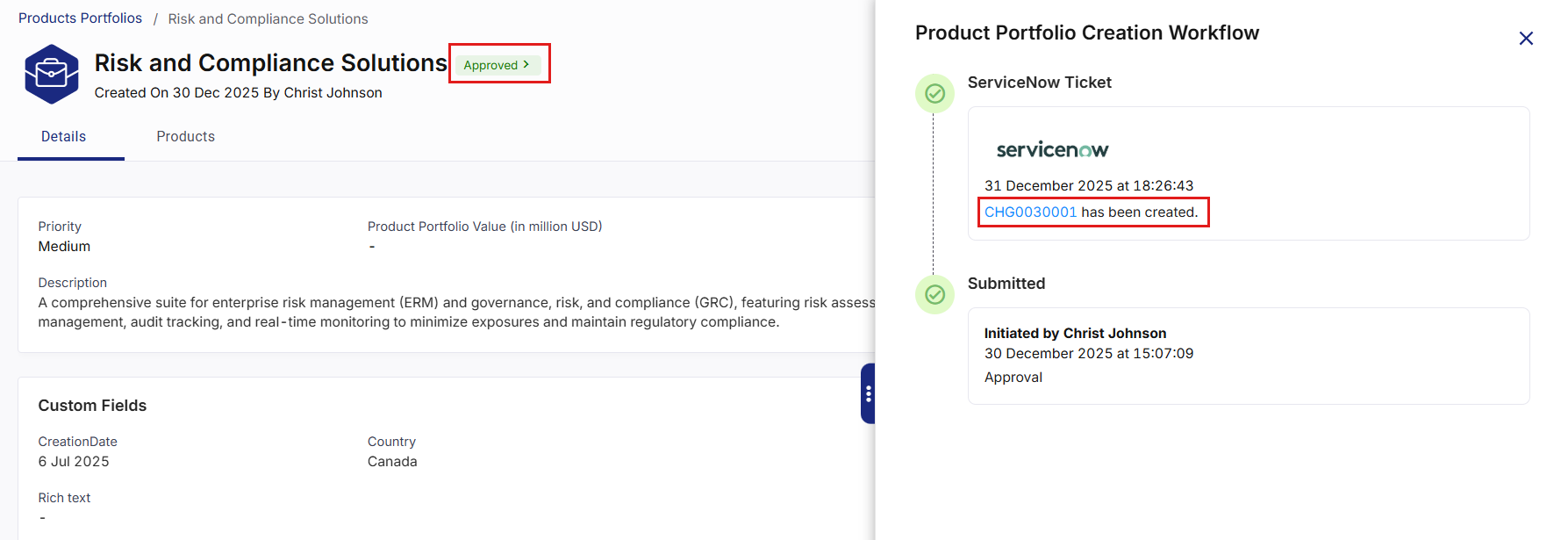
Click the ticket ID link, sign in to servicenow and view the ticket created in servicenow.
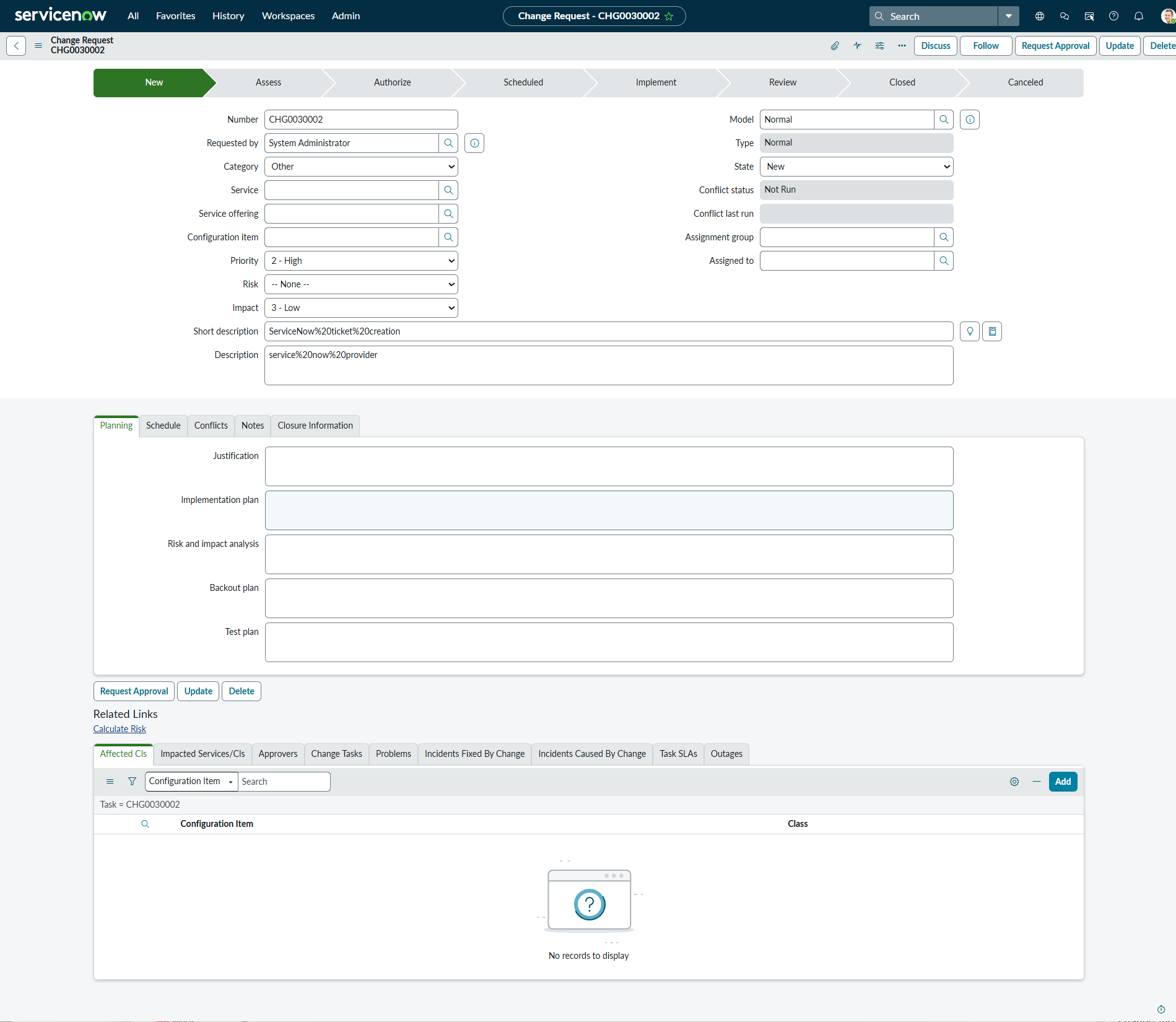
Your organization must handle further management of this ticket outside the Calibo Accelerate platform.
Note:
If your servicenow instance is not active or is in hibernation mode, a servicenow ticket will not be created when the approval request is submitted. In this case, the product portfolio will display a Failed status.
Product Portfolio Status : Rejected
When a reviewer rejects the product portfolio, its status changes from In Review to Rejected. To proceed further, the portfolio owner must delete the product portfolio and restart the submission process with a new product portfolio.
Product Portfolio Status : Send for Rework
When a reviewer sends a product portfolio back for rework:
-
The product portfolio status changes from In Review to Send for Rework.
-
The portfolio owner can update the product portfolio based on the reviewer’s feedback.
-
After making the required changes, the product portfolio can be resubmitted for approval.
-
Once resubmitted, the workflow process restarts from the beginning.
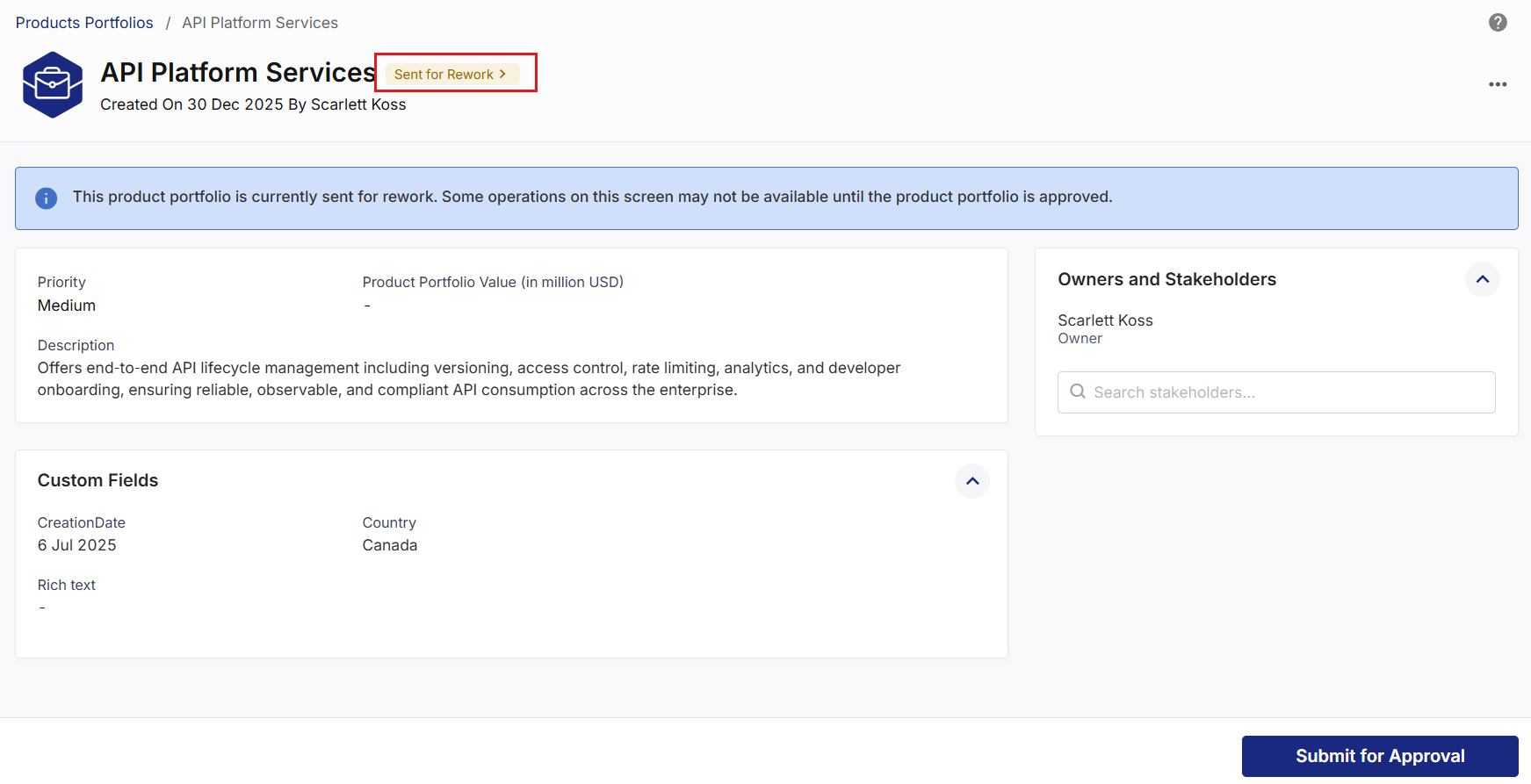
Product Portfolio Status : Scheduled for Approval
When a reviewer wants to schedule automatic approval for a product portfolio, follow these steps:
-
Click the Approve button in the Pending for Approval panel.
-
Enable the Schedule Approval toggle.
-
Select the desired date and time using the date-time picker.
-
Click Schedule.
-
In the confirmation dialog box, Click Proceed to confirm.
-
The product portfolio status changes to Scheduled for Approval.
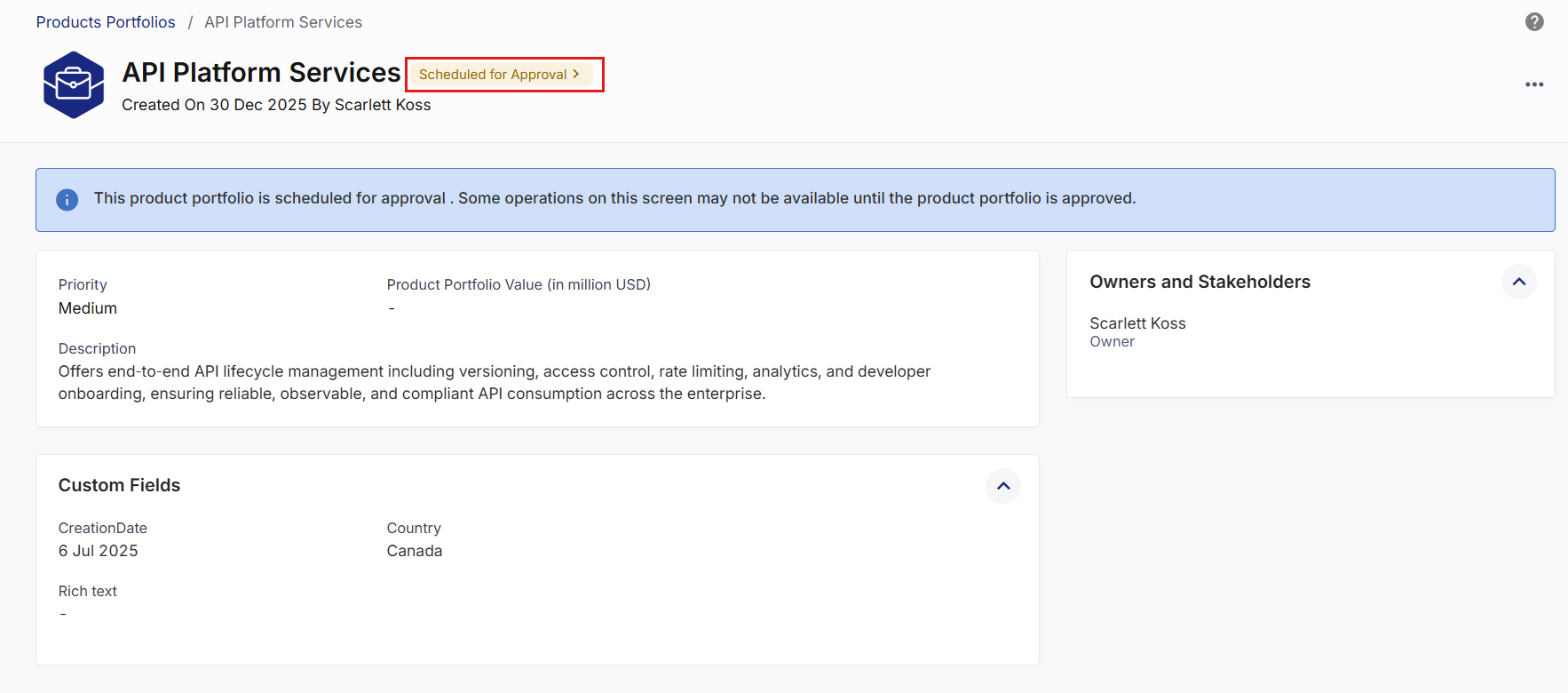
This feature is helpful for aligning product portfolio approvals with compliance timelines, project milestones, or other strategic planning requirements.
Audit and Tracking
The approval process is logged for compliance, ensuring that all approvals and decision-making steps are tracked. Click the product portfolio status to view the approval history of the request.
Best Practices
Choose the Right Template
-
Review the available workflow templates and their assigned approvers before creating a portfolio.
-
This ensures the correct governance framework is applied from the beginning.
Provide Clear Comments
-
When canceling a request or sending it back for changes, include clear and specific comments.
-
This helps reviewers understand the context and reduces follow‑up clarification.
Monitor Notifications
-
Keep track of email notifications and system alerts related to approval status changes.
-
Timely responses help keep the workflow moving efficiently.
Plan for Scheduled Approvals
-
Use scheduled approvals to align workflow activities with business planning cycles, release timelines, and compliance requirements.
Review before Submission
-
Ensure all product portfolio information is accurate and complete before submitting it for approval.
-
This minimizes rework cycles and speeds up the approval process.
| Recommended Topics
|
What's next? Create Product Portfolio - Additional Details |