Product Approval Workflow
Calibo Accelerate platform supports enabling and editing the product approval workflow template directly at the product portfolio level. This feature allows portfolio owners to define or change the approval workflow template at the product portfolio level, ensuring that all products added under the product portfolio follow the selected governance process.
By configuring the workflow template at the product portfolio level, organizations can:
-
Standardize approval processes across multiple products within the same product portfolio.
-
Align product reviews with organizational compliance and quality requirements.
-
Gain flexibility by choosing different workflows for different portfolios based on business needs.
This enhancement improves control, consistency, and efficiency in managing product approvals.
Prerequisites
Before you access or submit a product for approval in Calibo Accelerate, ensure the following prerequisites are met:
 1. You have the required role assignment.
You must be assigned an appropriate system‑defined role or a custom role that provides access to products. see Roles in Calibo Accelerate platform.
2. A Product Approval workflow template is created.
The template defines the approval process for product submissions. See Designing a Global Workflow Template.
3. The Product Creation event is enabled at the global level.
The event must be enabled and assigned a workflow template so that product submissions trigger the approval workflow automatically. See Enabling Global Workflows.

Note:
The Product Creation workflow event ensures that the system automatically initiates the approval workflow whenever a product is submitted.
How to Change or Edit the Product Approval Workflow Template at the Portfolio Level:
Follow these steps to change or edit the product approval workflow template at the product portfolio level:
-
Sign in to the Calibo Accelerate platform and then, from the left navigation pane, click Product Portfolios.
-
On the Product Portfolios screen, choose your desired Portfolio, where you want to change or edit the Product Approval Workflow Template.
-
Within the Portfolio screen, click on the ellipsis (…) and then click View Details or Edit.
-
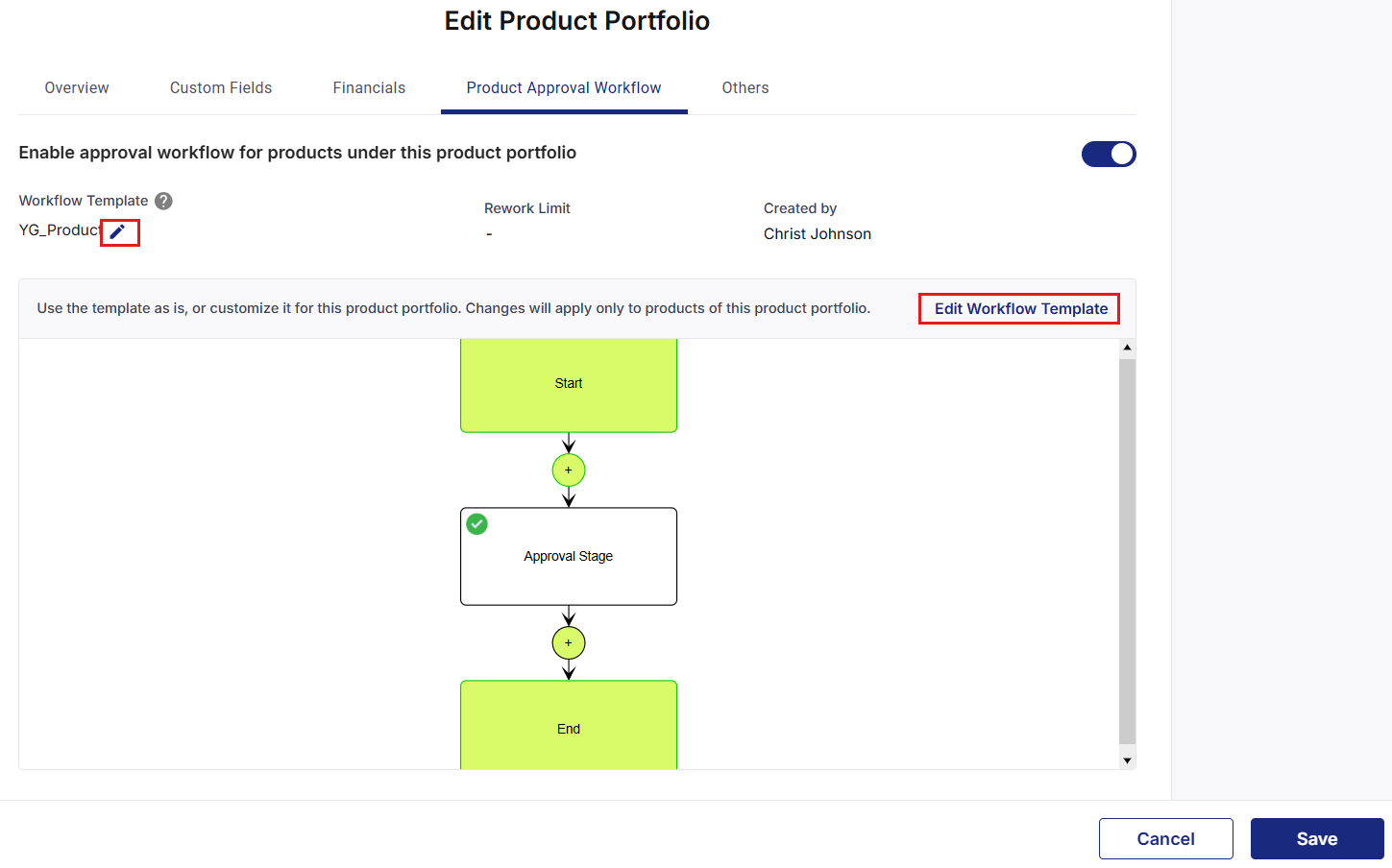
On the Edit Product Portfolio screen, under the Product Approval Workflow tab, click the pencil icon to select another Product Approval or General workflow template from the drop-down list, or keep the default template assigned at the global level.
Note:
When a Product Creation event is disabled at the global level, the toggle labeled Enable approval workflow for products under this product portfolio will be automatically disabled while creating a Product Portfolio in the Product Approval Workflow tab.
-
If you want to modify the selected workflow template, click Edit Workflow Template.
-
In the pop-up, provide a new name and click Proceed and update the workflow as per your business needs.
-
Click Save to apply the changes.
Understanding Product Approval Workflow Inheritance
When you configure a Product Approval Workflow at the product portfolio level:
-
All new products added to the product portfolio automatically inherit the configured workflow.
-
Products do not need individual workflow configuration.
-
Ensures consistency across all products within the product portfolio.
Best Practices
Plan Workflow Strategy
-
Define workflows based on product criticality, compliance requirements, and business impact.
-
Consider creating different workflows for different portfolio types to address varying levels of complexity.
-
Align all workflows with your organization’s governance and approval policies to ensure consistency and compliance.
Standardize Within Portfolios
-
Use consistent approval workflows for all products within the same portfolio.
-
Standardization helps ensure predictable review processes and timelines.
-
This reduces confusion for both product owners and reviewers and improves overall efficiency.
Document Workflow Requirements
-
Clearly communicate workflow requirements to product owners so they understand each step of the process.
-
Provide guidelines outlining the information reviewers need to make accurate and timely decisions.
-
Set clear expectations for approval timelines to ensure transparency and accountability.
Customize When Necessary
-
Customize workflows to meet the specific needs of a product portfolio.
-
Maintain a balance between standardization and flexibility to ensure consistency without limiting productivity.
-
Review and update workflows regularly based on team feedback and evolving requirement.
Monitor and optimize
-
Track approval cycle times to identify delays or bottlenecks.
-
Gather feedback from product owners and reviewers to understand pain points.
-
Adjust workflows regularly to improve efficiency and maintain smooth operations.
| Recommended Topics
|
What's next? Create Product Portfolio - Additional Details |