Configure SSO with Microsoft Active Directory
Before you configure user authentication by using Microsoft Active Directory, make sure you complete the following prerequisites:
Prerequisites
Download the AD FS Federation Metadata XML document from the AD FS management console
To configure SSO using Microsoft Active Directory, you need the Active Directory Federation Services (AD FS) Federation Metadata XML document. This document contains all the information required by the Calibo Accelerate platform to contact the AD FS server.
To download the federation metadata XML, do the following:
-
Sign in to the ADFS server and open the management console.
-
In the AD FS folder in the left pane, expand Services and click Endpoints.
-
In the Metadata section, locate the entry of the type Federation Metadata with the URL path ending in
/federationmetadata/2007-06/federationmetadata.xml. Copy this URL. -
Append your domain to the copied URL. The URL format should look like this:
https://{domain-name}/federationmetadata/2007-06/federationmetadata.xml -
Paste the adjusted URL into a browser’s address bar and press Enter.
-
Download the file and save it to your computer.
To configure user authentication by using Microsoft Active Directory, do the following:
1. Configure Single Sign-on
In this section, you enable Single Sign-on (SSO) by providing the SAML configuration details of Microsoft Active Directory. This allows users to securely sign in to the Calibo Accelerate platform by using their existing credentials via SSO. Do the following:
Configure SSO details by using one of the following options:
 Configure Manually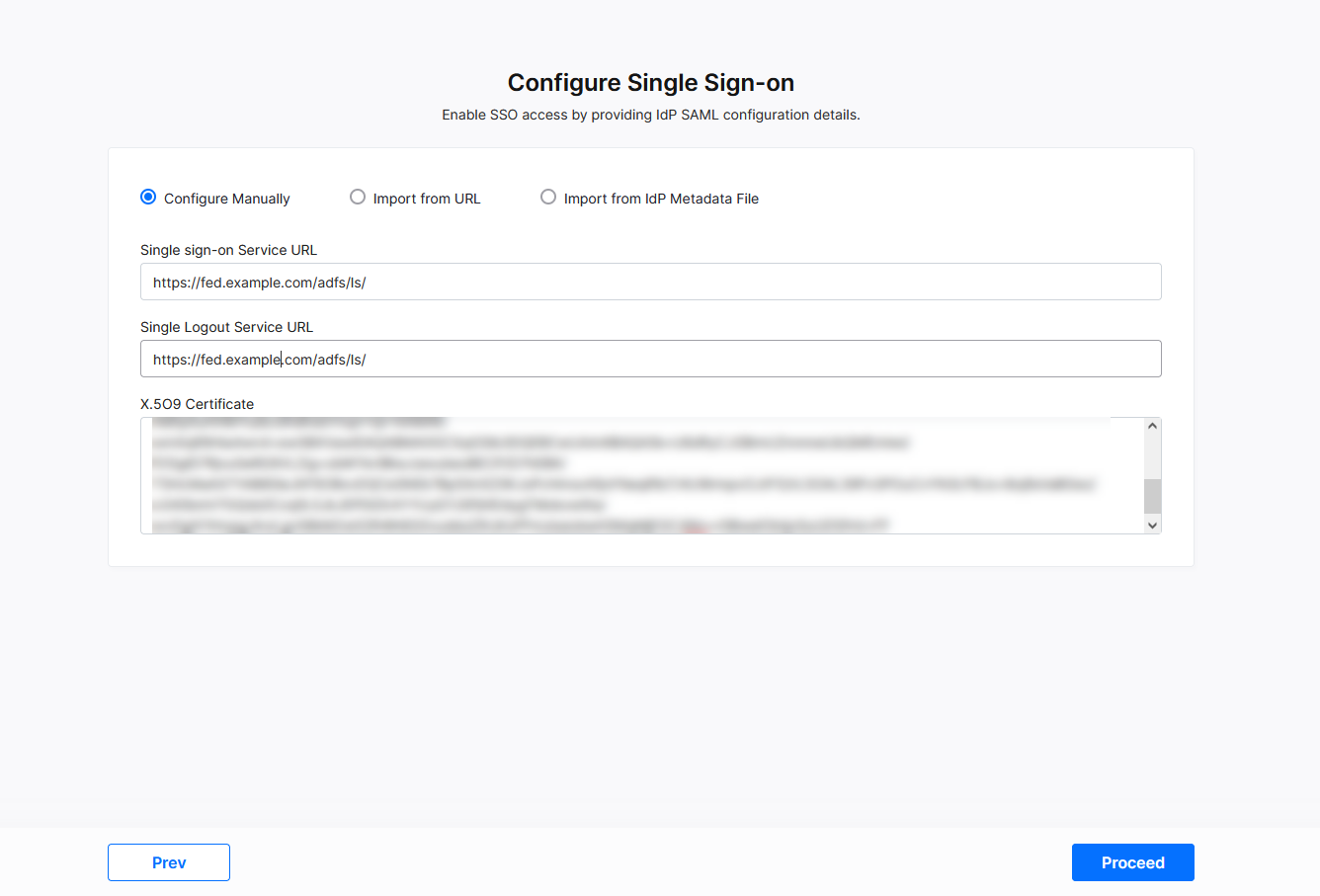
Enter the following parameters manually:
Single Sign-on Service URL: The URL where authentication requests are sent.
Single Logout Service URL: The URL to handle single logout requests.
X.509 Certificate: The certificate that validates SAML messages from Microsoft Active Directory.
- Click Next.
Import from URL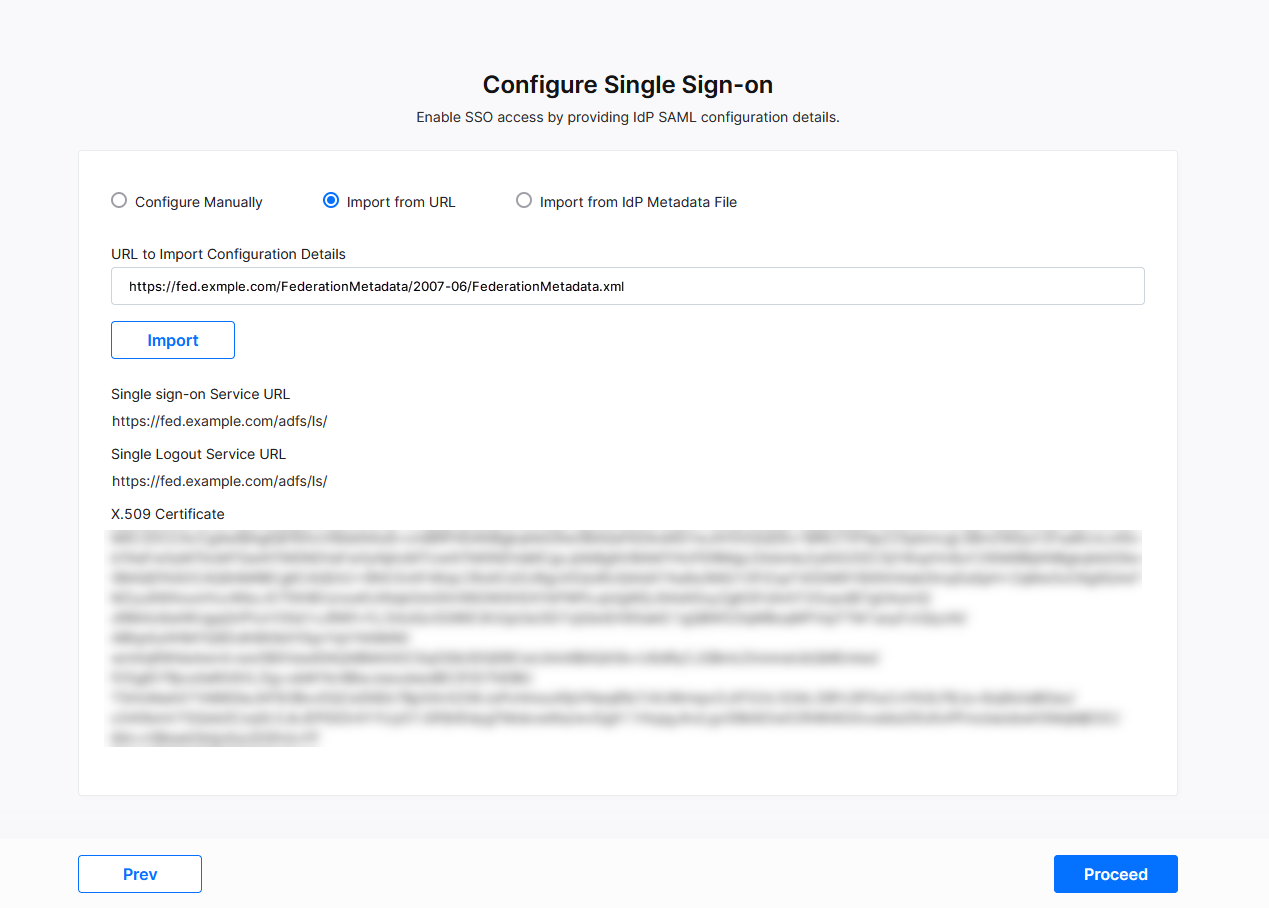
Enter the URL of the AD FS Federation Metadata XML file and click Import.
Details such as your Single Sign-on Service URL, Single Logout Service URL, and X.509 Certificate are auto-populated after you import the XML file.
- Click Next.
Import from IdP Metadata File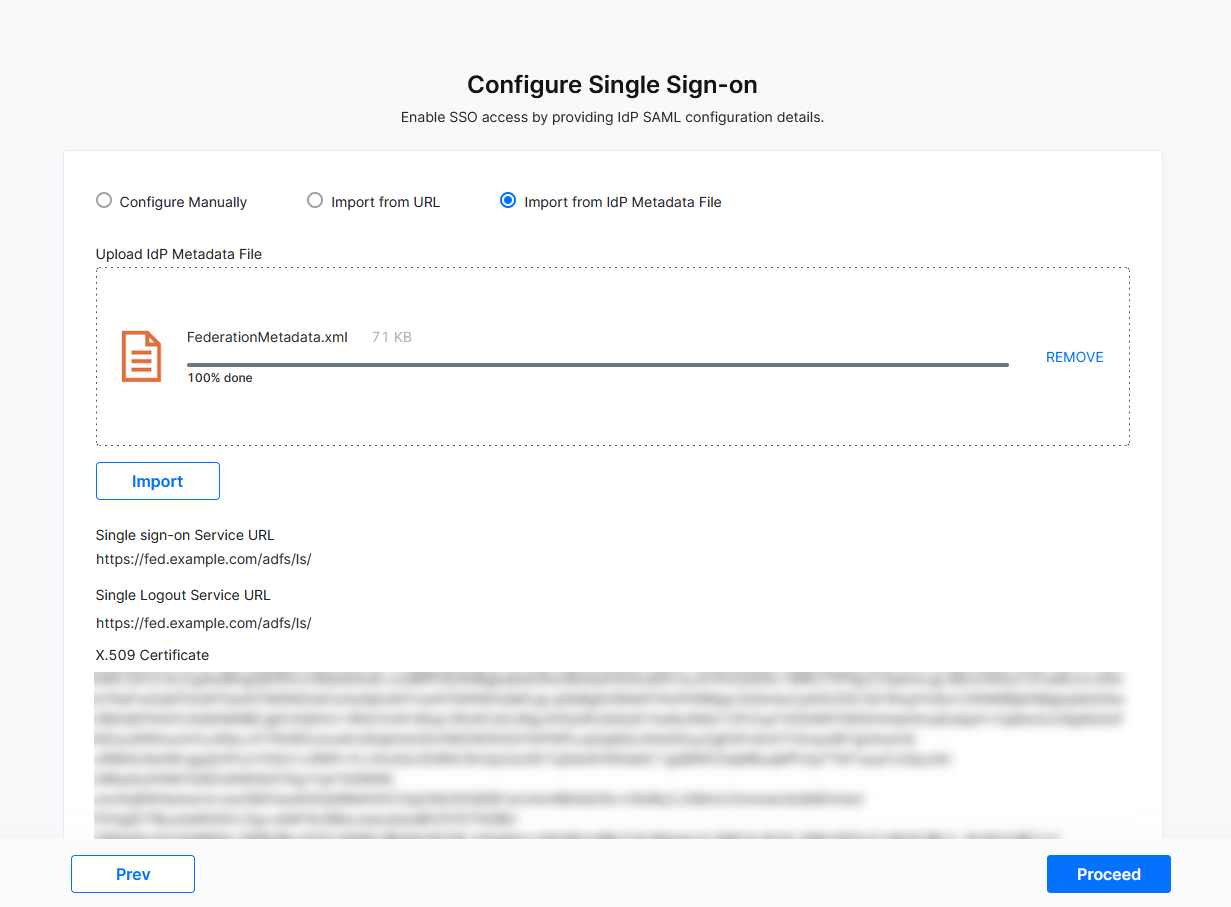
Upload the AD FS Federation Metadata XML document and click Import. Details such as your Single Sign-on Service URL, Single Logout Service URL, and X.509 Certificate are auto-populated after you import the document.
- Click Next.
2. Import/Add Users
You can either import users from Microsoft Active Directory via LDAP or manually add users to the platform. On the Import/Add users screen, do one of the following:
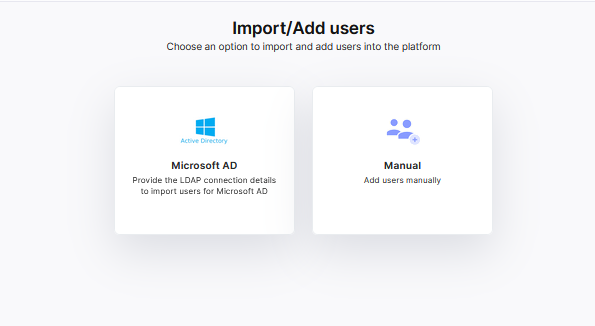
Import Users
-
Click Import Users
On the Import/Add Users screen, click Import Users and then click Proceed.

Note:
Before you try importing users from Microsoft Active Directory, make sure you are connected to your enterprise Virtual Private Network (VPN).
-
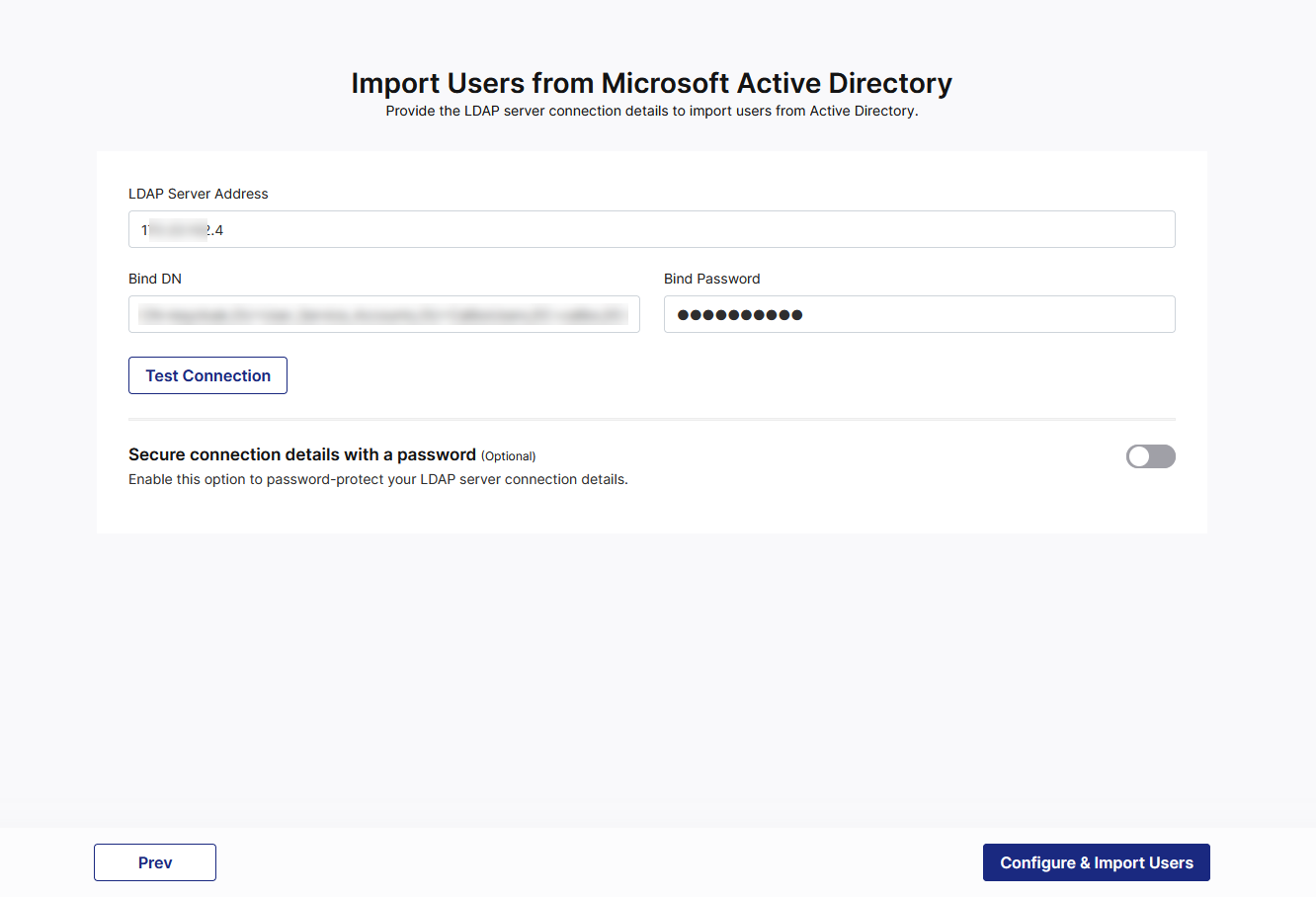
Provide LDAP Connection Details
Enter the following details to establish the connection:-
LDAP Server Address: The IP address or host name of your organization's LDAP server.
-
Bind DN: The Distinguished Name (DN) that is used to bind and authenticate with the LDAP server.
-
Bind Password: The password for the Bind DN.
-
-
Test the LDAP Connection
Click Test Connection to validate the connection details that you have configured. This ensures that Calibo Accelerate can communicate with your Active Directory and fetch user data. -
Configure & Import Users
Click Configure & Import Users to proceed. -
Select Users to Add to the Platform
A list of users imported from Microsoft Active Directory is displayed. Select the appropriate boxes for the users you want to add to the Calibo Accelerate platform. In the search box, you can search for a user by their name or email address. Additionally, you can apply a country filter to narrow down the results.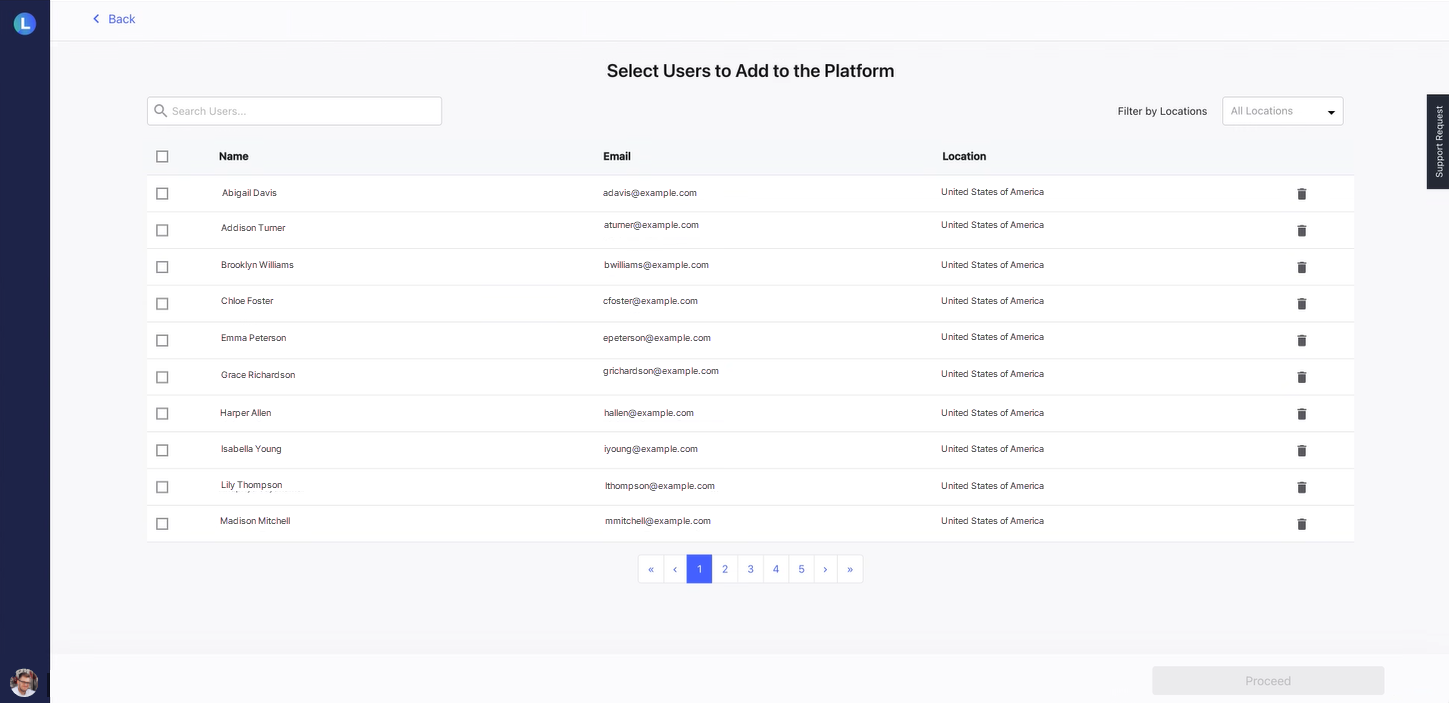
After you select all the intended users, click Proceed. It's time to choose administrators.
Add Users Manually
To add users manually, do the following:
-
On the Import/Add Users screen, click Add Users Manually, and click Next.
-
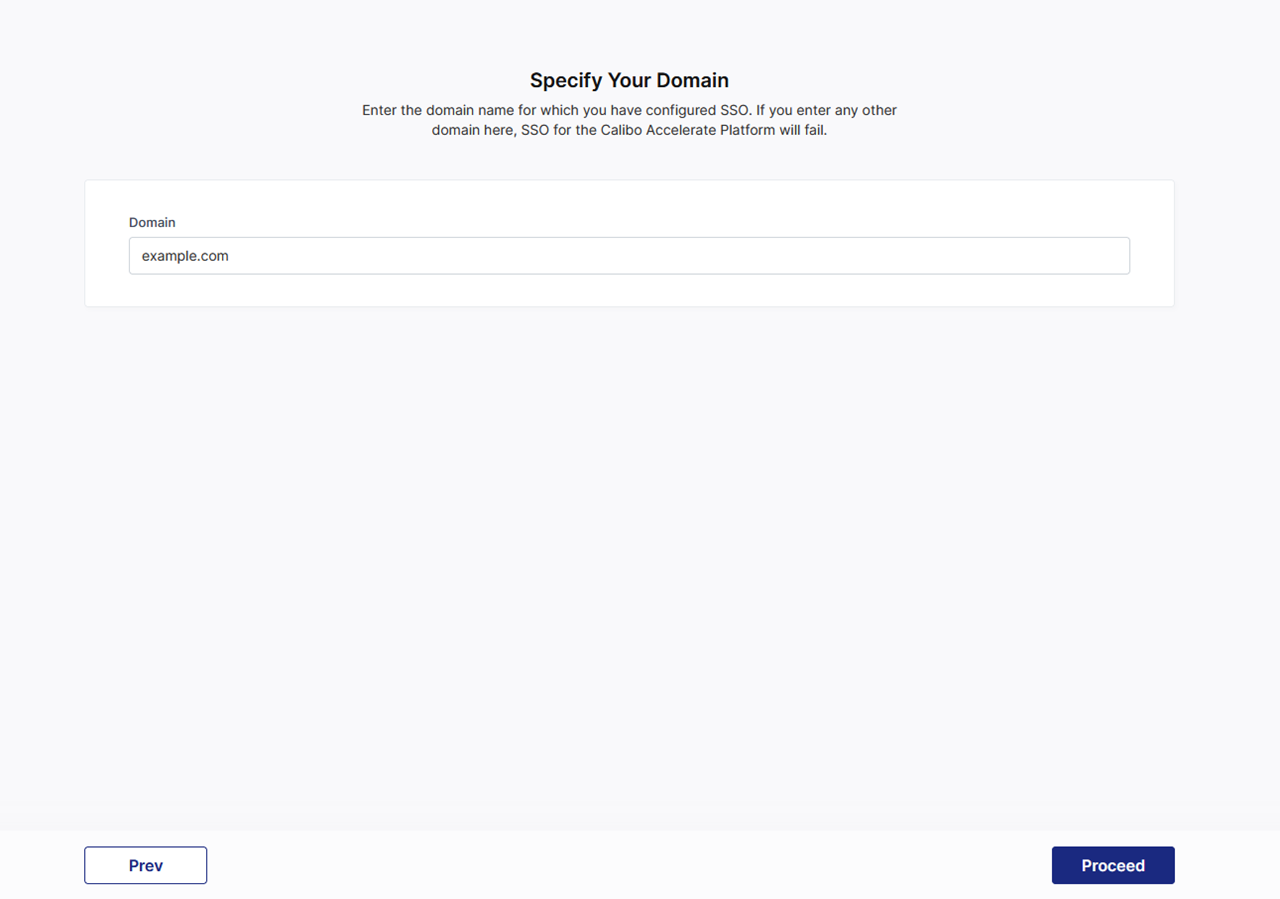
On the Specify Your Domain screen, enter the domain name for which you have configured SSO.
If you enter any other domain here, SSO for the Calibo Accelerate platform will fail. -
Click Proceed.
-
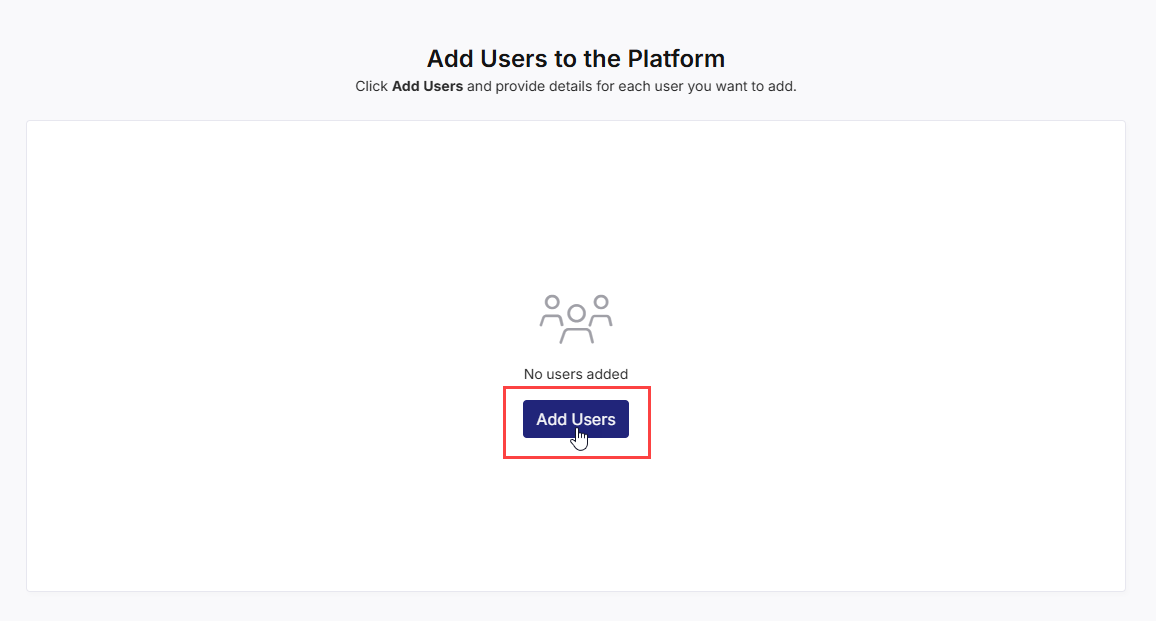
On the Add Users to the Platform screen, click Add Users.
-
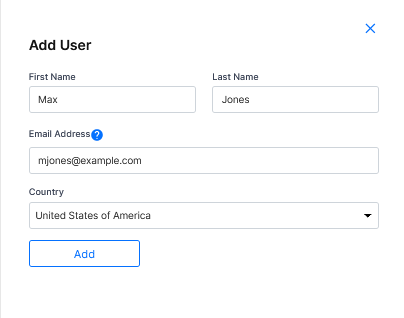
In the side drawer, enter the user details, including their first name, last name, a valid email address, and select the country. Then, click Add.
-
After you add all the intended users, click Next. It's time to choose administrators.
3. Select Administrators
-
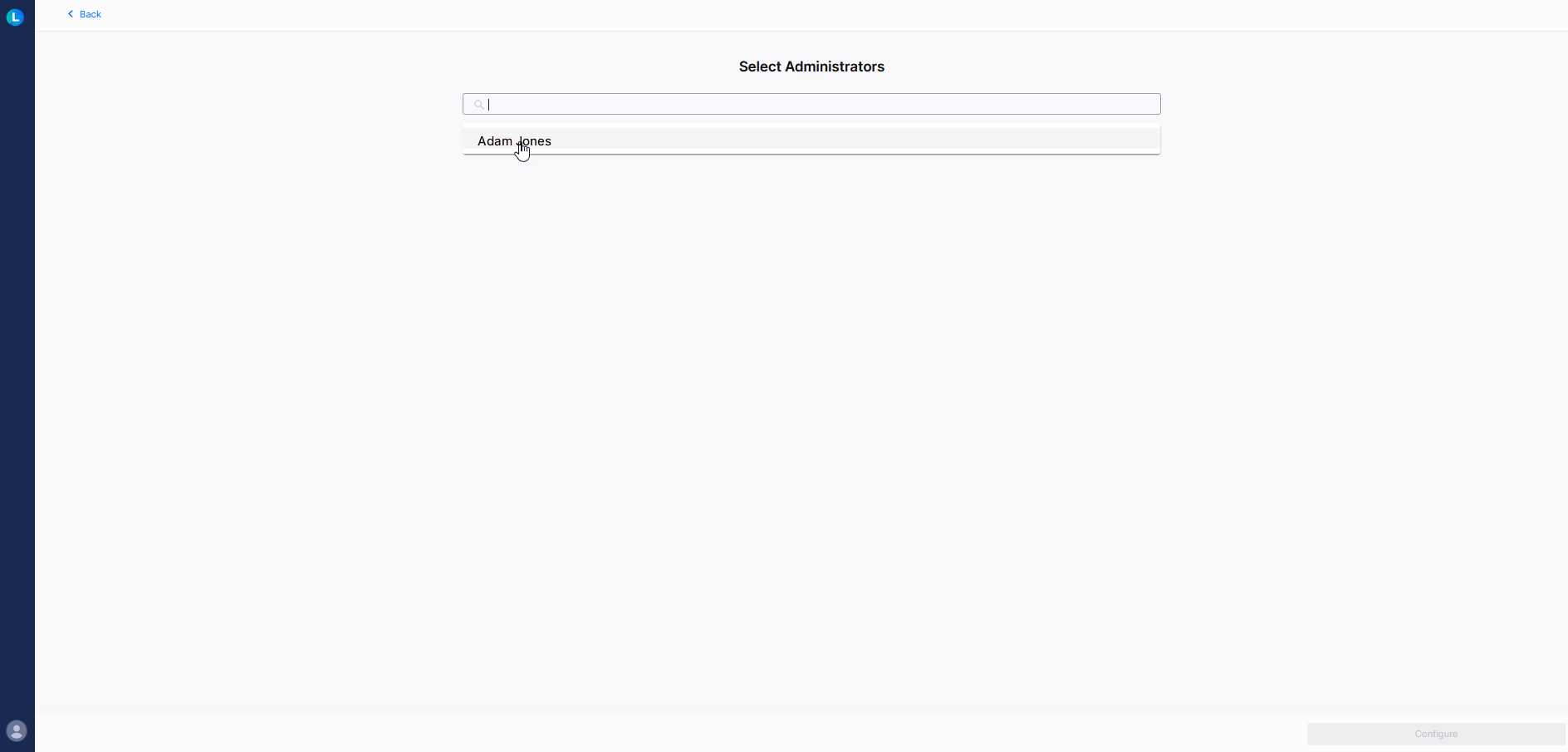
On the Select Administrators screen, in the search box, you see all the users that you added in the previous step. Start the name of the user you want to designate as a Tenant Administrator.
-
After you select all the intended administrators, click Next.
4. Review Platform Users
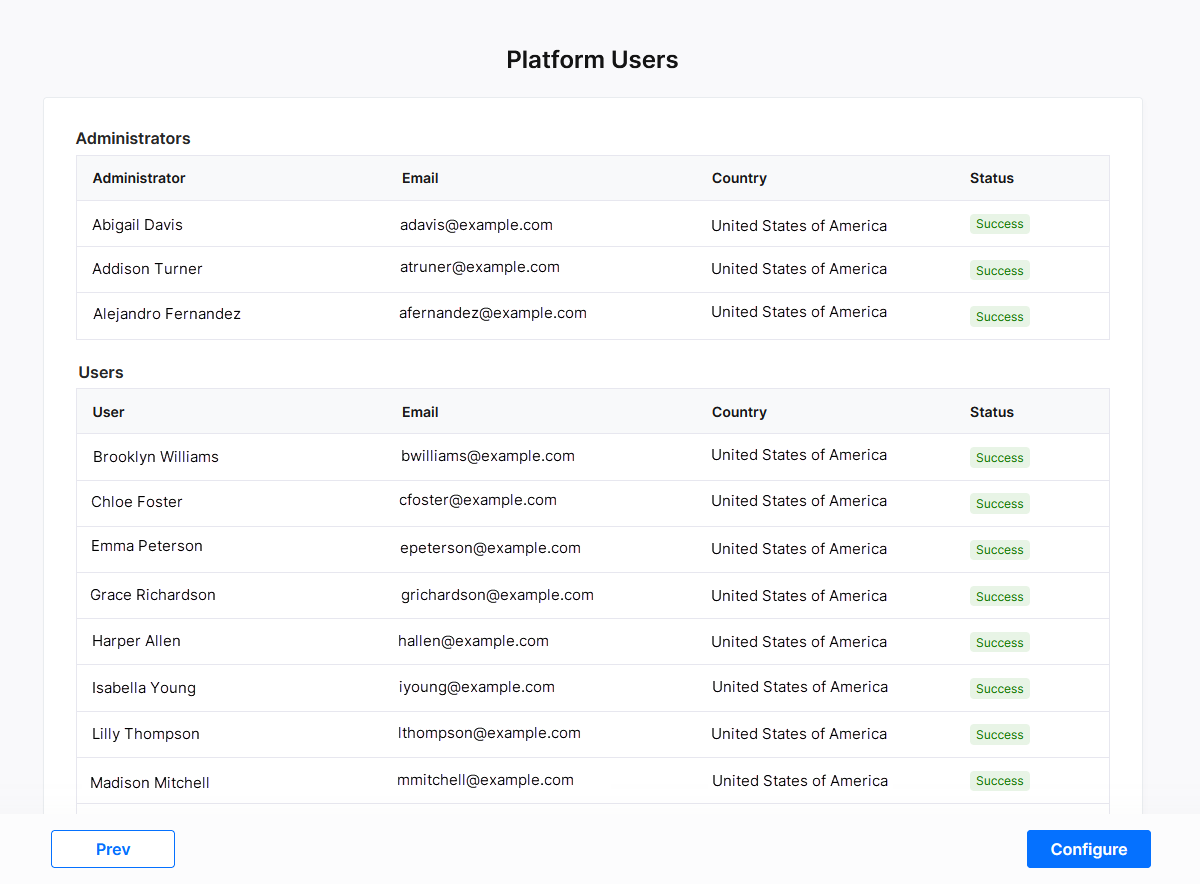
The Platform Users screen displays the list of all the administrators and users you chose to add to the Calibo Accelerate platform in the previous steps. The details such as each user's name, email address, and country are displayed. The Status column indicates whether the user was successfully added or if there was an issue. In case of failure, review the error messages and take the necessary action.
You can go back to the previous screen to make any changes or click Configure to finish adding users to the Calibo Accelerate platform.
5. Create AD FS Relying Party Trust
After you click Configure in the previous step, the SSO configuration in the Calibo Accelerate platform interface is complete and the federation metadata file is available for download.
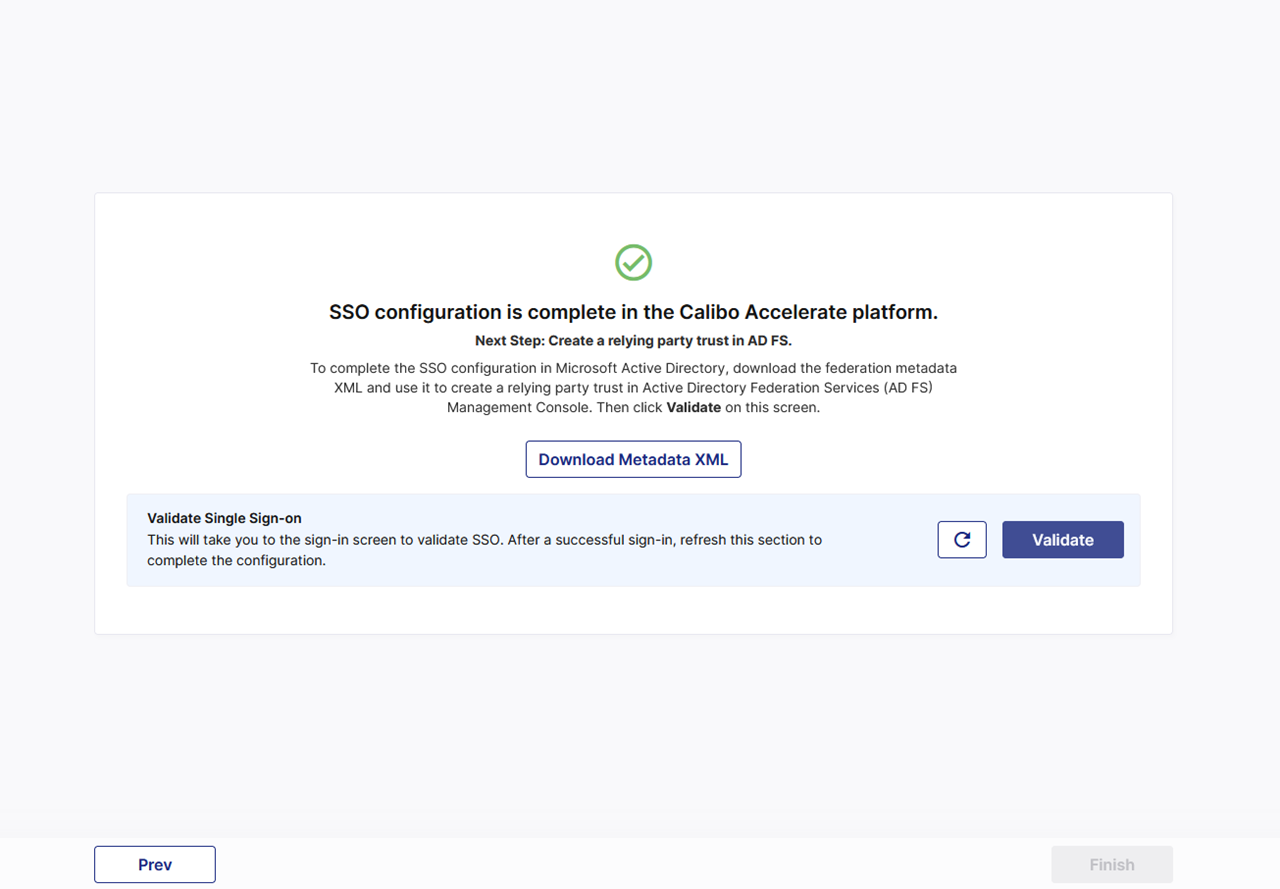
To complete the SSO configuration in Microsoft Active Directory, download and save the federation metadata XML file.
Create a relying party trust in the Active Directory Federation Services (AD FS) Management Console by using the downloaded XML file. This establishes a trust relationship between the Calibo Accelerate platform and your Active Directory Federation Services (AD FS) instance. This trust allows AD FS to authenticate users on behalf of the Calibo Accelerate platform. For more details, see Creating a Relying Party Trust in the AD FS Management Console.
6. Validate Single Sign-on
-
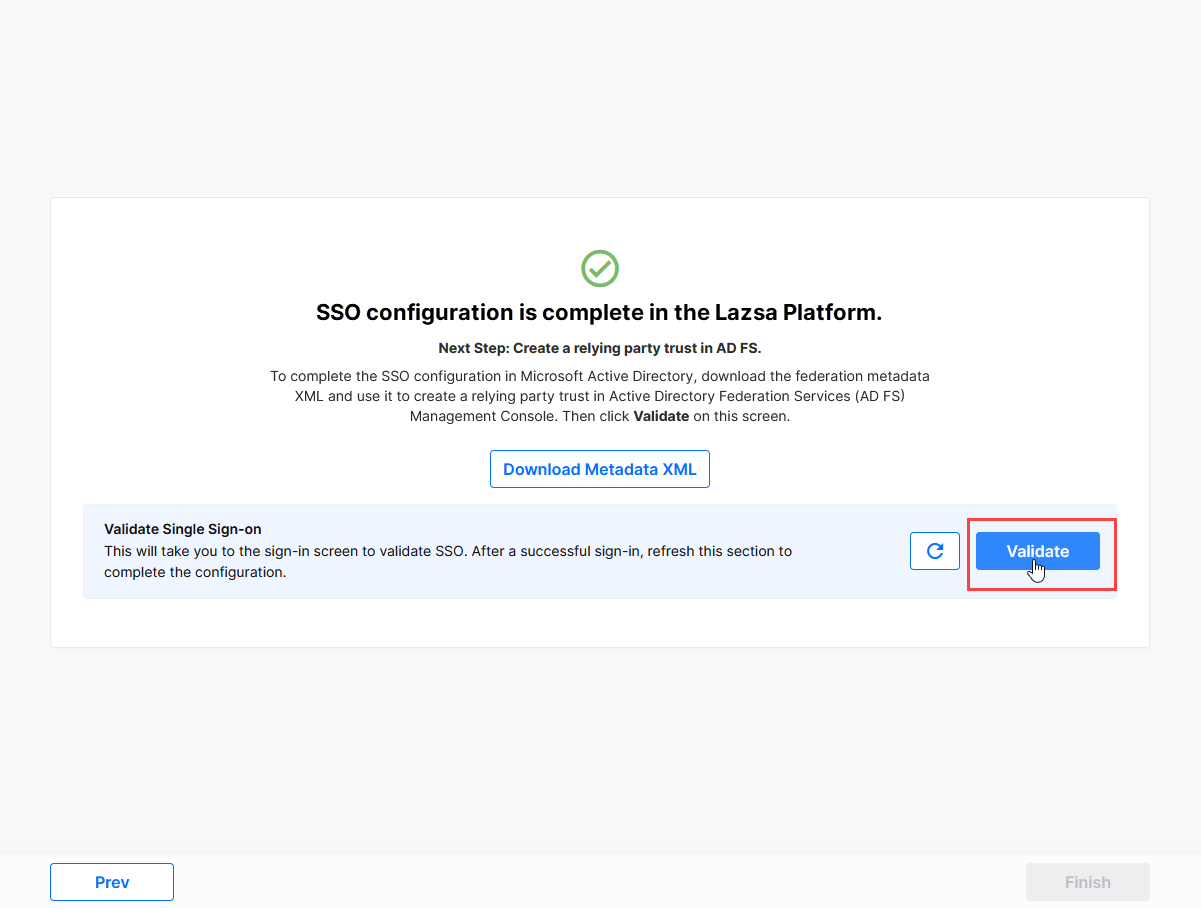
After you create the AD FS relying party trust for the Calibo Accelerate platform successfully, on the screen from where you downloaded the federation metadata XML file, in the Validate Single Sign-on section, click Validate.
-
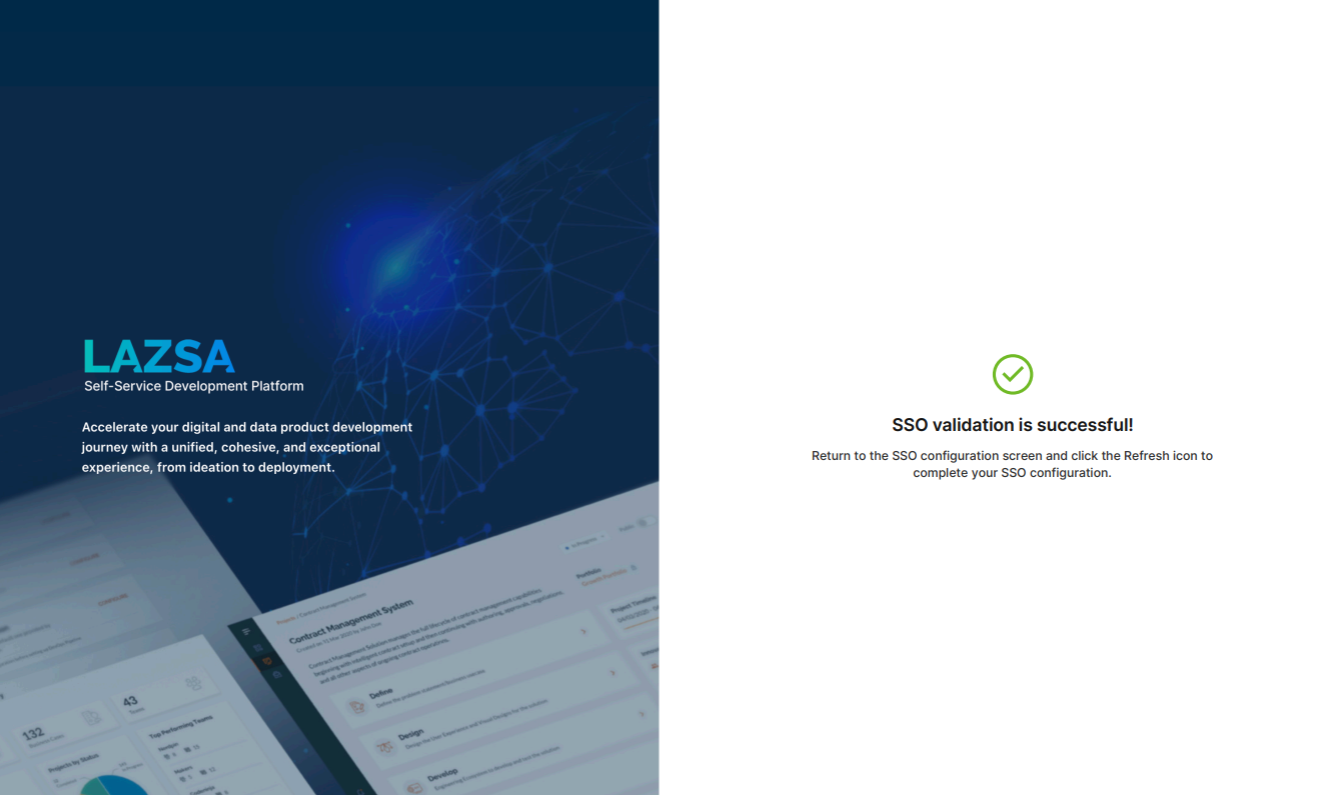
This takes you to the Calibo Accelerate platform sign-in screen. Use SSO credentials for user authentication. After a successful authentication redirection and SSO validation, the following success message is displayed.
-
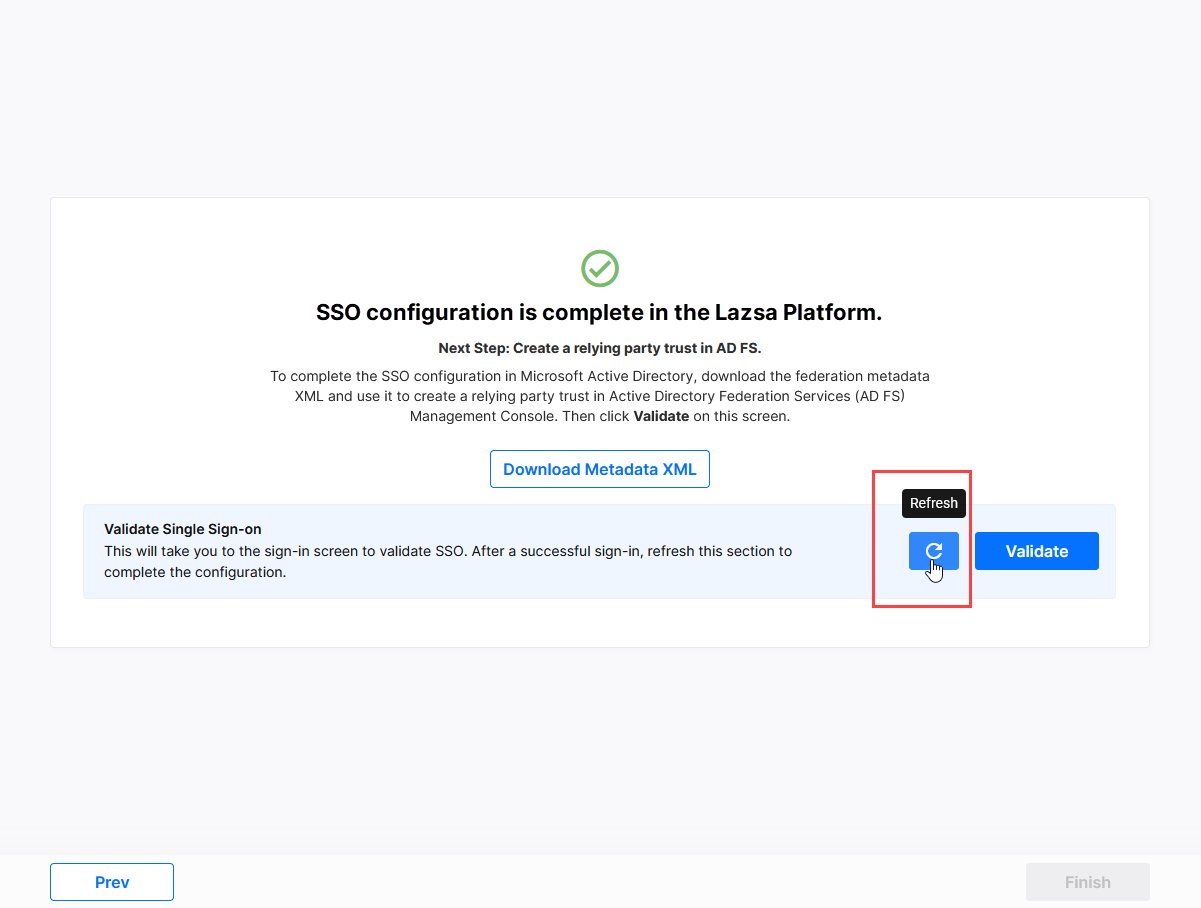
Return to the SSO configuration screen and click the Refresh icon to complete your SSO configuration.
-
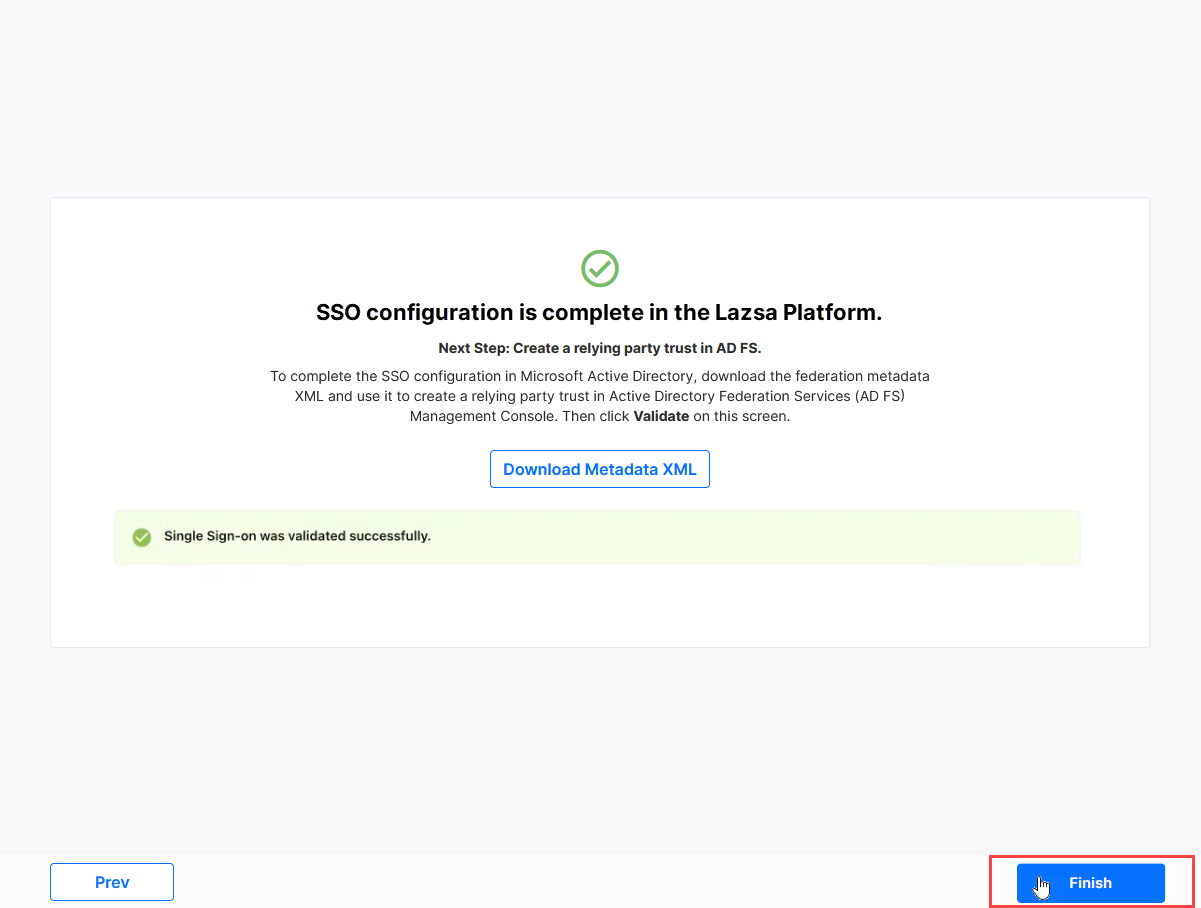
After you see the message confirming that your SSO validation is successful, click Finish to complete the configuration in the F24H wizard.
Note:
After you click Finish and exit the F24H wizard, the credentials using which you signed in to the F24H wizard will not work anymore. The administrator(s) that you selected in the earlier step can sign in to the Calibo Accelerate platform by using SSO credentials, add more users to the platform, and perform other administrative tasks.