Enforce a Policy Template
You can enforce a policy template separately to each product or enforce a common policy template to the entire portfolio. If you enforce a policy template at the portfolio level, it is applied to all the products associated with the portfolio.

Note:
Before you enforce a policy template, ensure that in the Policy Templates section in General Settings, you have selected the desired option to associate a policy template at a product or portfolio level.
Enforce a Policy Template on a Product
A user with permissions to create or edit a product in the Calibo Accelerate platform can enforce a published policy template on a product. The user must have access to the template to apply it.
To enforce a policy template on a product, while creating or editing that product, on the Others tab, in the Policy Template (Optional) field, you see the following templates:
-
Default template (if a template is marked as default)
-
Templates you have created
-
Templates to which you have been added as an Administrator.
Select the desired policy template and save the product details.
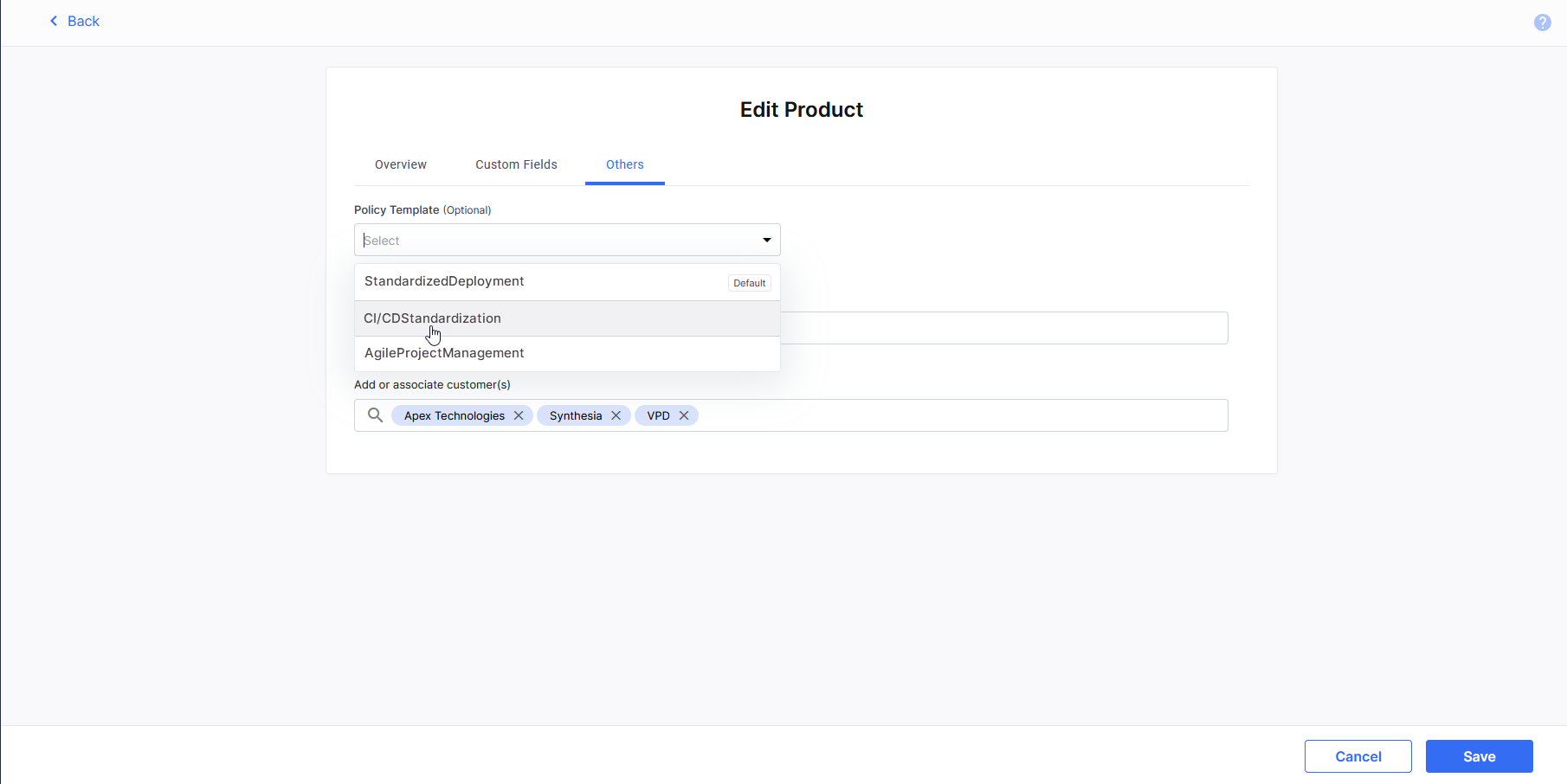
Note:
The Policy Template (Optional) field is disabled if your administrator has configured a global setting to apply a policy template at the portfolio level, or you do not have access to the policy template already assigned to the product. For any questions, please contact your administrator.
After a template is enforced, the tools, technologies, deployment modes, and deployment stages that are configured in the template are available to users and teams working on that product.
This serves as a guardrail for product teams, ensuring adherence to organizational policies and regulations.
Enforce a Policy Template on a Portfolio
By enforcing a policy template on a portfolio, you can ensure consistency in tools, technologies, and processes used across all products within that portfolio, maintaining a uniform standard.
A user with permissions to create or edit a product portfolio in the Calibo Accelerate platform can enforce a published policy template on a product portfolio. The user must have access to the template to apply it.
To enforce a policy template on a product portfolio, while creating or editing that portfolio, on the Overview tab, in the Policy Template (Optional) field, you see the following templates:
-
Default template (if a template is marked as default)
-
Templates you have created
-
Templates to which have been added as an Administrator.
Select the desired policy template and save the portfolio details.
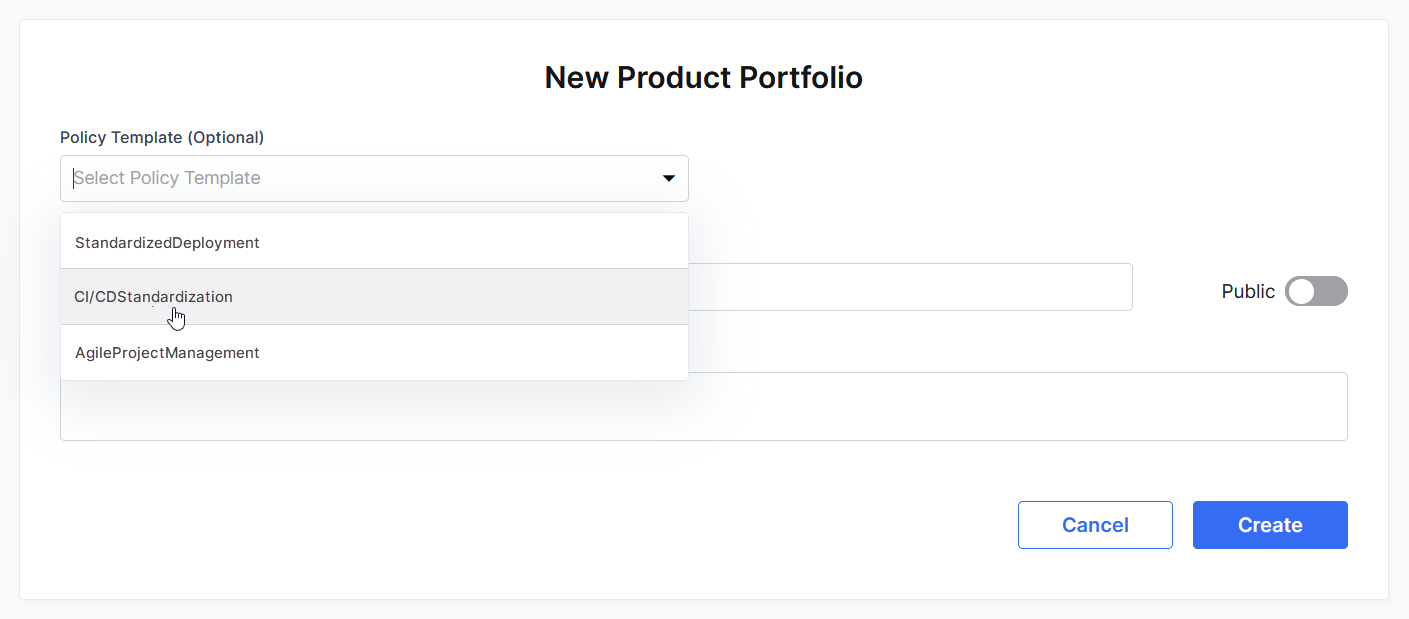
Note:
The Policy Template (Optional) field is disabled if your administrator has configured a global setting to apply a policy template at the product level, or you do not have access to the policy template already assigned to the portfolio. For any questions, please contact your administrator.
After a template is enforced, the tools, technologies, deployment modes, and deployment stages that are configured in the template are available to users and teams working on all the products associated with that portfolio.
This serves as a guardrail for product teams, ensuring adherence to organizational policies and regulations and standardization of tools and technologies across the organization.
 Recommended Topics Recommended Topics
|
What's next? Review Usage Details of a Policy Template |