Change Identity Provider: Configure SSO with Microsoft Active Directory
If your organization is moving from the current Identity Provider (IdP) to Microsoft Active Directory (AD) for user authentication, you can update the configuration using the Change Identity Provider option in the Security & SSO section.
This allows you to integrate Calibo Accelerate with your on-premises Active Directory for centralized access control and authentication.
In the following sections, review the prerequisites and configuration steps carefully before modifying your existing IdP settings.
Prerequisites
Download the AD FS Federation Metadata XML document from the AD FS management console
To configure SSO using Microsoft Active Directory, you need the Active Directory Federation Services (AD FS) Federation Metadata XML document. This document contains all the information required by the Calibo Accelerate platform to contact the AD FS server.
To download the federation metadata XML, do the following:
-
Sign in to the ADFS server and open the management console.
-
In the AD FS folder in the left pane, expand Services and click Endpoints.
-
In the Metadata section, locate the entry of the type Federation Metadata with the URL path ending in
/federationmetadata/2007-06/federationmetadata.xml. Copy this URL. -
Append your domain to the copied URL. The URL format should look like this:
https://{domain-name}/federationmetadata/2007-06/federationmetadata.xml -
Paste the adjusted URL into a browser’s address bar and press Enter.
-
Download the file and save it to your computer.
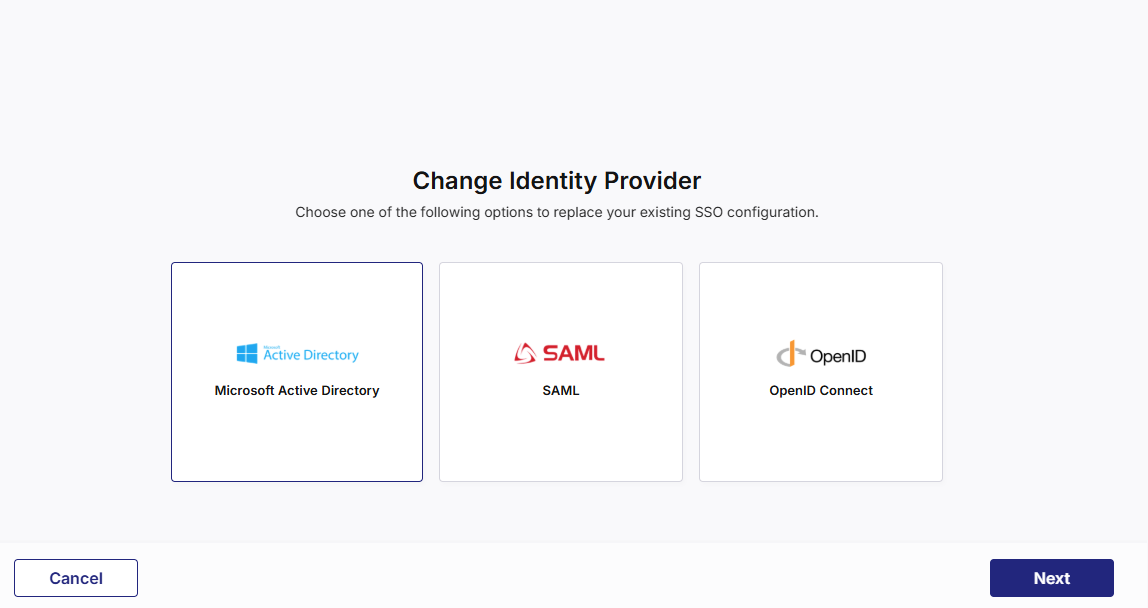
To configure user authentication by using Microsoft Active Directory, on the Change Identity Provider screen, select Microsoft Active Directory, click Next, and then, do the following:
1. Configured Domain
When switching IdPs, the domain field is auto-populated with the domain that was used in your previous configuration.
You cannot edit this field — Calibo enforces the same domain to ensure continuity of user identity mapping.
Select the following checkbox:
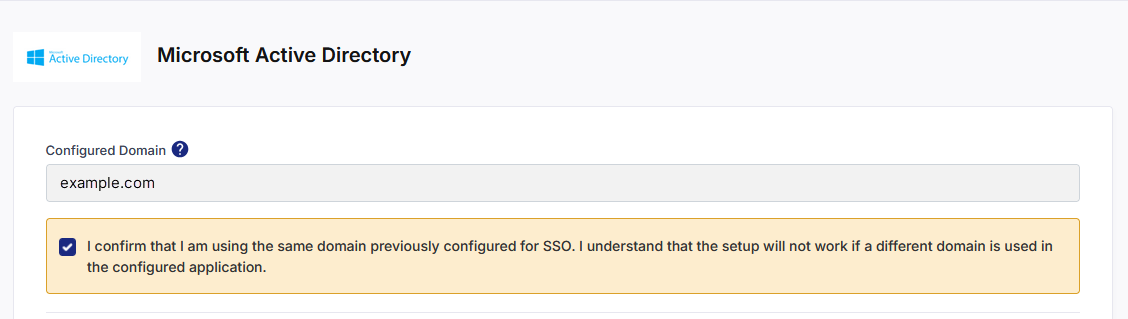
2. Configure SSO Details
In this section, you need to provide the SAML configuration details of Microsoft Active Directory. This allows users to securely sign in to the Calibo Accelerate platform by using their existing credentials via SSO. Do the following:
Configure SSO details by using one of the following options:
 Configure Manually
Enter the following parameters manually:
Single Sign-on Service URL: The URL where authentication requests are sent.
Single Logout Service URL: The URL to handle single logout requests.
X.509 Certificate: The certificate that validates SAML messages from Microsoft Active Directory.
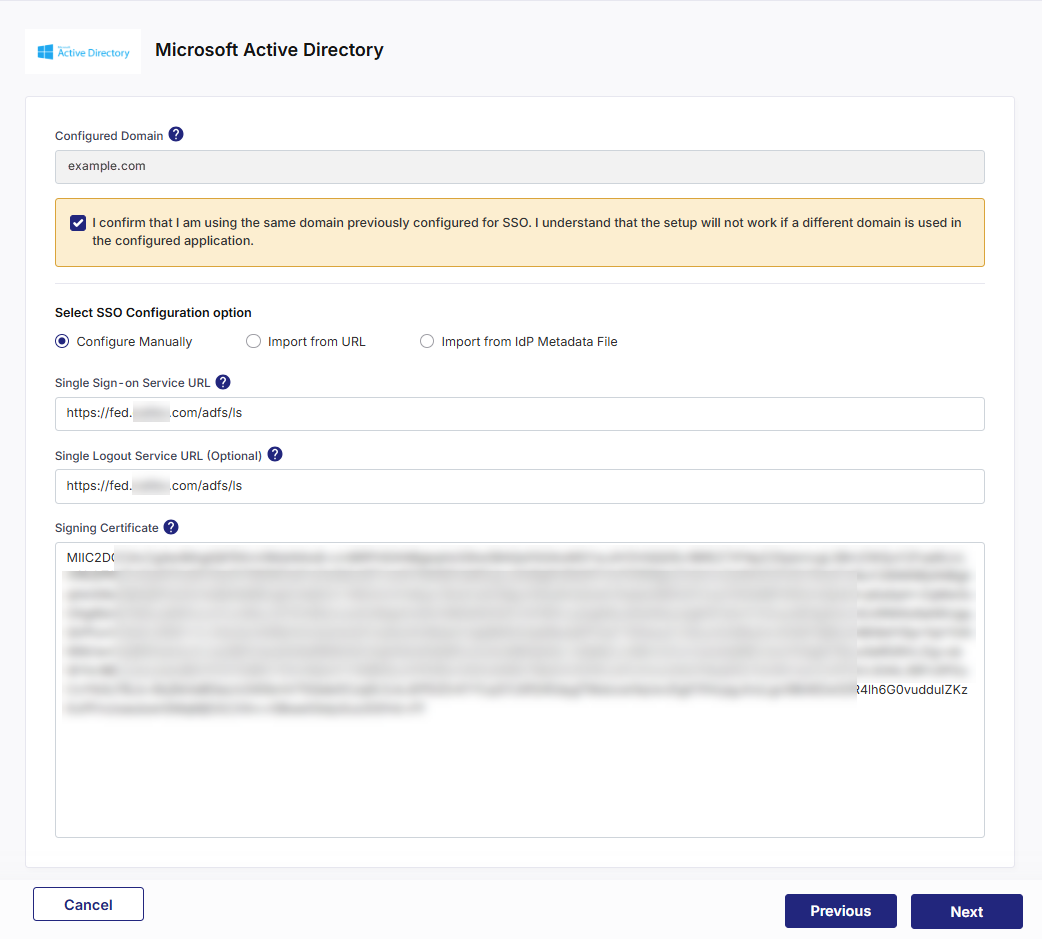 Import from URL
Enter the URL of the AD FS Federation Metadata XML file and click Import.
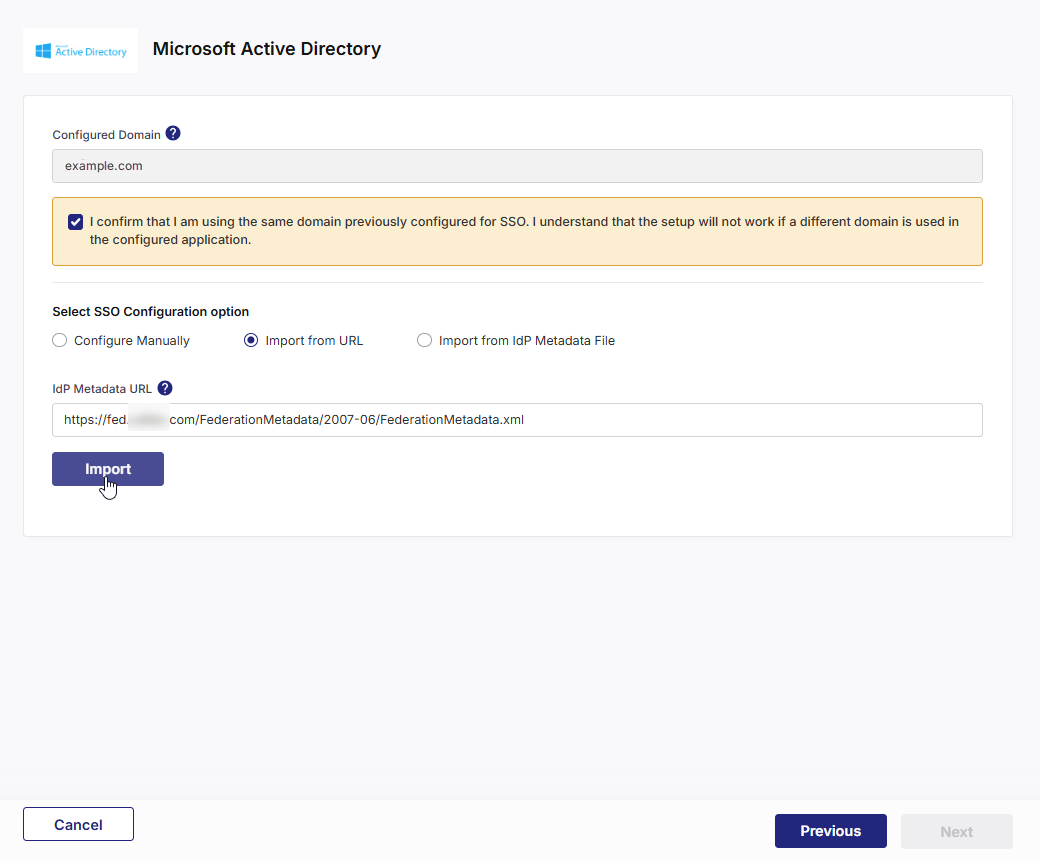
Details such as your Single Sign-on Service URL, Single Logout Service URL, and X.509 Certificate are auto-populated after you import the XML file.
Import from IdP Metadata FileUpload the AD FS Federation Metadata XML document and click Import.
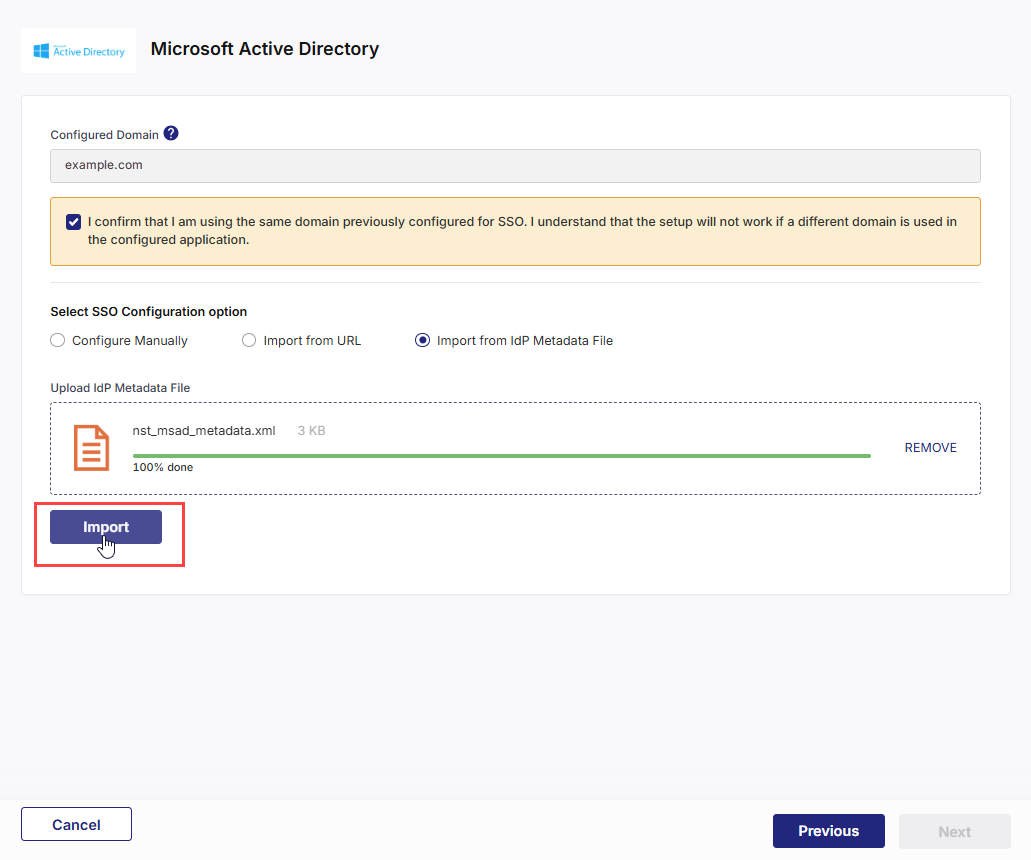
Details such as your Single Sign-on Service URL, Single Logout Service URL, and X.509 Certificate are auto-populated after you import the document.
Click Previous to return to the previous screen.
Click Next to proceed.
Click Cancel and then, in the confirmation message, click Yes to discard your unsaved identity provider configuration changes and go back to the previous screen.
3. Create AD FS Relying Party Trust
At this stage, the SSO configuration updates in the Calibo Accelerate platform interface are complete and the federation metadata file is available for download.
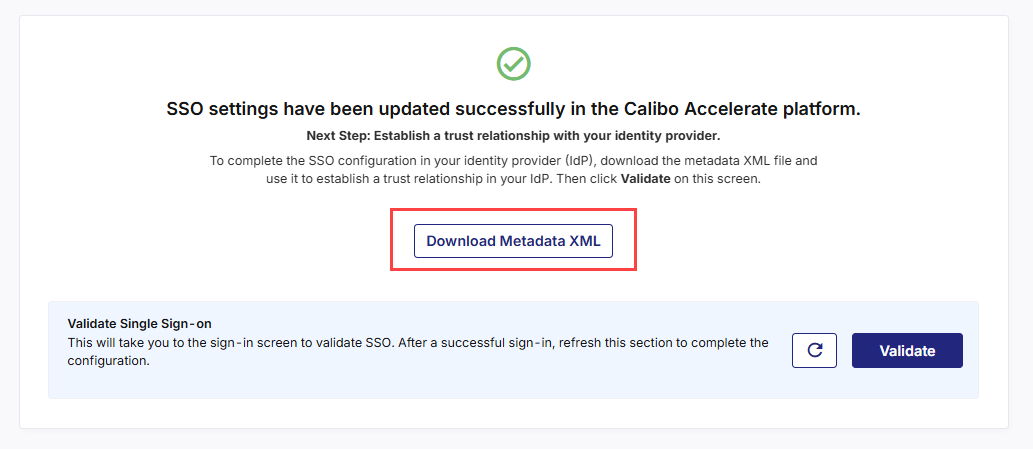
To complete the SSO configuration in Microsoft Active Directory, download and save the federation metadata XML file.
Create a relying party trust in the Active Directory Federation Services (AD FS) Management Console by using the downloaded XML file. This establishes a trust relationship between Calibo Accelerate and your Active Directory Federation Services (AD FS) instance. This trust allows AD FS to authenticate users on behalf of Calibo Accelerate.
For more details, see Creating a Relying Party Trust in the AD FS Management Console.
4. Validate Single Sign-on
-
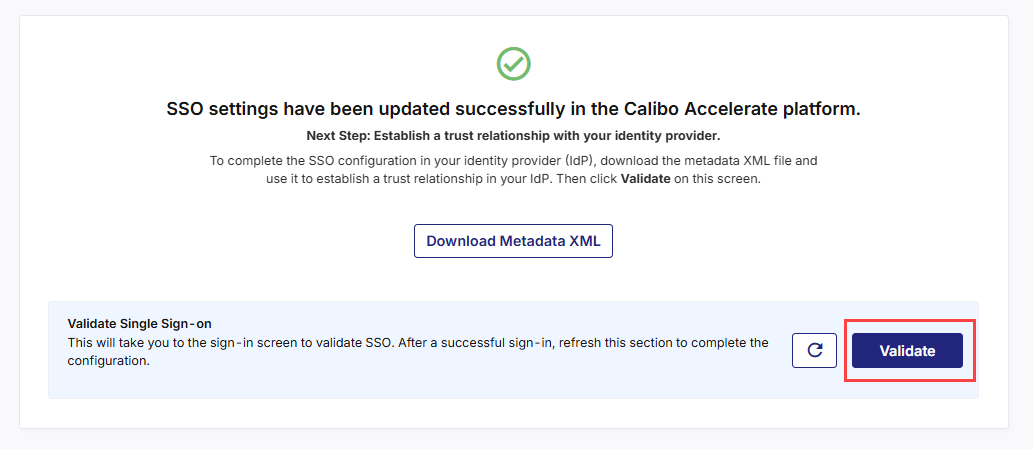
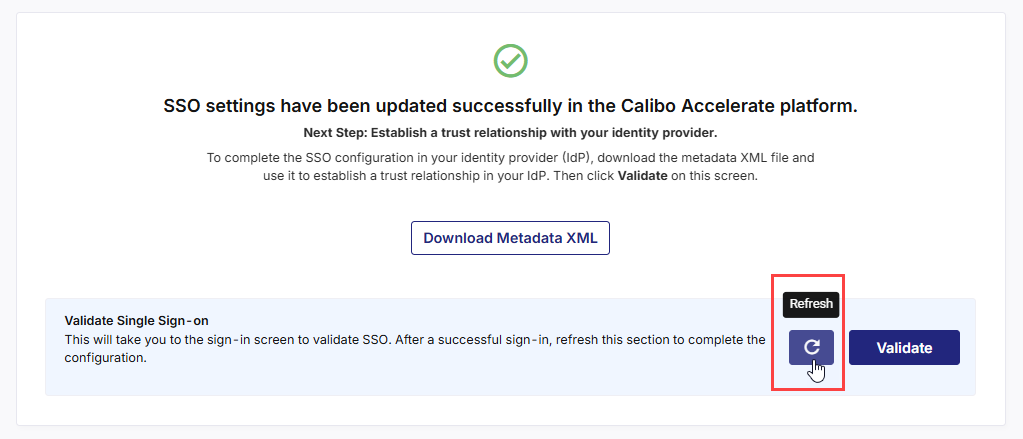
After you create the AD FS relying party trust for Calibo Accelerate successfully, on the screen from where you downloaded the federation metadata XML file, in the Validate Single Sign-on section, click Validate.
-
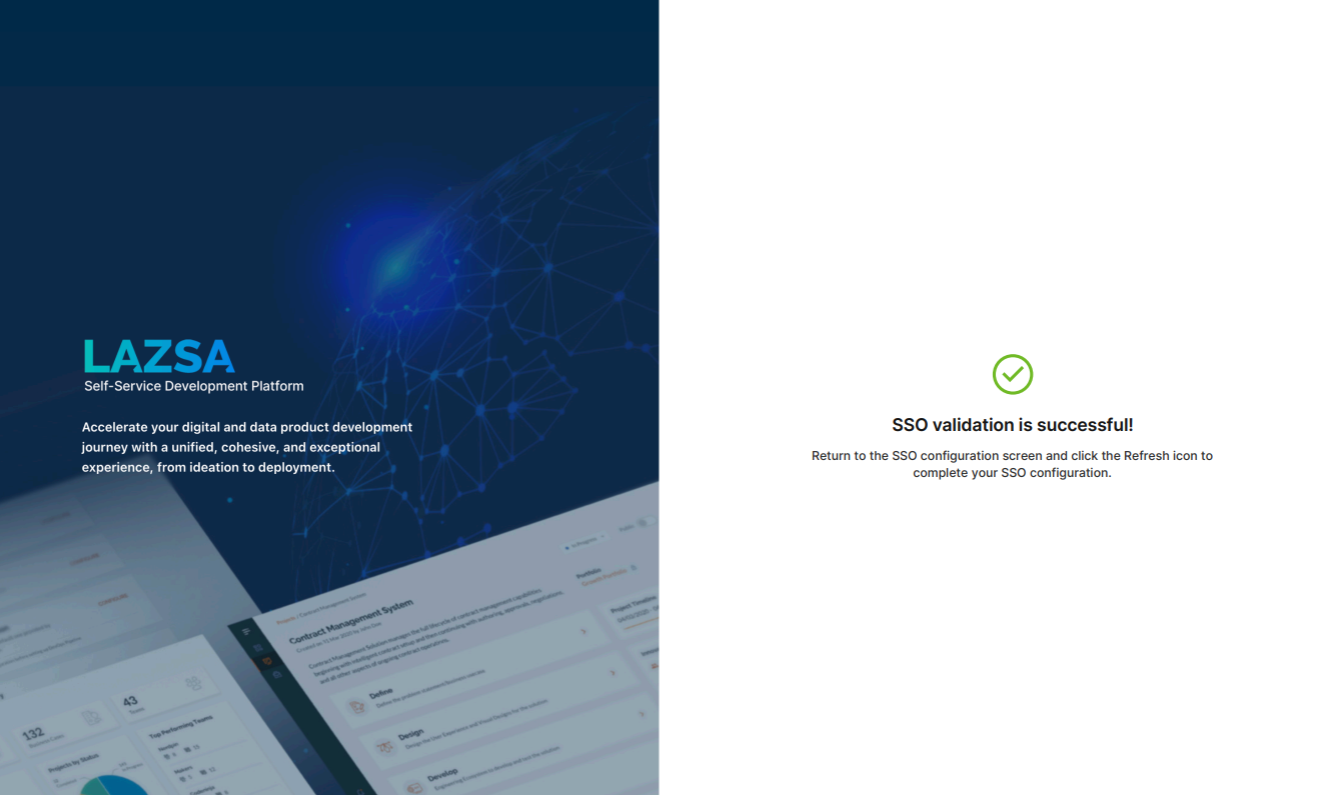
This takes you to the Calibo Accelerate platform sign-in screen. Use SSO credentials for user authentication. After a successful authentication redirection and SSO validation, the following success message is displayed.
-
Return to the SSO configuration screen and click the Refresh icon to complete your SSO configuration.
-
After you see the message confirming that your SSO validation is successful, click Finish to complete the configuration.
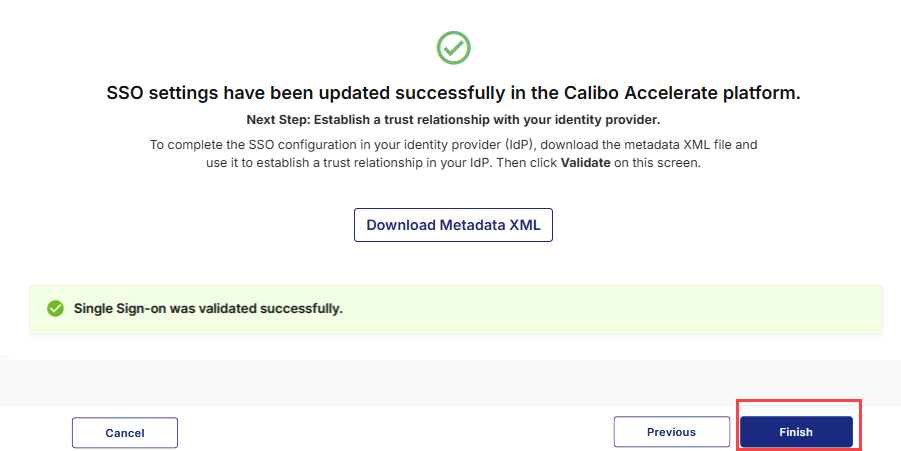
After you click Finish, your current session will automatically end. You will be logged out of the platform and will need to sign in again using the SSO credentials associated with your newly configured IdP.