Portfolio Audit Logs
The Calibo Accelerate platform provides a comprehensive audit logging system to track all actions performed on a product portfolio. These audit logs capture a wide range of portfolio-level and product-level activities, including (but not limited to) product creation, feature management, workflow approvals, and data pipeline operations.
All product-related activities are recorded in both Portfolio Audit Logs and Product Audit Logs, ensuring complete visibility across every stage of portfolio and product management. This structured audit trail strengthens transparency, security, compliance, and governance. It also helps you in risk management, anomaly detection, and efficient troubleshooting.
Viewing Portfolio Audit Logs
To access portfolio audit logs, follow these steps:
-
Sign in to the Calibo Accelerate platform and then, from the left navigation pane, click Product Portfolios.
-
Select the portfolio for which you want to check the audit history.
-
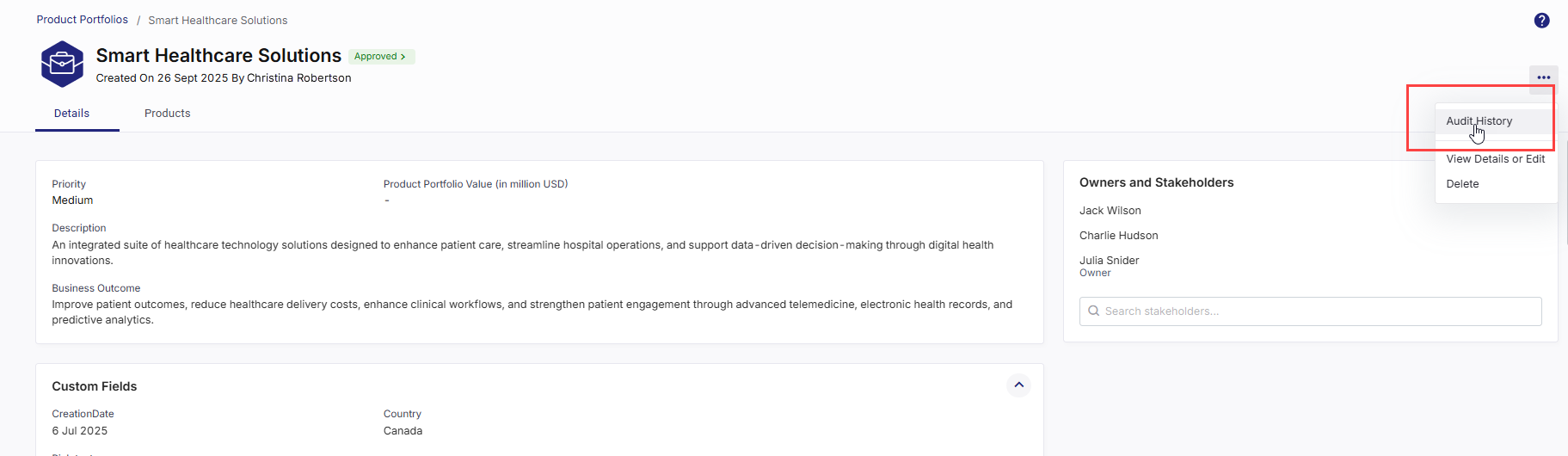
On the portfolio details screen, in the upper-right corner, click the ellipsis (...), and then in the dropdown menu, click Audit History.
-
On the Product Portfolio Audit Logs screen, events are listed in reverse chronological order, with the most recent events appearing first.
-
Data Fields
The following data fields provide key details about each logged event, helping users track and analyze product portfolio-related activities effectively:
-
Event Name: Displays the event name; sorted alphabetically by default. You can toggle sorting order for event names to arrange them alphabetically or in reverse.
-
Date & Time: The timestamp when the event was logged.
-
Summary: A brief description of the event.
-
Object Name: The specific entity associated with the event.
-
Initiated By: Name of the user who performed the action.
-
-
Additional Details
Click the expander arrow preceding the Event Name column to view additional details such as the portfolio to which the product belongs, feature name, release, stage, username, and change details in case of an update event. These additional details vary depending on the event.
-
Log Management and User Controls
Use the following features to efficiently search, filter, navigate, and export logs. These features enhance your audit log experience ensuring quick access to relevant information and better control over audit history.
-
Search and Filtering Options
To locate specific events quickly, use the following features:
-
Search Bar: To search logs related to a specific event, enter keywords from the event summary in the search bar.
-
Date Range Selection: The date range picker allows filtering logs based on a custom time period. By default, the date range is set to the last one week.
-
Events Filter: Select specific event types to refine the displayed records.
-
Objects Filter: Choose specific objects to view related event records.
-
Users Filter: Filter logs based on the user who initiated the event.
-
More Filters: Click More Filters to view additional filtering options such as Deployment Stage, Product, Design Document, Feature, Technology, and Release. Select the required criteria to refine event logs for a more targeted view..
Click Apply to apply selected filters and Reset to revert to default filter settings.
-
Records per screen: You can select 10, 25, 30, or 50 event records per screen.
-
Pagination: Navigate through multiple pages of logs using numbered page selectors.
-
-
Additional Actions:
-
Refresh Logs: Click the refresh icon
 in the upper-right corner to update logs with the latest events.
 -
Download Log Report:
-
Click the Download icon
 in the upper-right corner.
 -
In the Download Report side drawer, in the Report Name field, enter a suitable name for the report.
-
Click Generate to create the report.
-
In the Generated Reports section, find the report available for download in PDF or CSV format.
-
View 10, 25, 30, or 50 reports per screen. Pagination support is also available.
-
By leveraging portfolio audit logs, you gain a robust system for tracking, analyzing, and securing product portfolio-related activities, ensuring better governance, risk management, and accountability within the organization.
-
-
-