Publish Minimum Viable Data (MVD)
After an MVD has been successfully configured and validated, its Version Status changes to Ready to Publish. At this stage, the MVD can be published as a Data Asset. The publishing workflow depends on whether the current user is the Data Engineer who configured the MVD or another Data Engineer within the same product.
| User | Action | Outcome |
|---|---|---|
| Data Engineer who configured the MVD or a user with role stacking (Data Engineer + Product Owner) | Publish | Publishes the MVD directly as a Data Asset. |
| Another Data Engineer from the team. | Request to Publish | Submits a publish request for Product Owner approval before the MVD is published as a Data Asset. |
Publish an MVD Directly
If you are the Data Engineer who configured the MVD or a user with role stacking (Data Engineer + Product Owner), you can publish it directly.
Follow these steps to publish an MVD:
-
On the Minimum Viable Data screen, locate the required MVD.
-
Click View Details corresponding to the MVD.
-
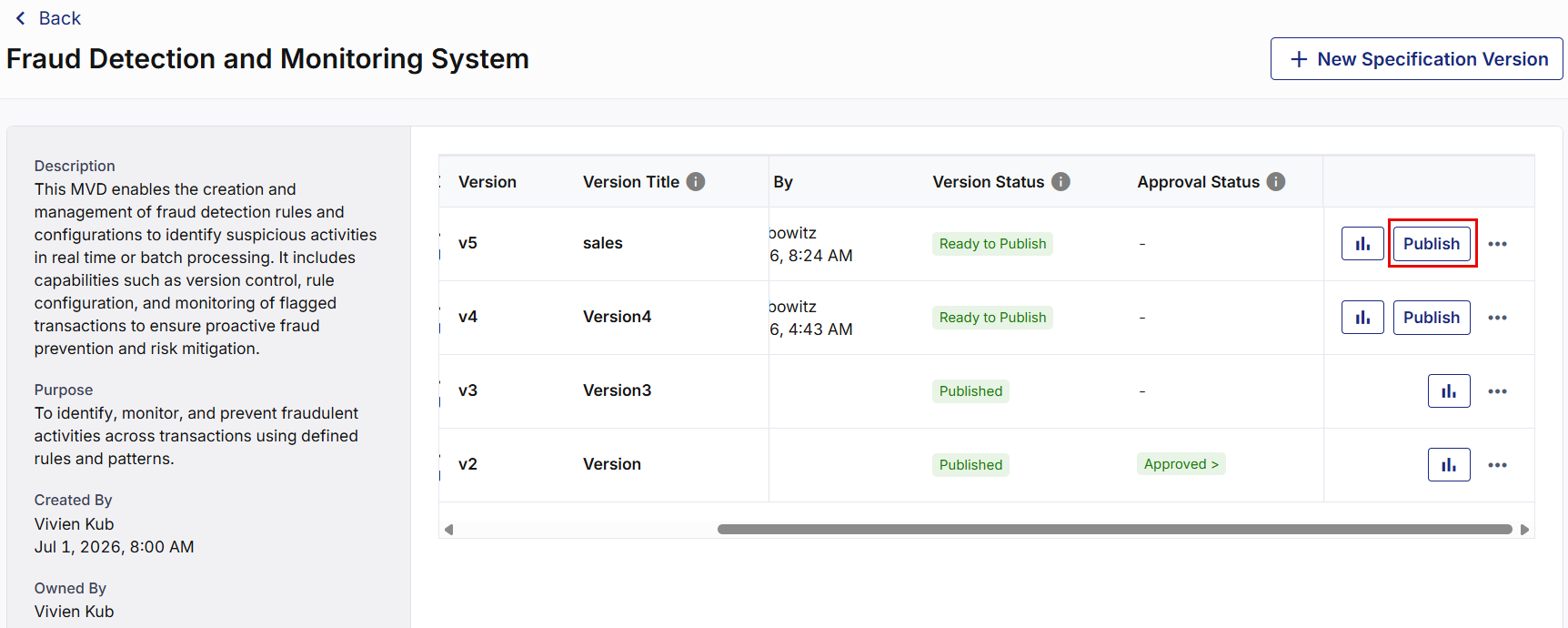
On the MVD Details screen, locate the required specification version. Verify that the Version Status is Ready to Publish.
-
Click Publish corresponding to the required version.
-
In the Publish MVD screen, review and configure the following details.
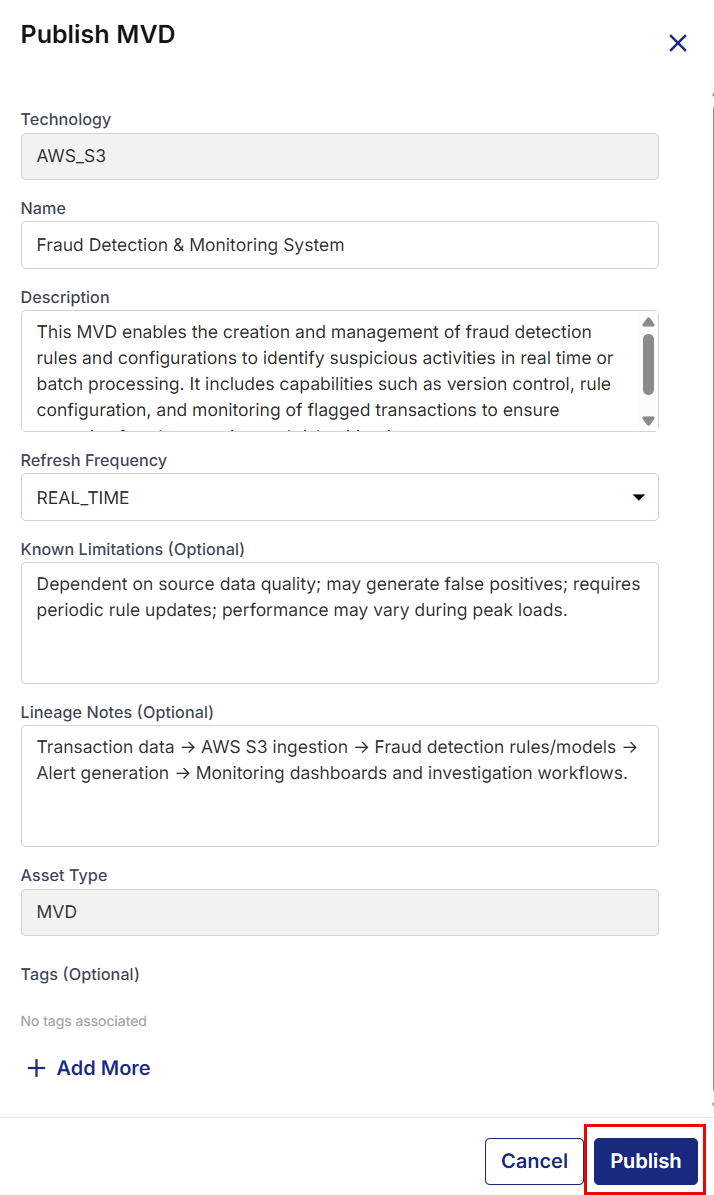
Field Description Technology Displays the target technology associated with the MVD. This field is read-only. Name Displays the Data Asset name. Modify the name if required. The asset name must be unique. Description Review or update the description of the Data Asset. Refresh Frequency Select the refresh frequency for the Data Asset (for example, REAL_TIME, or BATCH, frequency). Known Limitations (Optional) Enter any known limitations or constraints associated with the Data Asset. Lineage Notes (Optional) Provide additional lineage or implementation notes to help consumers understand the origin and processing of the data. Asset Type Displays the asset type as MVD. This field is read-only. Tags (Optional) Click + Add More to add one or more tags that help categorize and discover the Data Asset. -
After reviewing the information, click Publish.
-
In the confirmation dialog box, click Proceed.
-
The MVD is published as a Data Asset, the Version Status changes to Published, and the published version becomes the Active version.

Note:
You cannot delete an MVD specification version while it is the Active version.
-
The published MVD becomes available in the Data Lab > Data Assets catalog as a Not certified MVD asset.
Certify or Unpublish an MVD Data Asset
After an MVD is published as a Data Asset, its Publish Status is set to Published. A Product Owner can manage the published Data Asset by performing one of the following actions:
-
Certify – Marks the Data Asset as reviewed and approved for enterprise-wide consumption. The Certification Status changes from Not Certified to Certified.
-
Unpublish – Removes the published Data Asset from the platform, revokes its certification, and makes it unavailable for discovery and use.
These actions help ensure that only trusted and governed Data Assets are available for consumption across the organization.
To certify and unpublish a Data Asset, follow these steps:
-
Navigate to the Data Assets page by using either of the following methods:
-
From the required Product, click the ellipsis (…) and then click Data Assets.
-
From the left navigation pane, select Data Lab > Data Assets.
-
-
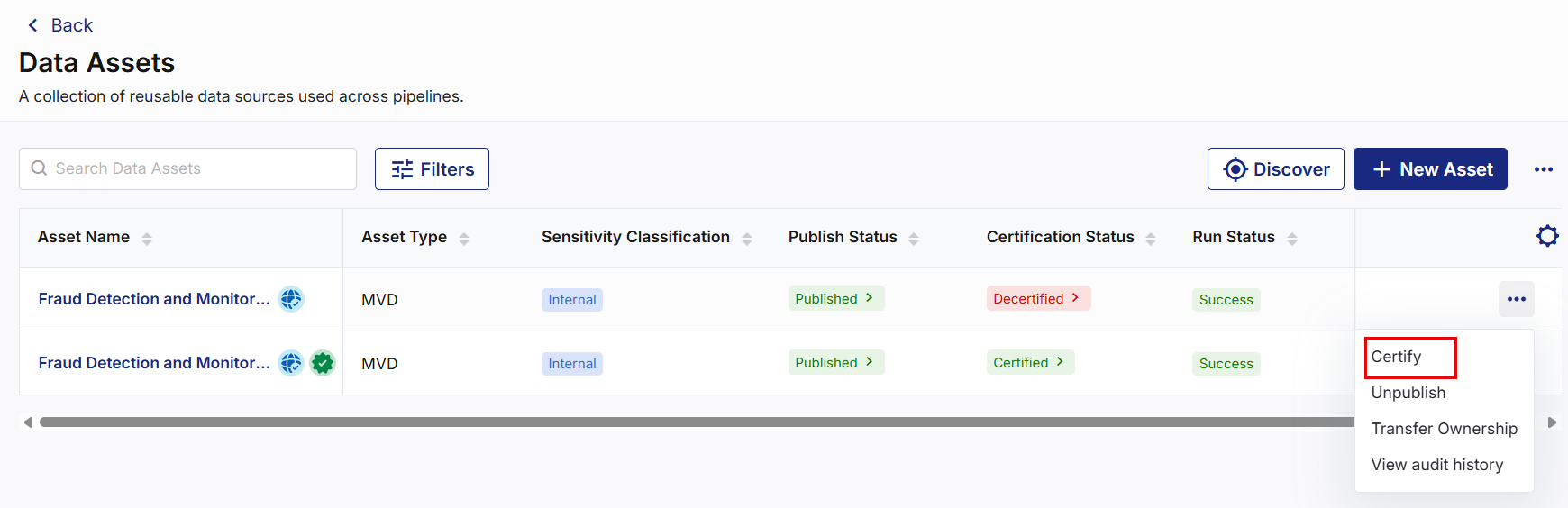
On the Data Assets page, locate the required published Data Asset.
-
Click the ellipsis (…) corresponding to the Data Asset.
Certify a Data Asset
-
From the ellipsis (…) corresponding to the required Data Asset, click Certify.
-
In the Certify Asset confirmation dialog, enter the reason for certifying the Data Asset.
-
Click Yes, Certify.
-
Your Data Asset is certified successfully and a Certified badge (
 ) is displayed next to the Data Asset name, indicating that the asset has been reviewed and certified.
Note:
The Certified badge indicates that the Data Asset has been reviewed and approved by the Product Owner and is ready for enterprise-wide consumption.
Unpublish a Data Asset
You may need to unpublish a Data Asset when it is no longer valid for use, contains incorrect or outdated information, has compliance or quality issues, or must be temporarily withdrawn from the platform until corrective actions are completed.
-
From the ellipsis (…) corresponding to the required Data Asset, click Unpublish.
-
Review the information displayed in the confirmation dialog.
-
Enter the reason for unpublishing the Data Asset.
-
Click Yes, Unpublish.
-
Your Data Asset is unpublished successfully.
Note:
A Certified Data Asset cannot be unpublished directly. You must Decertify the Data Asset first and then perform the Unpublish action.
-
Request to Publish an MVD
If you are not the Data Engineer who configured the MVD, you must submit Request to Publish for Product owner approval.
Follow these steps to publish an MVD:
-
On the Minimum Viable Data screen, locate the required MVD.
-
Click View Details corresponding to the MVD.
-
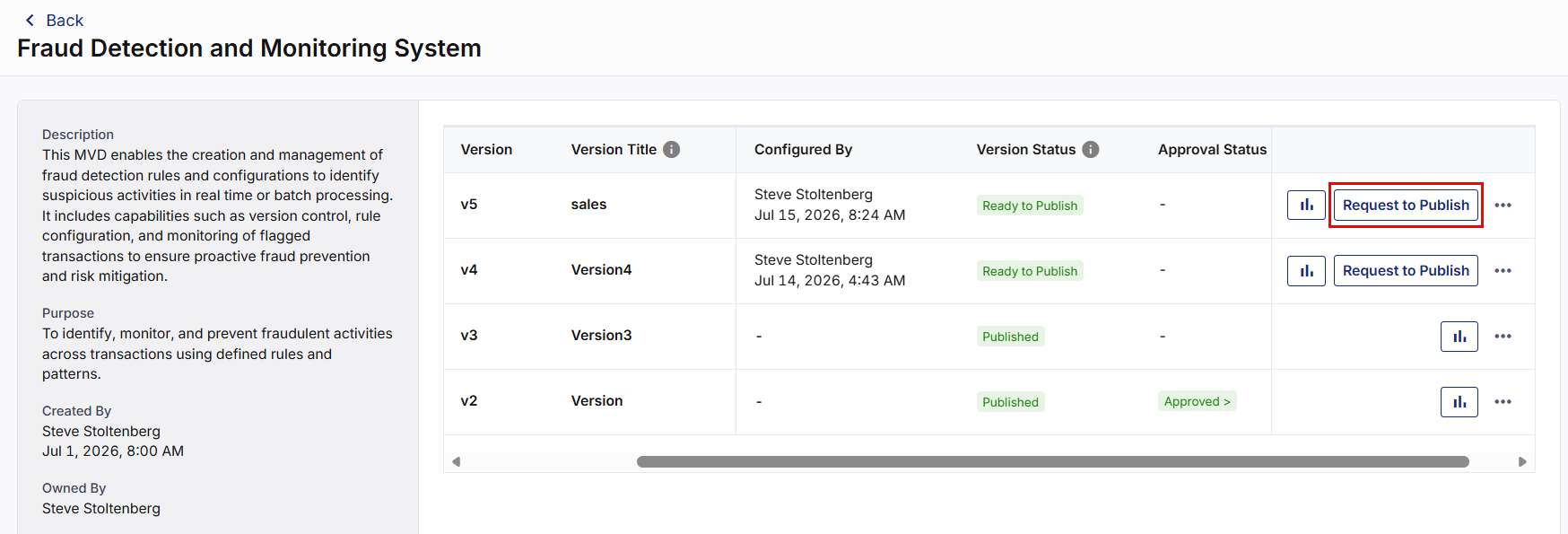
On the MVD Details page, locate the required specific version. Verify that the Version Status is Ready to Publish.
-
Click Request to Publish on the corresponding version.
-
In the Request to Publish MVD side panel, provide the required information.
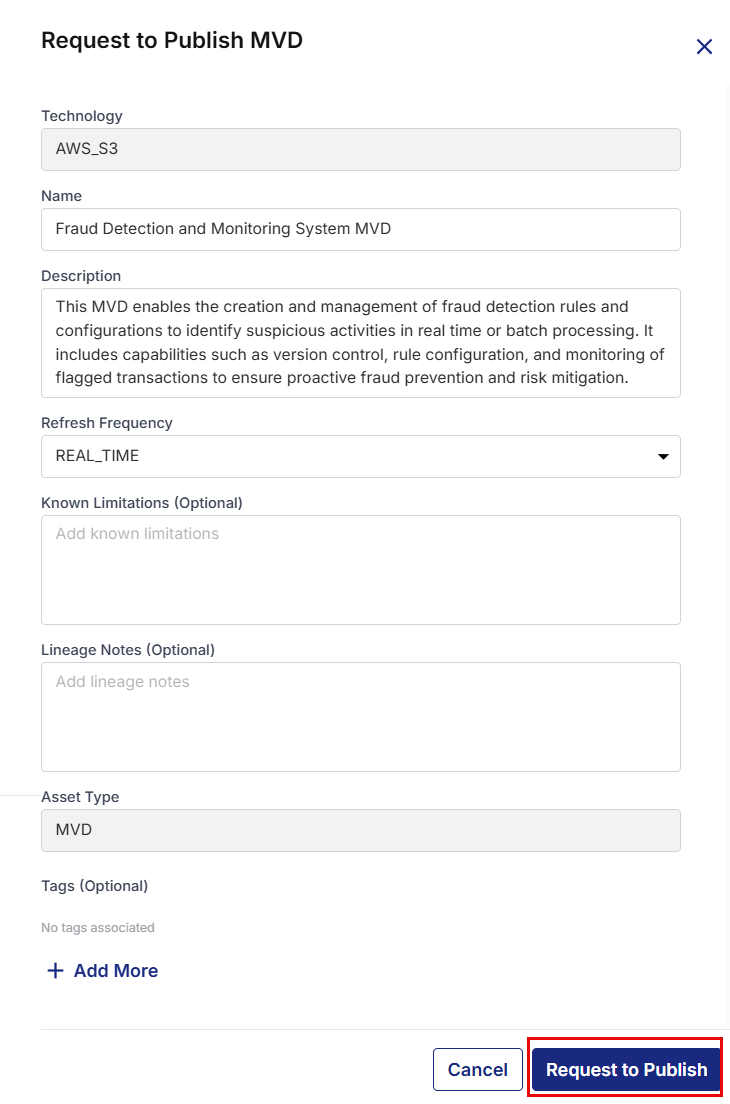
Field Description Technology Displays the target technology associated with the MVD. This field is read-only. Name Displays the Data Asset name. Modify the name if required. The asset name must be unique. Description Review or update the description of the Data Asset. Refresh Frequency Select the refresh frequency for the Data Asset (for example, REAL_TIME, or BATCH, frequency). Known Limitations (Optional) Enter any known limitations or constraints associated with the Data Asset. Lineage Notes (Optional) Provide additional lineage or implementation notes to help consumers understand the origin and processing of the data. Asset Type Displays the asset type as MVD. This field is read-only. Tags (Optional) Click + Add More to add one or more tags that help categorize and discover the Data Asset. -
After reviewing the information, click Request to Publish.
-
Review the confirmation message and click Proceed.
-
A publish request is submitted and the Approval Status changes to In Review.
Review and Approve the Publish Request
When a publish request is submitted, the Product Owner receives an email notification requesting a review of the MVD.
To review the MVD publish request, follow these steps:
-
On the MVD Details screen, locate the required specification version.
-
Click In Review.
-
On the MVD Publish in Review panel, review the following information, and you can:
-
Click View Version Details to review the details of the selected MVD version.
-
Click the Validation Results icon to review the validation results.
-
Expand View Asset Details to review the asset information.
-
-
Enter review comments.
-
Click one of the following:
-
Approve
-
Reject
-
-
Click Submit.
-
If Approved:
-
The MVD is published as a Data Asset.
-
The Approval Status changes to Approved.
-
The Version Status changes to Published, and the published version becomes the Active version.
-
The Data Asset is available in the Data Lab > Data Assets catalog with a Certified certification status.
Note:
You cannot delete an MVD specification version while it is the Active version.
-
-
If Rejected
-
The Approval Status changes to Rejected.
-
The reviewer comments are recorded.
-
The MVD remains available for further updates and resubmission.
-
 View Details
The View Details option allows you to view the configuration and publication details of a published MVD version. You can review the MVD specification, configured source and target details, and the associated published Data Assets.
To view the details of published data asset, follow these steps:
-
On the MVD Details screen, locate the published specification version.
-
Click the ellipsis (…) corresponding to the version and select View Details.
-
The Version Details screen displays the following tabs.
MVD Specification
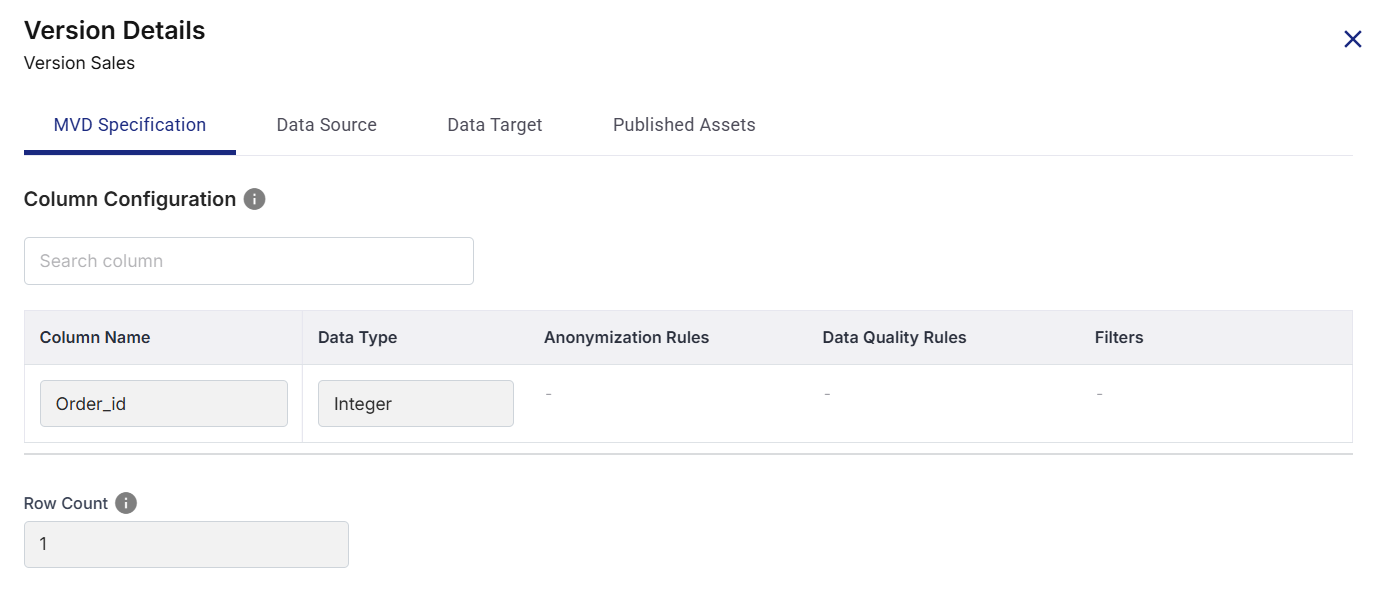
The MVD Specification tab displays the specification details for the selected version, including:
-
Configured column names
-
Data types
-
Anonymization rules
-
Data quality rules
-
Filter conditions
-
Row count requirements
Data Source
The Data Source tab displays the source configuration used during MVD validation.
Depending on the selected storage type, the information may include:
-
Storage Type
-
Datastore
-
File Type
-
Source folder or table
-
Additional source parameters (for example, delimiter, header, or multiline settings)
Data Target
The Data Target tab displays the destination configuration used when publishing the MVD as a Data Asset.
Depending on the configured storage type, the information may include:
-
Storage Type
-
Datastore
-
Target file type
-
Destination folder path
-
Catalog, database, schema, or table name
Published Assets
The Published Assets tab displays the Data Assets that have been created from the selected MVD version.The following information is available:
| Field | Description |
|---|---|
| Asset Name | Displays the name of the published Data Asset. |
| Published By | Displays the user who published the Data Asset. |
| Data Asset Status | Displays the current publication status of the Data Asset (for example, Published). |
| Action |
For each published Data Asset, the following actions are available:
|
Note:
The information displayed in the Version Details screen is read-only and reflects the configuration of the selected MVD version at the time it was published. Use this view to review configuration details, verify published assets, or download published Data Assets.
|
What's next? Create a New MVD Specification Version |