Minimum Viable Data (MVD) Audit Logs
Calibo Accelerate provides a comprehensive audit logging system for MVD to track all activities performed throughout the MVD lifecycle. The audit logs capture every significant action, from MVD creation through configuration, validation, versioning, publishing, approval, and status changes.
The MVD audit trail provides complete visibility into who performed an action, when it occurred, and what changes were made. This helps organizations maintain transparency, governance, compliance, accountability, and traceability across the entire MVD lifecycle.
Viewing MVD Audit Logs
To access MVD audit logs, follow these steps:
-
Navigate to the Minimum Viable Data screen by using one of the following methods:
-
From the required Product, click the ellipsis (…) and then click Minimum Viable Data.
-
From the left navigation pane, select Data Lab > Minimum Viable Data.
-
-
To view audit events for all MVDs:
-
On the Minimum Viable Data screen, in the upper-right corner, click the ellipsis (...) and then click Audit History.
-
-
To view audit events for a specific MVD:
-
From the ellipsis (…) corresponding to the required MVD, click Audit History.
-
-
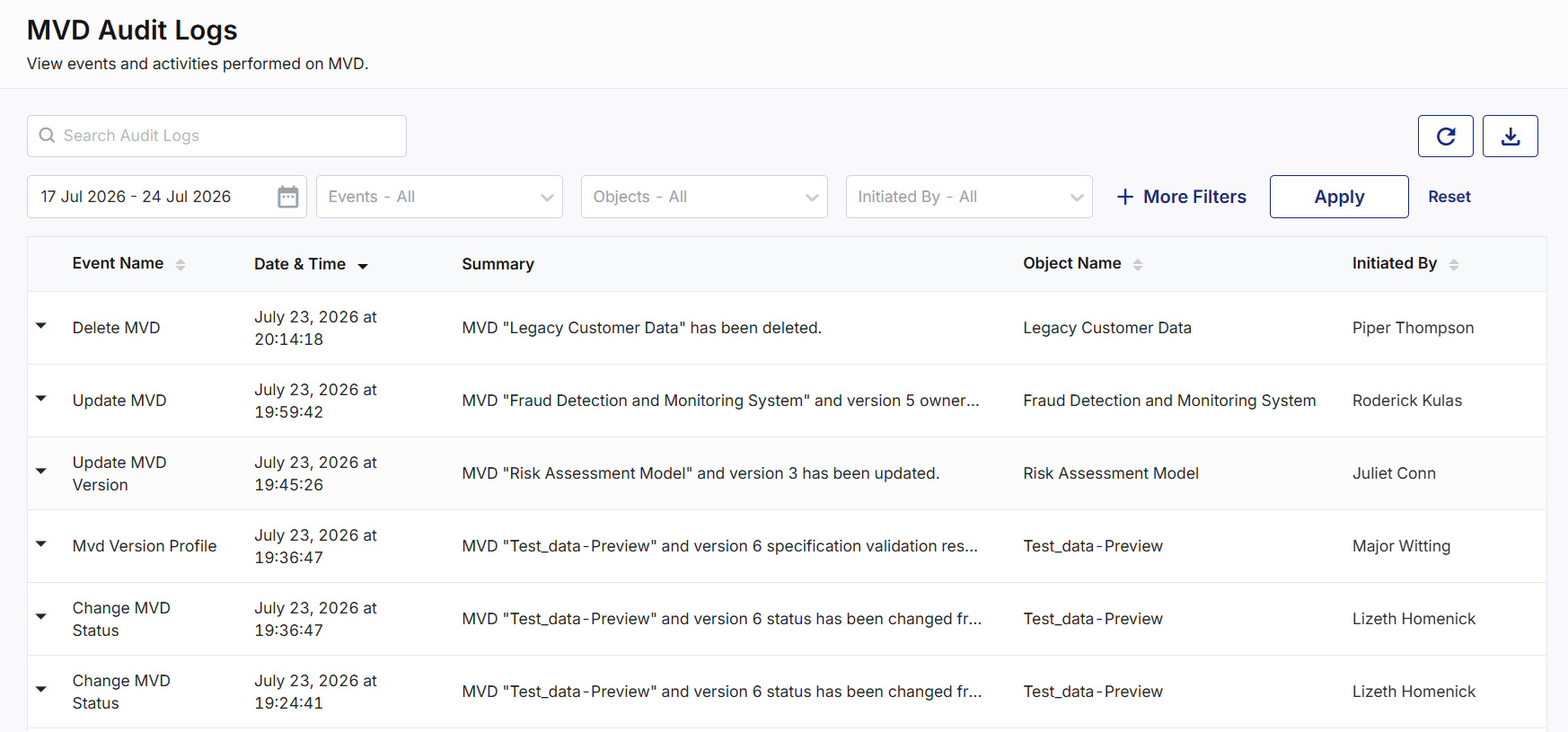
On the MVD Audit Logs screen, events are listed in reverse chronological order, with the most recent events appearing first.
-
Each audit log entry provides the following information:
-
Event Name: Displays the type of event performed (for example, Create MVD, Update MVD Version, Validate MVD Version, or Publish MVD).
-
Date & Time: Displays the date and time when the event occurred.
-
Summary: Provides a brief description of the activity performed.
-
Object Name: Displays the name of the MVD associated with the event.
-
Initiated By: Displays the name of the user who performed the action.
-
Additional Details: Click the expanding arrow beside an event to view additional information. Depending on the type of event, additional details may include:
-
MVD name
-
Version number
-
Previous and current status
-
Configuration updates
-
Validation information
-
Publish or approval details
-
User who performed the action
-
Timestamp
-
Change summary
-
Log Management and User Controls
Use the following features to efficiently search, filter, navigate, and export logs. These features enhance your audit log experience ensuring quick access to relevant information and better control over audit history.
Search and Filtering Options
To locate specific events quickly, use the following features:
-
Search Bar: Search for audit entries using keywords from the event summary or object name.
-
Date Range Selection: Filter events within a selected date range. By default, the last one week's events are displayed.
-
Events Filter: Select specific event types to refine the displayed records.
-
Objects Filter: Filter logs for specific MVDs.
-
Initiated By: Filter logs based on the user who initiated the event.
-
More Filters: Displays additional filtering options for refining audit log results.
-
Click Apply to apply selected filters and Reset to revert to default filter settings.
-
Additional Actions:
-
Refresh Logs: Click the refresh icon
 in the upper-right corner to update logs with the latest events.
-
Download Log Report:
-
Click the Download icon
 in the upper-right corner.
-
In the Download Report side drawer, in the Report Name field, enter a suitable name for the report.
-
Click Generate to create the report.
-
In the Generated Reports section, find the report available for download in PDF or CSV format.
-
View 10, 25, 30, or 50 reports per screen. Pagination support is also available.
-
-
-
By leveraging MVD Audit Logs, you gain complete visibility into the MVD lifecycle, enabling effective monitoring, auditing, governance, compliance, and troubleshooting while ensuring accountability for all MVD-related activities within the organization.
|
What's next? Role-Based Access Control (RBAC) for Minimum Viable Data (MVD) |
 Recommended Topics