Downloading Data Assets Report
The Data Assets screen allows you to download a report that contains information about one or more data assets. The report provides a convenient way to review, share, analyse, and maintain records of data asset metadata and status information outside the platform.
You can use the exported report for:
-
Asset inventory management
-
Governance reviews
-
Data catalogue analysis
-
Compliance reporting
-
Operational tracking
-
Stakeholder communication
-
Audit and Compliance Activities.
You can apply filters before downloading a report to generate a more targeted output. Filtering the results before downloading helps reduce unnecessary information and creates more focused reports. Examples include:
-
Assets belonging to a specific product
-
Certified assets
-
Published assets
-
Assets created by a specific user
-
Assets with a specific sensitivity classification
-
Assets with a particular run status.
To download data assets report
-
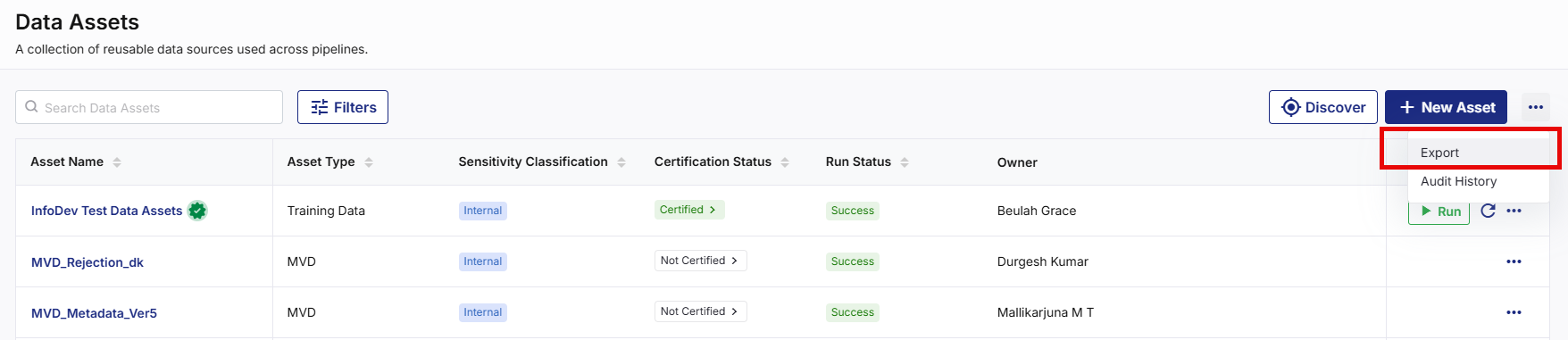
Navigate to the Data Assets screen.
-
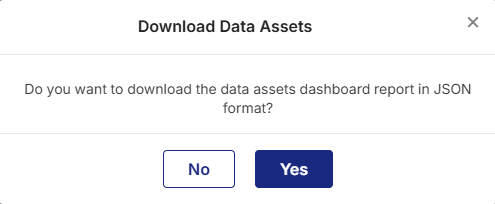
On the top right corner from the ellipsis (…), click Export. The Download Data Assets dialog box appears.
-
Review the confirmation message, then click Yes. The data assets dashboard report is downloaded in a JSON format.

Note:
The report is generated based on the assets that match the current view or filter criteria. Depending on the data asset configuration and user permissions, the report includes information that helps you review the current state of data assets without accessing each asset individually.
Best Practices
When downloading data assets reports:
-
Apply filters to limit the report to relevant assets.
-
Download reports regularly for governance reviews.
-
Verify asset status before sharing reports with stakeholders.
-
Protect reports that contain sensitive asset information.
-
Use certified assets when preparing official business reports.
Following these practices helps maintain accurate and secure reporting processes.
|
What's next?What is Feature Engineering |
 Recommended Topics