Customizing Table Columns
The Data Assets table allows you to customize the information displayed in the listing view. You can choose which columns appear in the table to focus on the information most relevant to your work.
To customize a table column
-
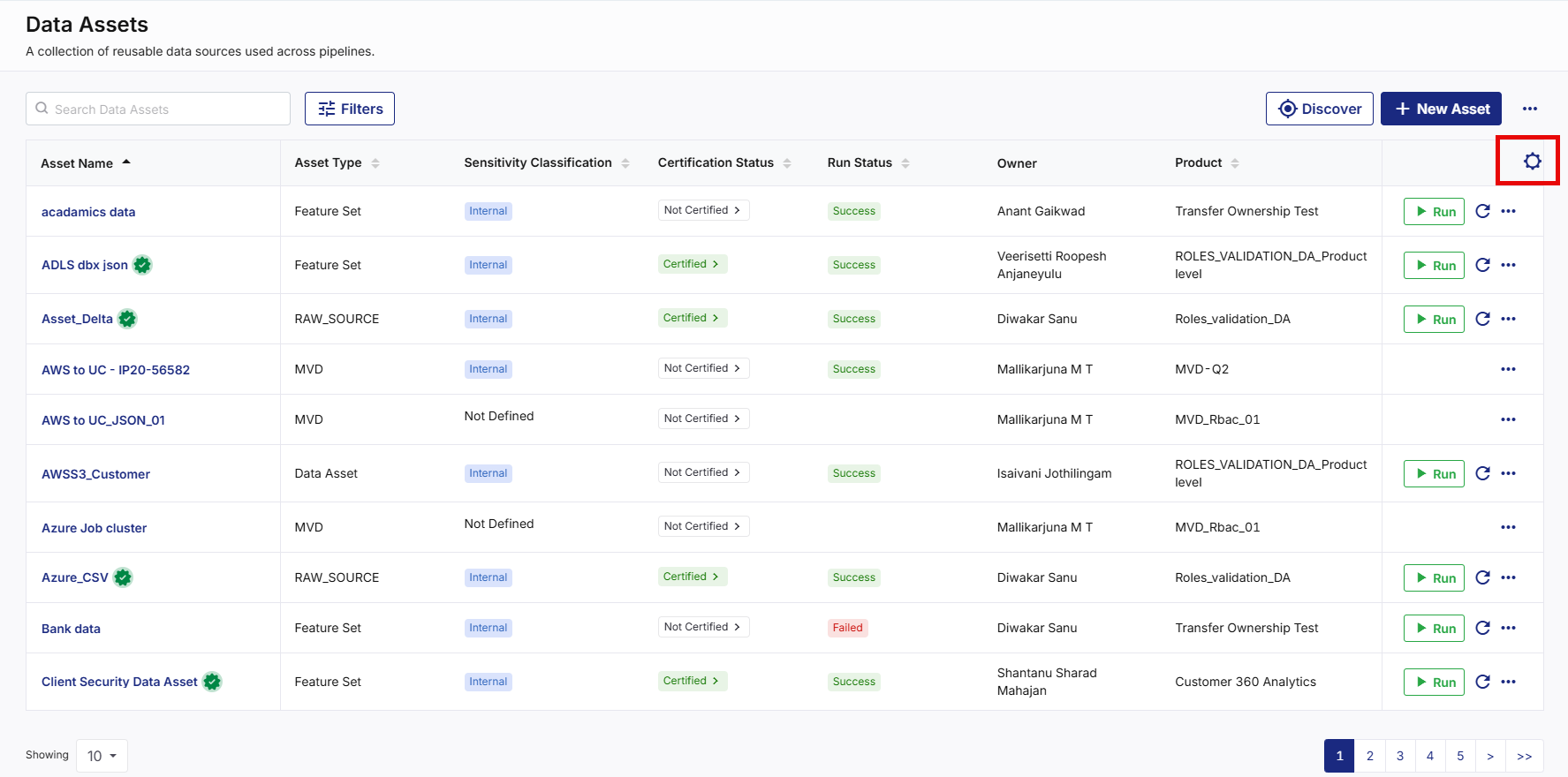
Navigate to the Data Assets screen. All available data assets are displayed in the Data Assets table.
-
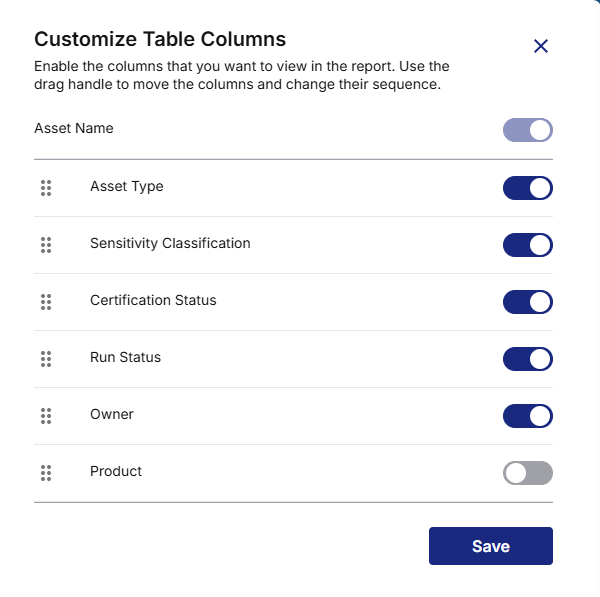
On the top right corner of the Data Assets table, click the Table Settings gear icon. The Customize Table Columns side drawer opens.
-
Enable or disable each column toggle to show or hide the column as needed, then click Save. The selected columns are displayed in the Data Assets table.

Note:
-
You cannot customize the Asset Name column, as it is enabled by default.
-
Use the drag-and-drop icon to reorder the columns based on how you want them to appear in the Data Assets table.
|
What's next? Searching Data Assets |
 Recommended Topics