Audit Logs and Activity Tracking
The Audit Logs feature provides visibility into activities performed on Data Assets throughout their lifecycle. Audit logs help you track operational, governance, and administrative actions performed on assets. The system records these activities automatically and maintains a history of actions for auditing, troubleshooting, and compliance purposes.
You can use audit logs to:
-
Monitor Data Asset activities
-
Track lifecycle changes
-
Review publishing and certification actions
-
Investigate operational issues
-
Understand asset ownership and modification history
-
Generate and download audit reports.
Viewing Audit Logs
The Audit Logs screen displays a consolidated view of events and activities performed on data assets. This screen provides access to historical records and helps you understand when an action occurs, who performs the action, and how the action affects the asset.
Each audit log entry represents a specific event that occurs within the Data Asset lifecycle.
To View Audit Logs
-
Navigate to Data Assets and you can do either of the following:
-
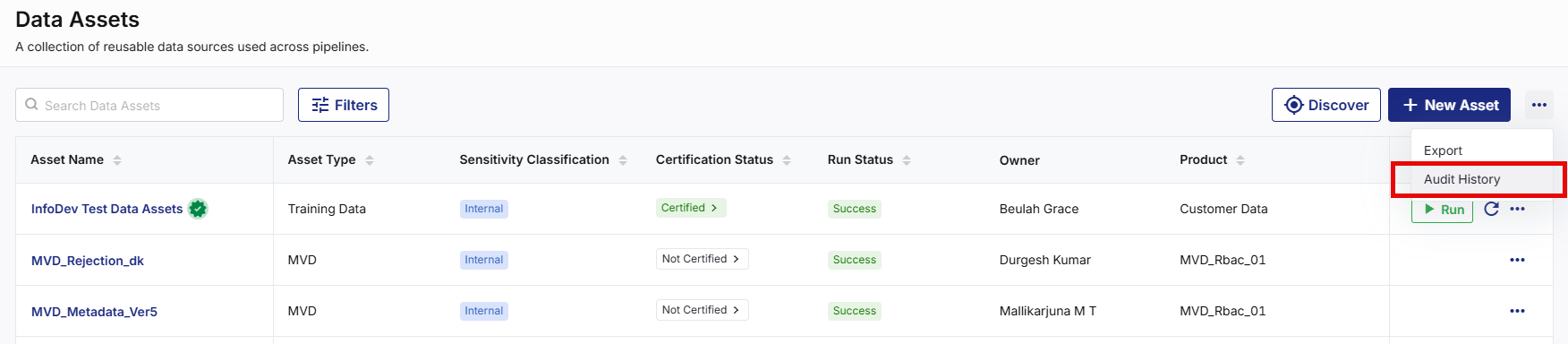
On the top right corner from the ellipsis (…), click Audit History to view a consolidated list of events and activities performed on all the available data assets.
-
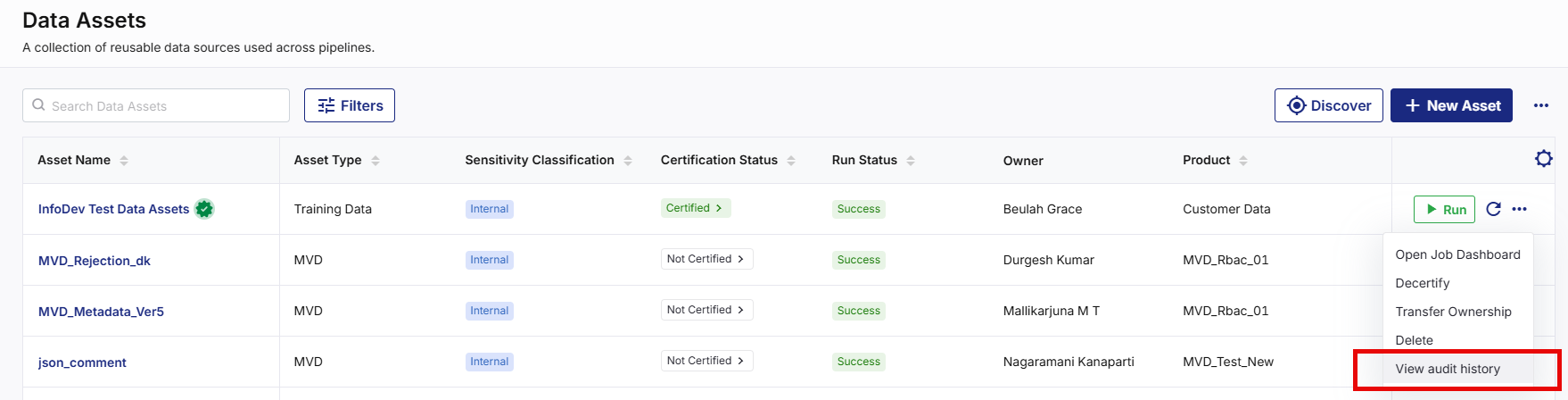
From the ellipsis (…) next to each data asset, click View Audit History to view a consolidated list of events and activities performed on a specific data asset.
-
-
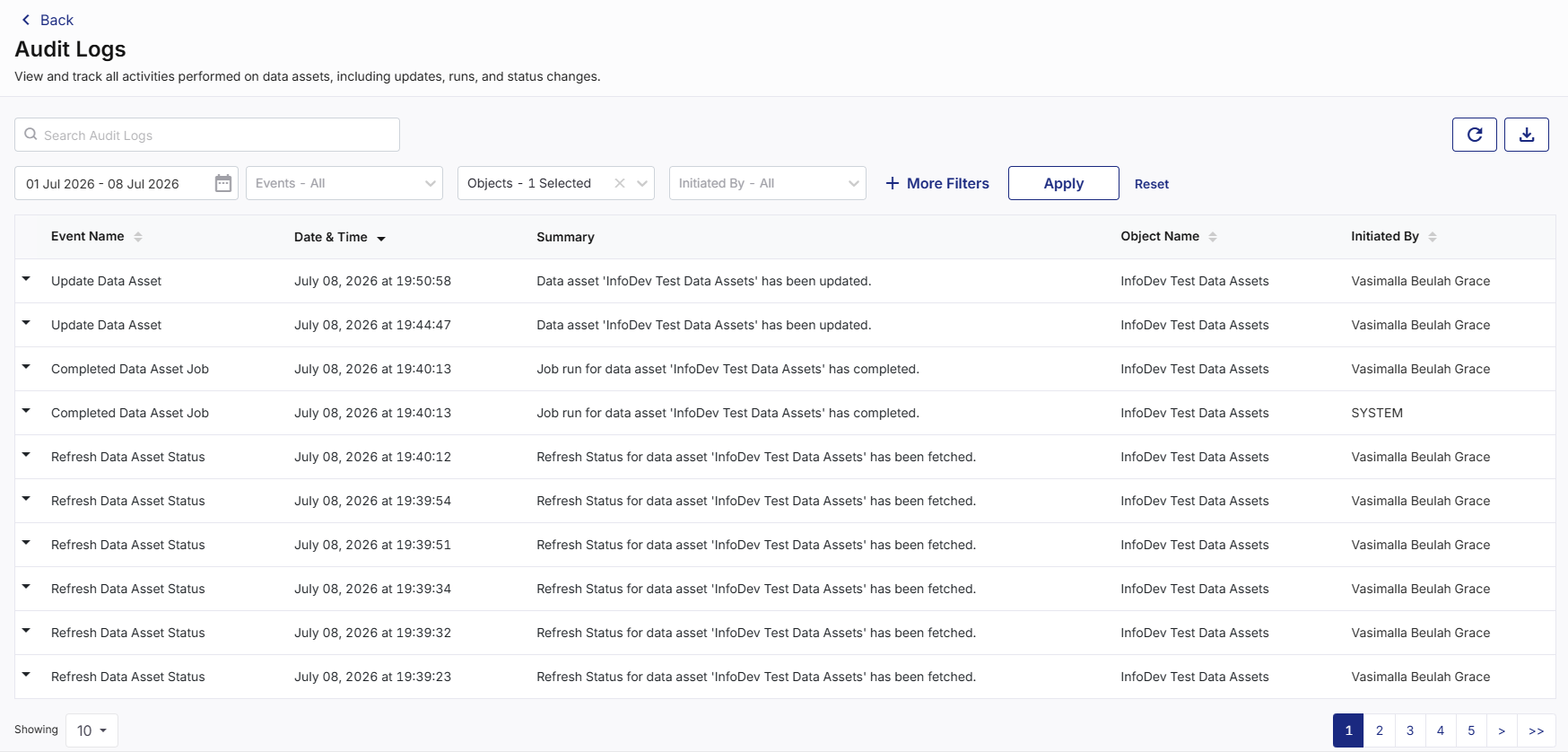
The Audit Logs screen appears and displays a list of recorded events, along with key information about each activity.
-
Each audit log entry displays information that helps you quickly identify what activity occurs and who initiates the action, such as:
-
Event Name
-
Date & Time
-
Summary
-
Object Name
-
Initiated By
-
-
Review the available audit log entries.

Note:
You can use the Refresh icon on the top right corner to refresh the details on the Audit Logs screen.
Understanding Log Details
Each audit log entry captures information about a specific event that occurs within the Data Asset lifecycle. The log summary provides a quick description of the recorded activity. The audit log details help you understand:
-
What action occurs
-
Which asset the action affects
-
Who performs the action
-
When the action occurs
The common audit events help maintain a complete history of changes made to a data asset. The audit logs record common activities such as:
-
Asset creation
-
Asset modification
-
Configuration updates
-
Ownership transfers
-
Asset publication
-
Asset unpublication
-
Asset certification
-
Asset decertification
-
Asset execution
-
Metadata updates
The Summary field provides a description of the activity and helps you quickly understand the purpose of the recorded event. Examples include:
-
Data Asset created
-
Data Asset updated
-
Asset published
-
Asset certified
-
Asset ownership transferred.
Searching and Filtering Logs
The Audit Logs screen provides search and filtering capabilities that help you locate specific events quickly. You can narrow down results by applying filters or performing keyword searches. Using filters help you focus on relevant audit information and reduce unnecessary results.
To Search Audit Logs
-
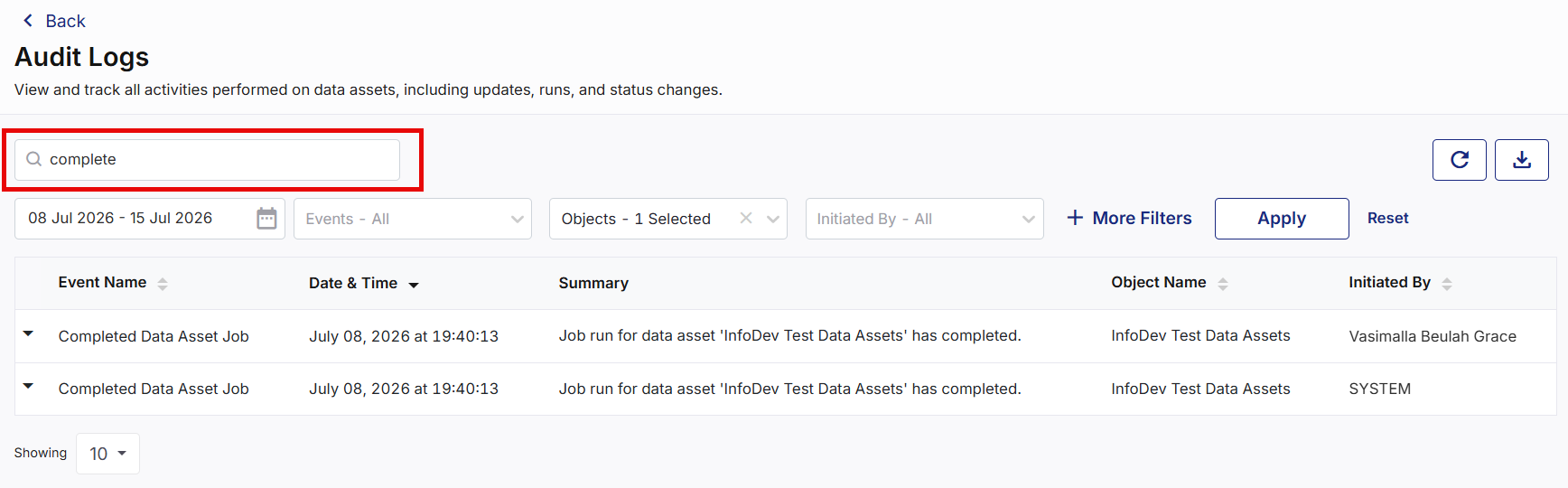
On the Audit Logs screen, enter the text in the Search Audit Logs box. You can search using any information such as:
-
Event names
-
Asset names
-
Summary details
-
User information
-
-
The search results display matching audit log entries based on the entered text.
To Filter Audit Logs
-
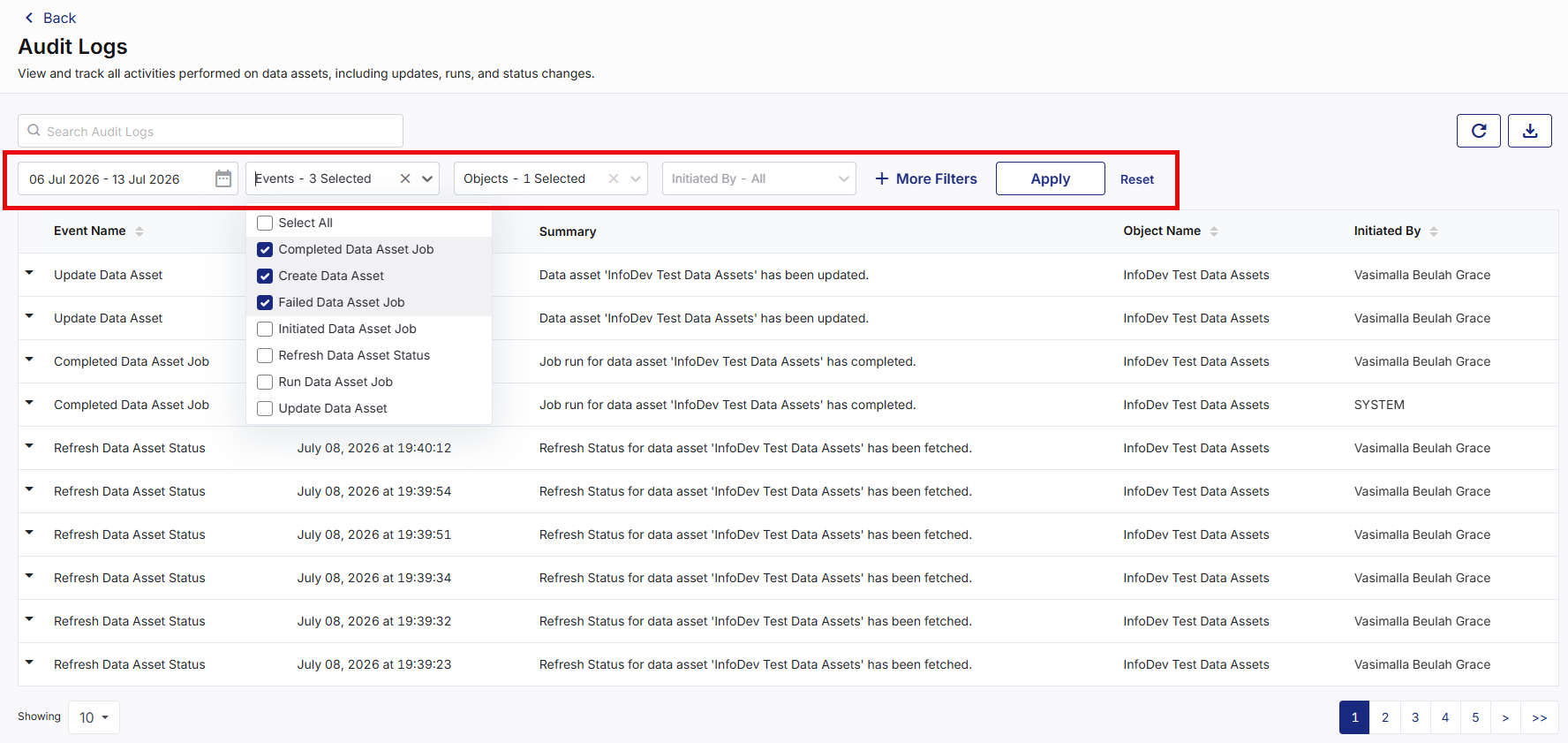
On the Audit Logs screen, select the parameters from the required filter(s) dropdown, then click Apply.
Available filters include:
-
Date Range
-
Events
-
Objects
-
Initiated By
-
Error
-
Data Asset Name
-
Source Datastore
-
Run Id
-
The filter results display matching audit log entries based on the selected filter parameters.
Note:
-
You can use + More Filters to apply additional filters and refine audit log results or use Reset to remove all applied filters.
-
You can combine multiple filters to locate specific audit activities for a data asset.
Viewing Event Details
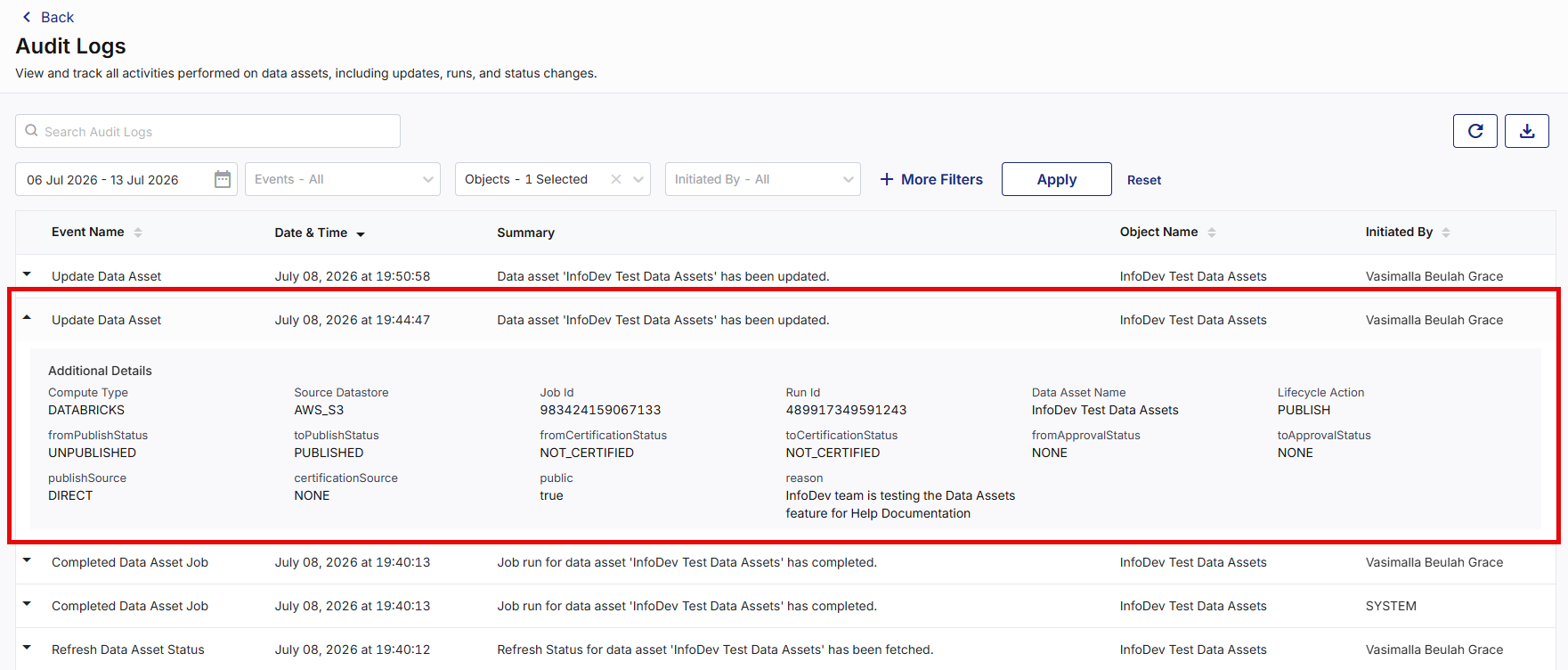
The event details allow you to view important lifecycle transitions. The Additional Details section provides a more comprehensive view of the activity and associated metadata of an event.
To View Event Details
-
On the Audit Logs screen, find the required audit log entry.
-
Click the expand icon next to Event Name. The Additional Details section displays detailed information related to the selected event depending on the event type. This information helps you understand exactly what changes occur during an event such as:
Asset Information
-
Data Asset Name
-
Source Datastore
-
Compute Type
Execution Information
-
Job ID
-
Run ID
Lifecycle Information
-
Lifecycle Action
-
Publish Status
-
Certification Status
-
Approval Status
Change Information
-
Previous status values
-
Updated status values
-
Source of the change
-
Reason for the action
-
-
Review the additional details displayed for an event. You can review and track the changes such as:
-
Published to Unpublished
-
Published to Certified
-
Certified to Decertified
-
Approval status changes
-
Metadata updates
This tracking helps organizations maintain transparency and governance throughout the Data Asset lifecycle.
-
Generating and Downloading Audit Log Report
The Audit Logs screen allows you to generate and download audit reports for reporting, compliance, and governance purposes. These reports provide a historical record of actions performed on data assets and support organizational auditing requirements.
You can generate reports based on the current audit log data and download them in supported formats. The audit reports help organizations:
-
Review Data Asset activity
-
Support governance processes
-
Track ownership changes
-
Verify lifecycle actions
-
Maintain compliance records
-
Investigate operational issues
To Generate and Download an Audit Log Report
-
Open the Audit Logs screen.
-
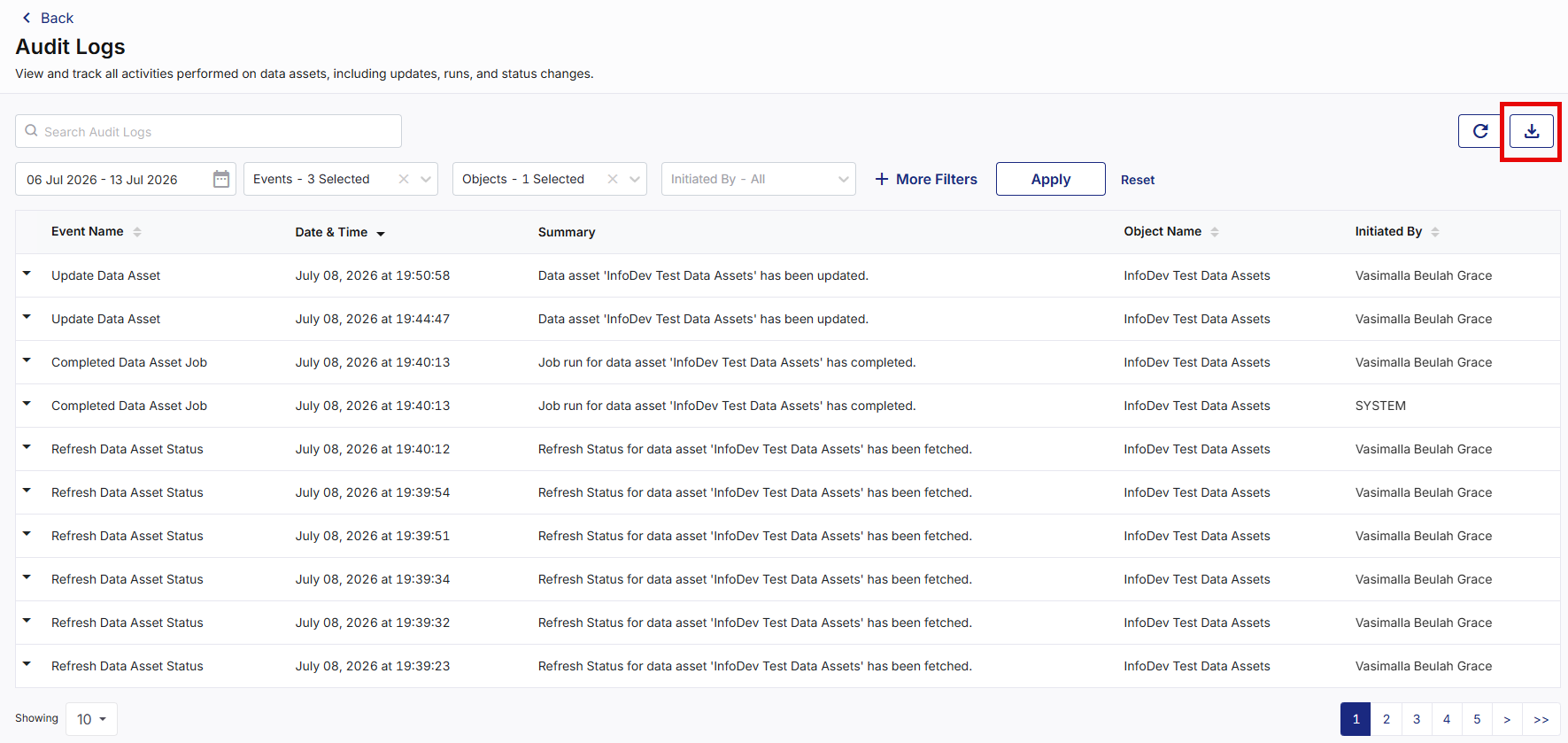
On the top right corner, click the Export icon. The Generate & Download Report side drawer opens.
-
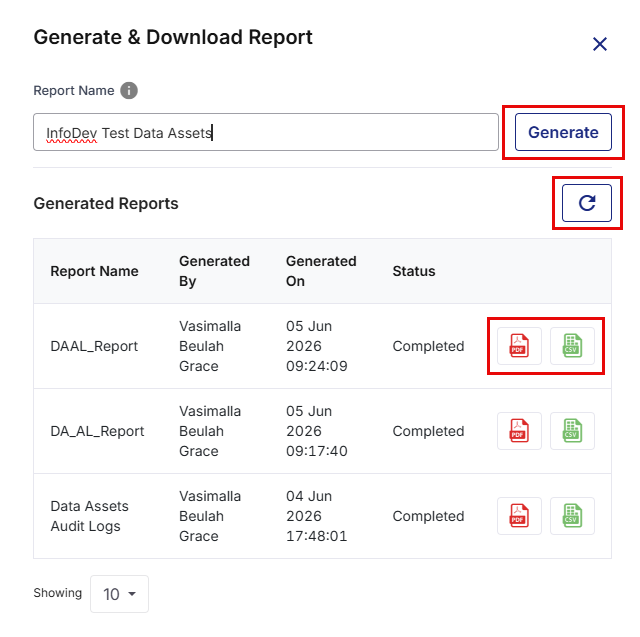
In the Report Name text box, provide a name for the report to identify it later, then click Generate. A report is created and added to the list of generated reports. The Generated Reports section displays the list of generated reports, including information such as:
-
Report Name
-
Generated By
-
Generated On
-
Status
Note:
You can use the Refresh icon to refresh the generated reports list to view the latest status.
-
-
Next to the required report under Generated Reports, click the Download PDF or Download CSV icon to download the generated audit logs report in PDF or CSV format, respectively. The corresponding file is downloaded in the local folder.
|
What's next? Managing Data Assets |
 Recommended Topics