Validity
Overview
The Validity constraint verifies whether a column value conforms to a predefined format or pattern, such as an email address, date, or identifier.
The Validity widget provides a consolidated view of how well column values conform to defined validation rules, making it easy to detect, diagnose, and prioritize data quality issues related to format and rule compliance. It visually summarizes valid and invalid records across columns and helps identify where data violates expected formats or patterns.
What the Widget Analyzes
-
Profiling dimension: Data validity based on configured validation rules
-
Level of analysis: Record-level evaluation aggregated to column-level and dataset-level summaries
-
Calculation basis:
-
Each record value is evaluated against the validation rule defined for its column (for example, a regex pattern).
-
For each column, it calculates:
-
Total number of values evaluated
-
Number of values that match the validation rule (Valid)
-
Number of values that do not match the validation rule (Invalid)
-
-
Values that satisfy the rule are classified as Valid, and values that do not satisfy the rule are classified as Invalid.
-
These results are aggregated to compute valid and invalid counts per column and across the dataset.
-
What the Widget Shows
-
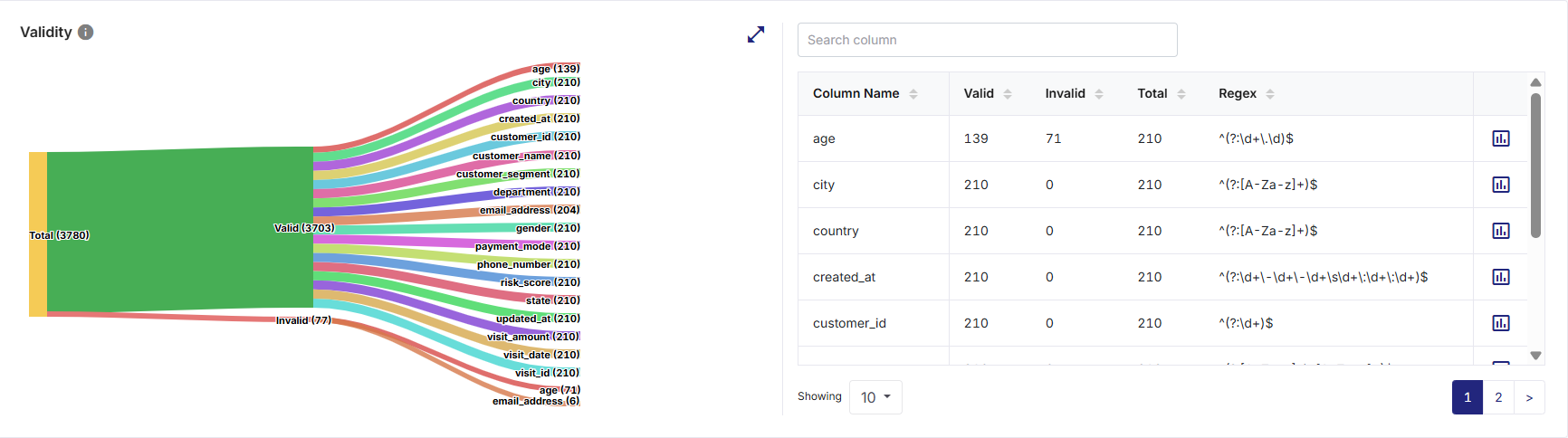
A Sankey-style flow visualization representing how evaluated records are distributed from Total Records into Valid and Invalid categories.
-
A further breakdown of valid and invalid values by column, showing each column’s contribution to overall validity results.
-
Visual thickness of flows that are proportional to the number of records in each category.
-
A tabular summary listing exact valid, invalid, and total counts for each column, along with the validation rule (Regex) applied.
-
The ability to analyze both dataset-level validity health and column-level validation performance in a single view.
How to Read This Widget
-
The Sankey graph representing data validation flow begins with Total records evaluated on the left side.
-
The Total records flow splits into two primary paths:
-
Valid - values that conform to the configured validation rule
-
Invalid - values that do not conform to the configured validation rule
-
-
Each of these paths further branches into individual columns.
-
The thickness of each flow represents the number of records contributing to that path.
-
Larger flows indicate higher record counts, while thinner flows indicate fewer records.
-
Hovering over any flow segment highlights the path and displays a tooltip with the corresponding Category name (Total / Valid / Invalid) and exact record count.
Available Views
The widget supports a Sankey graph view that provides an end-to-end visualization of data validity flow across the dataset. It shows the complete distribution in a flow from total records to valid/invalid values per column for validity analysis.
On the top-right corner of the visualization pane, use the:
-
Expand icon to visualize a larger view of the Sankey graph for improved readability
-
Collapse icon to restore the widget to its default size

Note:
-
Hovering over any Sankey flow displays a tooltip with the category name (Total, Valid, Invalid, or Column Name) and the corresponding record count.
-
The Sankey graph dynamically reflects the validity results for all columns included in the profiling run.
-
All interactions are read-only and do not alter the dataset or validation rules.
Supporting Panes
The widget includes a Validity tabular summary pane on the right, always visible alongside the visualization pane on the left, providing detailed column-level validation context. It displays:
-
Column Name - Name of the dataset column
-
Valid - Count of values matching the validation rule
-
Invalid - Count of values failing the validation rule
-
Total - Total number of values evaluated for the column
-
Regex - Validation rule applied to the column (read-only reference)
Note:
The histogram provides a visual view of value distribution for the selected column, while the table provides exact statistical metrics for all numeric columns. Together, they enable both high-level distribution analysis and precise statistical comparison.
Pane Interactions
-
Providing a column name in the Search column list box filters columns in the table and quickly locates a specific column by name.
-
Clicking on the column headers sort columns in ascending or descending order based on Valid, Invalid, or Total counts.
-
Clicking the chart icon for each column opens the data distribution (Valid <column name> records for current vs. last 5 runs) view for that specific column. This enables focused analysis of that column’s validity behavior.
-
Scrolling allows access to additional columns or validity metrics when the list exceeds visible space.
How to Interpret the Results
-
High Valid count with zero Invalid indicates strong adherence to validation rules.
-
Non-zero Invalid values highlight columns requiring attention.
-
Comparing Valid vs Invalid flows helps prioritize remediation efforts.
-
A dominant Valid flow indicates strong overall compliance with validation rules.
-
A noticeable Invalid flow highlights potential data quality issues that require attention.
-
Balanced or unexpected flows may indicate overly strict or overly permissive validation rules.
-
Columns contributing heavily to the Invalid path should be prioritized for remediation or rule review.
-
Reviewing the regex patterns in the table helps explain why certain values are classified as invalid.
When to Use This Widget
-
To verify compliance with data format rules.
-
To identify columns producing invalid values.
-
To assess overall data validity health across the dataset.
-
To validate the effectiveness of configured validation rules.
-
To validate data readiness before downstream processing or analytics.
-
To support data quality audits, rule effectiveness reviews, and remediation prioritization.
 Recommended Topics Recommended Topics
|
What's next?Statistical Count |