Count
Overview
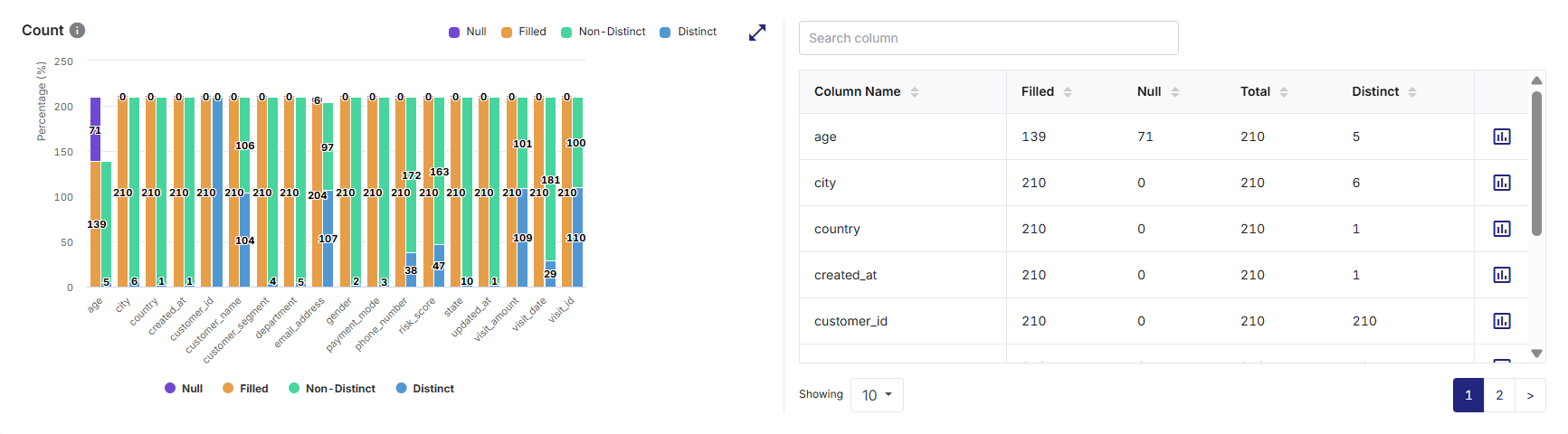
The Count widget provides a consolidated view of record-level statistics for each column in the dataset. It helps users quickly understand data completeness, uniqueness, and duplication by displaying counts of Filled, Null, Distinct, and Non-Distinct values across columns.
What the Widget Analyzes
-
Profiling dimension: Record-level value counts
-
Level of analysis: Column-level
-
Calculation basis:
-
Filled: Number of filled or non-null records in a column
-
Null: Number of null or missing records in a column
-
Distinct: Number of unique values in a column
-
Non-Distinct: Number of repeated (non-unique) values in a column
-
Total: Total number of records evaluated per column
-
Percentages displayed in the chart are calculated relative to the total record count of each column.
-
What the Widget Shows
-
A stacked visual comparison of Null, Filled, Distinct, and Non-Distinct values for each column.
-
A tabular summary listing exact counts for each metric per column.
-
The ability to switch focus between columns for detailed analysis. Column-level indicators display distribution details (Count details for current vs. last 5 runs) for individual columns.
How to Read This Widget
-
Each vertical bar represents a single column in the dataset.
-
Each bar is segmented into color-coded sections such as Null, Filled, Non-Distinct, and Distinct.
-
The height of each segment indicates the percentage contribution of that metric for the column.
-
Numeric labels on the bars represent actual record counts.
-
The legends at the top of the widget map colors to their respective metrics.
Available Views
The widget supports bar chart/graph view that provides a comparative overview, not a drill-down into individual values. Each column label on the X-axis corresponds directly to a column listed in the table.
On the top-right corner of the visualization pane, use the:
-
Expand icon to visualize a larger view for easier comparison across columns
-
Collapse icon to restore the widget to its default size

Note:
-
Hovering over chart points highlights the selected column and category.
-
Clicking the legend on the right side of the chart allows one of the following:
-
Enables that specific column and highlights its corresponding shape in the spider chart view.
-
Disables that specific column and hides its corresponding shape in the spider chart view.
-
-
All interactions are read-only and do not alter the dataset.
Supporting Panes
The widget includes a Count tabular summary pane on the right, always visible alongside the visualization pane on the left, providing detailed column-level context. It displays:
-
Column Name - Name of the dataset column
-
Filled - Count of non-null values
-
Null - Count of null values
-
Total - Total number of records evaluated
-
Distinct - Count of unique values
-
Non-Distinct: Count of repeated (non-unique) values
Pane Interactions
-
Providing a column name in the Search column list box filters columns in the table and quickly locates a specific column by name.
-
Clicking on the column headers sort columns in ascending or descending order.
-
Clicking the chart icon for each column opens the data distribution (Count details for current vs. last 5 runs) view for that specific column. This enables a transition from summary level counts to value level distribution analysis.
-
Scrolling allows access to additional columns when the list exceeds visible space.
How to Interpret the Results
-
Columns with high null counts may indicate data completeness issues.
-
A low distinct count combined with high non-distinct values may indicate categorical or repetitive data.
-
Columns with distinct count close to total count may represent identifiers or unique keys.
-
Balanced filled and distinct values suggest healthy data variability.
When to Use This Widget
-
To assess data completeness across columns.
-
To identify columns with missing or sparse data.
-
To detect potential primary keys or identifiers.
-
To prioritize columns for further profiling or data quality rule creation.
 Recommended Topics Recommended Topics
|
What's next? Statistical Count |