Change Identity Provider – Switch to SAML-Based Configuration
If your organization needs to migrate from the current Identity Provider (IdP) to a SAML-based provider, you can use the Change Identity Provider option in the Security & SSO section.
This process allows you to reconfigure Single Sign-on (SSO) in Calibo Accelerate to use a new SAML-based IdP while retaining the same tenant domain and user access.

In the following sections, review the prerequisites and configuration steps carefully before making any changes to your existing IdP details.
Before You Start (Prerequisites)
Before setting up SAML-based Single Sign-on (SSO) in Calibo Accelerate, make sure your organization’s identity and access management setup meets the following prerequisites.
-
Have Administrative Access to Your Identity Provider (IdP)
You must have administrator privileges in your organization’s Identity Provider (IdP) to create or modify SAML applications.
This allows you to:
-
Register Calibo Accelerate as a new application (service provider) in your IdP.
-
Configure important parameters such as Assertion Consumer Service (ACS) URL, Entity ID, and attribute mappings.
-
Generate and download the X.509 signing certificate used to sign SAML assertions.
-
Access the metadata XML file or metadata URL, which is required to establish the trust relationship between Calibo and your IdP.
-
-
Identify and Add Users in the F24H Wizard
The users you add for SAML configuration in the F24H Wizard must already exist in your IdP and have valid email addresses on the configured domain.

Note:
Calibo currently does not support automatic user synchronization (user import) for SAML. You need to add users manually and choose administrators.
-
Prepare Attribute Mapping Details
SAML authentication relies on user attributes (also known as “claims”) exchanged between your IdP and Calibo Accelerate. Before you configure SAML settings in Calibo Accelerate, decide which attributes will be passed in the SAML response.
At minimum, Calibo requires:
email → to identify and log in the user.
It is strongly recommended to also include:
-
firstName → user’s given name.
-
lastName → user’s surname or family name.
-
-
Plan for Certificate Management and Rotation
Have access to your IdP’s signing certificate or metadata file.
Every SAML integration uses an X.509 certificate to sign authentication responses (assertions) from the IdP. Certificates have an expiration date, and if they expire or change without reconfiguration, all SSO logins will fail.
Make sure you know the certificate’s validity period and have a process in place for future rotation.
After all the above prerequisites are in place, you can proceed with configuring SAML in Calibo Accelerate using one of the available methods — Manual Configuration, Import from URL, or Import from Metadata File.
Configuring SAML Details in Calibo Accelerate
Calibo acts as the Service Provider (SP) and provides the required parameters for you to use while creating or updating the SAML application in your IdP. The screen displays the following values:
-
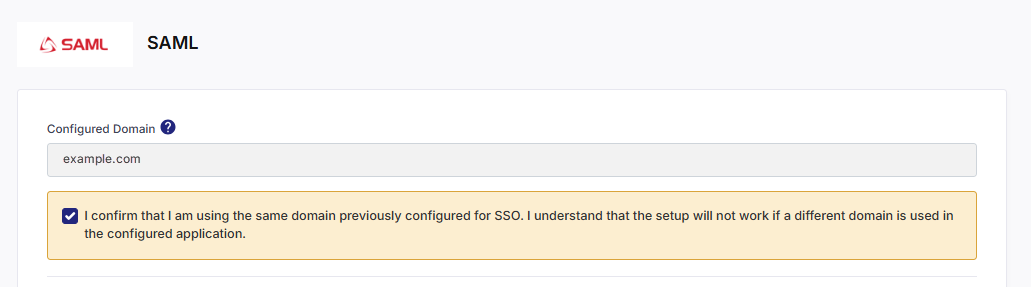
Configured Domain
When switching IdPs, the domain field is auto-populated with the domain that was used in your previous configuration.
You cannot edit this field — Calibo enforces the same domain to ensure continuity of user identity mapping.
Select the following checkbox:
-
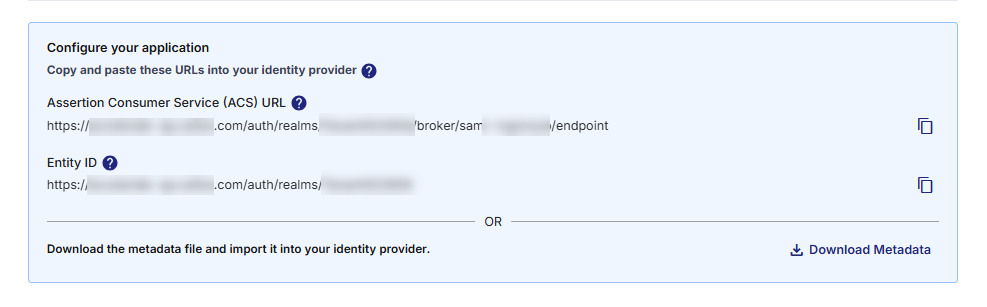
Assertion Consumer Service (ACS) URL
The endpoint in Calibo Accelerate that receives authentication responses (SAML assertions) from your IdP after a user successfully signs in.
Example:
https://accelerate-dis.calibo.com/auth/realms/<TenantID>/broker/saml/endpoint
-
Entity ID
A unique identifier for Calibo Accelerate as the Service Provider. It tells the IdP which application is requesting authentication.
Example:
https://accelerate-dis.calibo.com/auth/realms/<TenantID>
You can either copy these URLs and paste them into your IdP configuration manually or download the metadata file and import it directly into your IdP to simplify setup.
Tip:
Using the metadata file is the recommended approach as it reduces manual entry errors and ensures consistency during certificate rotation.
Selecting a Configuration Method to Provide SAML Details
Calibo Accelerate offers three ways to configure SAML details, depending on how your IdP manages metadata and endpoints.
Choose one of the following configuration methods:
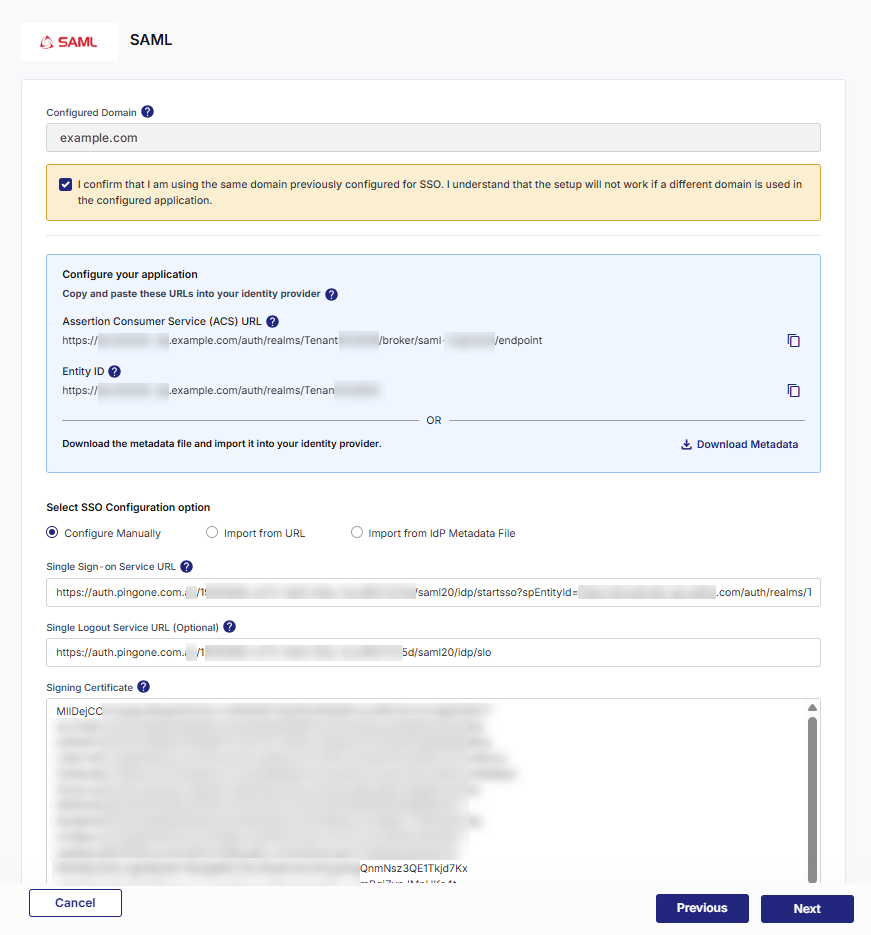
Option A — Configure Manually
Select this method if you prefer to enter the required IdP details directly into Calibo Accelerate. Enter the following details:
-
Single Sign-on (SSO) URL – The endpoint in your IdP where users are redirected for authentication.
-
Single Logout (SLO) URL (optional) – The endpoint in your IdP for handling logout requests.
-
Signing Certificate – The IdP’s X.509 certificate used to sign SAML assertions. If your IdP rotates certificates periodically, plan to update this certificate in Calibo accordingly.
 l
l
Use this method when your IdP doesn’t expose a metadata file or URL or when your security policy requires manual configuration.
Option B — Import from URL
Select this method if your IdP provides a metadata URL that hosts the configuration details required for SSO integration.
-
Enter the following details:
-
IdP Metadata URL – The URL where your IdP hosts its SAML metadata XML. Calibo will automatically import all key information such as SSO URL, certificate, issuer, and supported bindings.
-
-
Click Import.
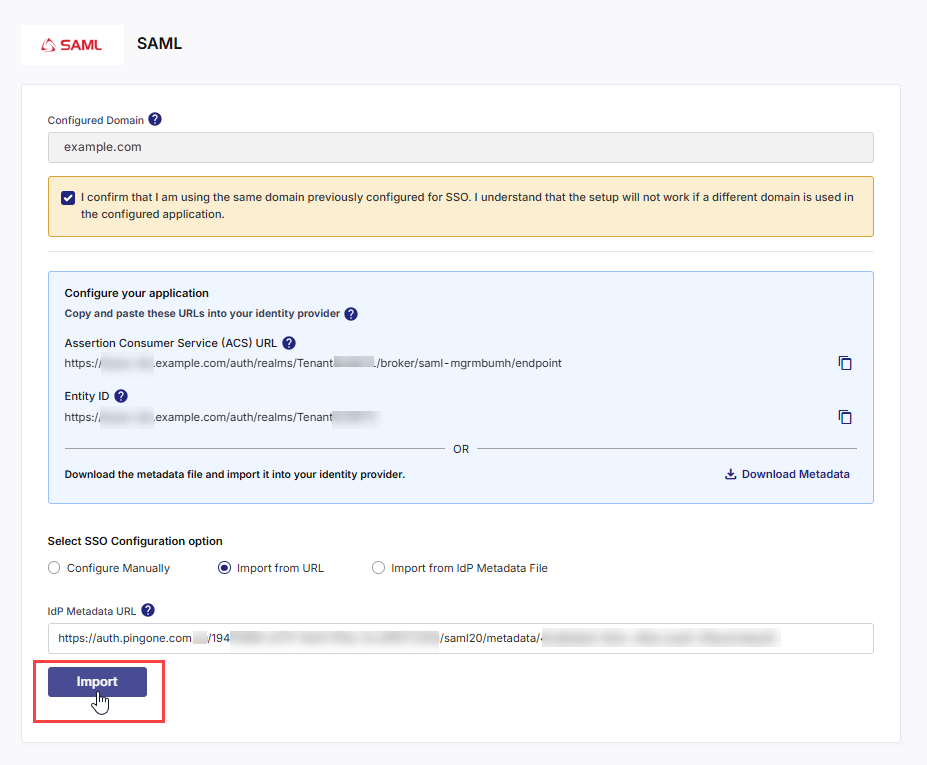
Calibo Accelerate connects to the provided URL and automatically imports the following details from your IdP metadata:
-
Single Sign-on (SSO) URL – The endpoint where users are redirected for authentication.
-
Single Logout (SLO) URL – The endpoint used for logout requests.
-
X.509 Certificate – The public certificate that your IdP uses to sign SAML assertions.
-
This method minimizes manual effort and automatically reflects certificate or endpoint updates from your IdP.
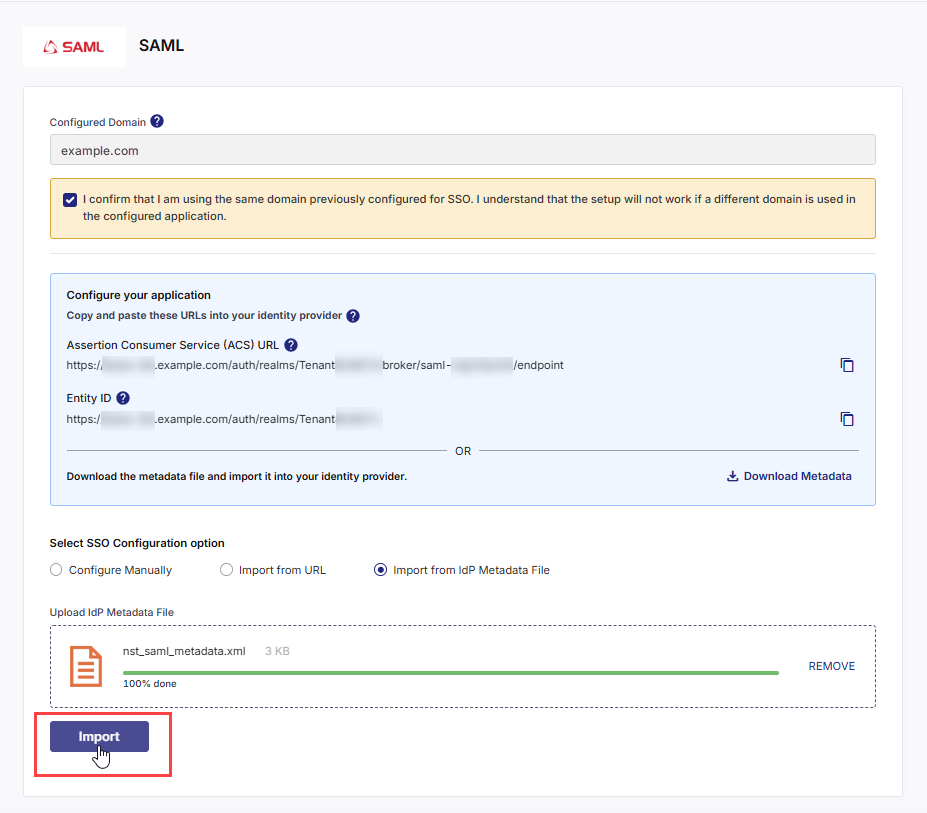
Option C — Import from Metadata File
Select this method if your IdP allows you to export its SAML metadata file (usually an .xml file) that contains all configuration details.
Do the following:
-
Upload IdP Metadata File
Upload the metadata XML file exported from your IdP. Do one of the following:
-
Drag and drop your metadata XML file into the drop zone.
-
Click Browse this computer to select the metadata XML file manually.
-
-
Click Import
After the file is uploaded, click Import.
-
Calibo Accelerate reads and parses the XML file to automatically import the following configuration details:
-
Single Sign-on (SSO) URL – The endpoint for user authentication requests.
-
Single Logout (SLO) URL – The endpoint for logout requests (if provided by your IdP).
-
X.509 Certificate – The public certificate used by your IdP to sign authentication assertions.
Tip:
-
Ensure the metadata XML file is generated directly from your IdP without manual edits.
-
Whenever your IdP rotates certificates or updates SSO endpoints, download the new metadata XML and re-import it here to maintain SSO continuity.
-
This method is recommended for restricted or on-premise environments where direct metadata URLs are not accessible.
Tip:
Regardless of which method you choose, always verify that the IdP configuration includes:
-
The correct ACS URL and Entity ID as provided by Calibo.
-
Signed Assertions enabled in your IdP.
-
email as the NameID format or attribute for consistent user identification.
Click Previous to return to the previous screen.
Click Next to proceed.
Click Cancel and then, in the confirmation message, click Yes to discard your unsaved identity provider configuration changes and go back to the previous screen.
Establishing Trust with Your IdP
After configuration is complete, download the Calibo Metadata XML file and use it to create a trust relationship in your IdP.
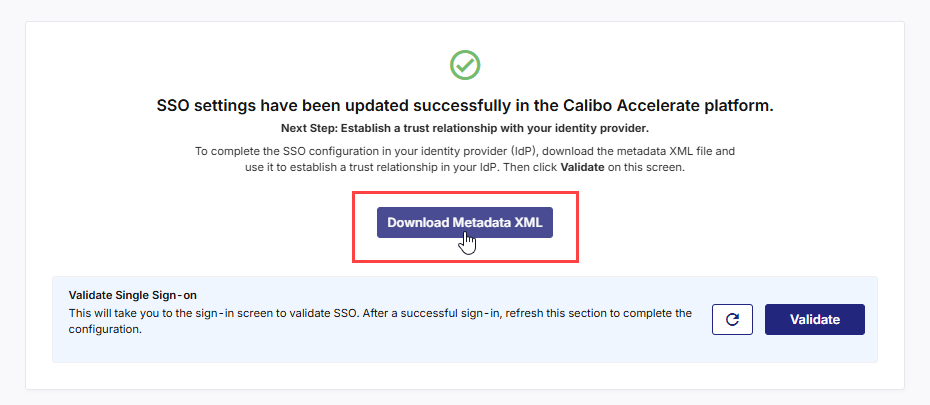
This step allows your IdP to recognize Calibo Accelerate as a valid Service Provider for authentication.
Validating Single Sign-on
-
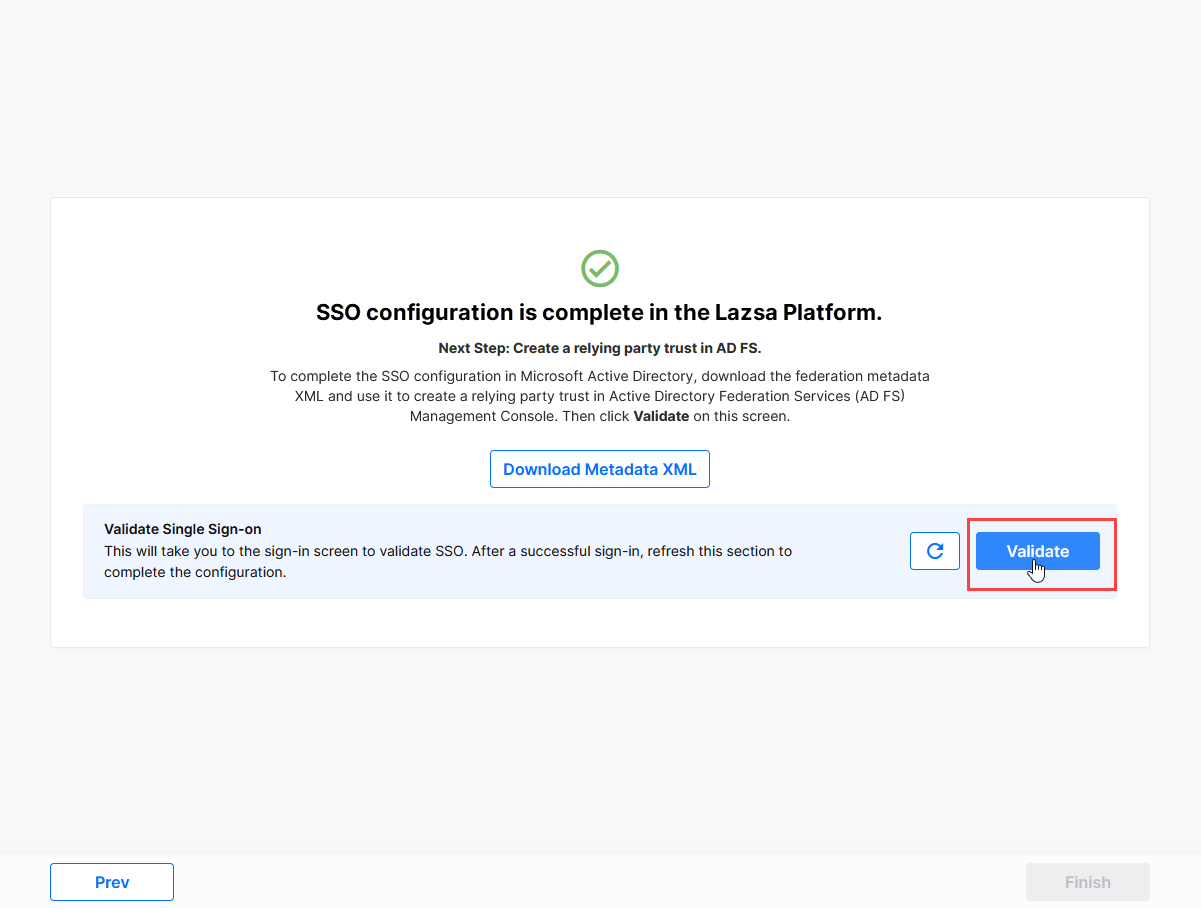
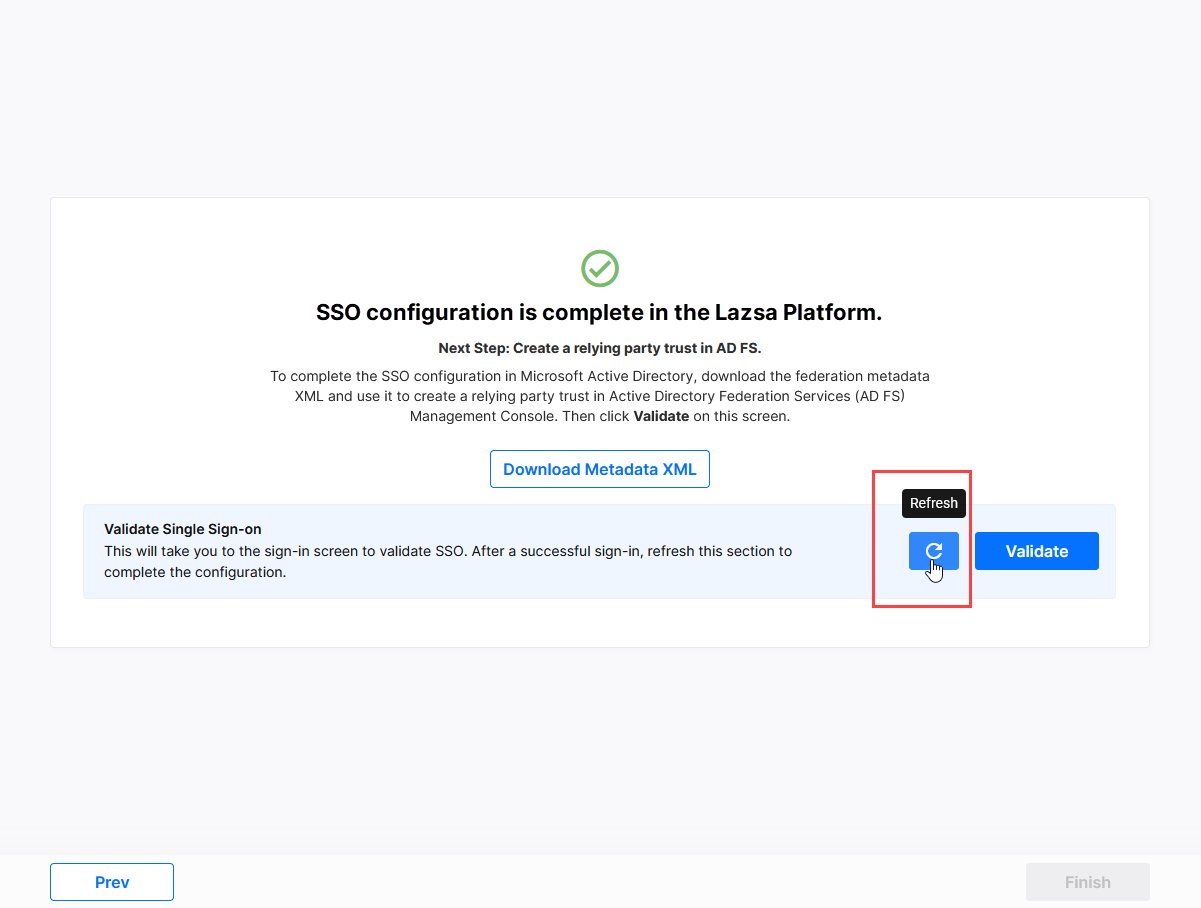
After you establish the trust relationship for Calibo Accelerate successfully, on the screen from where you downloaded the federation metadata XML file, in the Validate Single Sign-on section, click Validate.
-
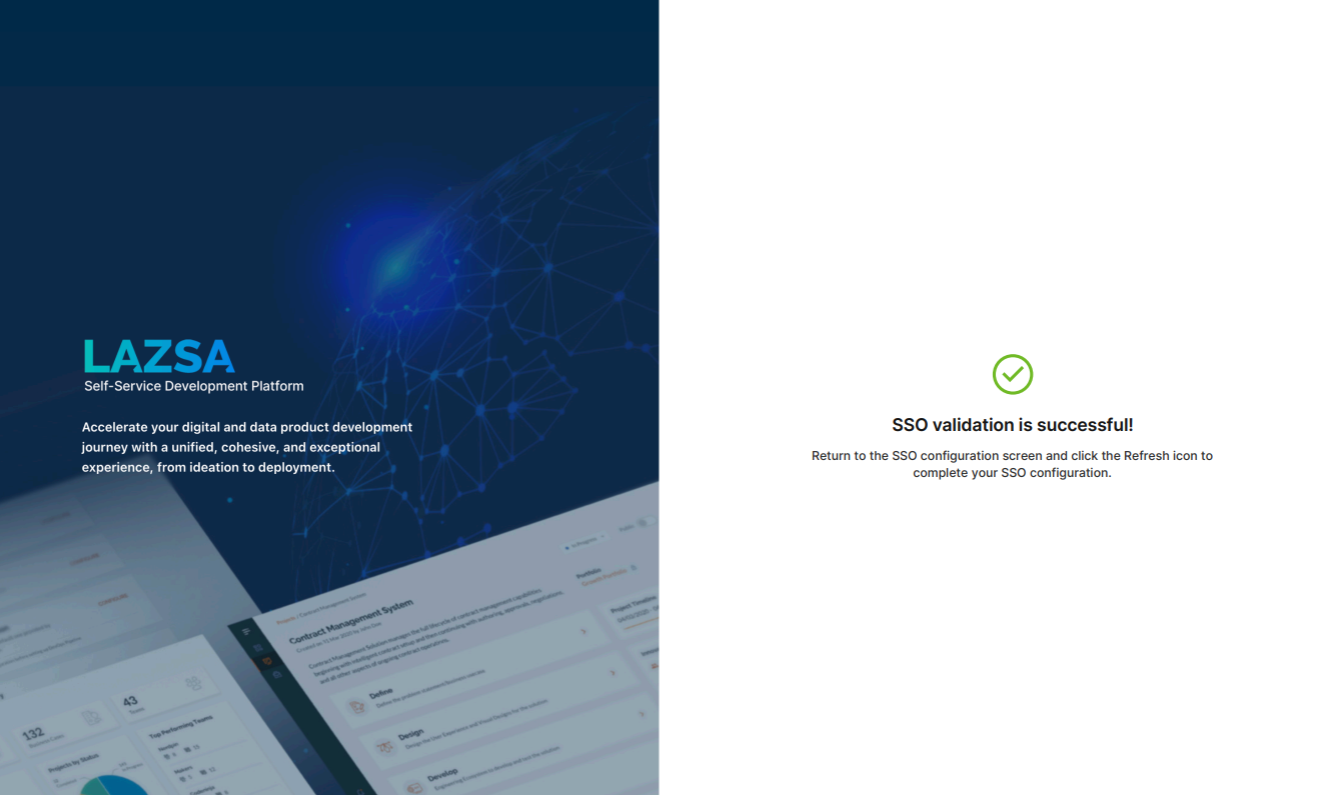
This takes you to the Calibo Accelerate sign-in screen. Use SSO credentials for user authentication. After a successful authentication redirection and SSO validation, the following success message is displayed.
-
Return to the SSO configuration screen and click the Refresh icon to complete your SSO configuration.
-
After you see the message confirming that your SSO validation is successful, click Finish to complete the configuration.
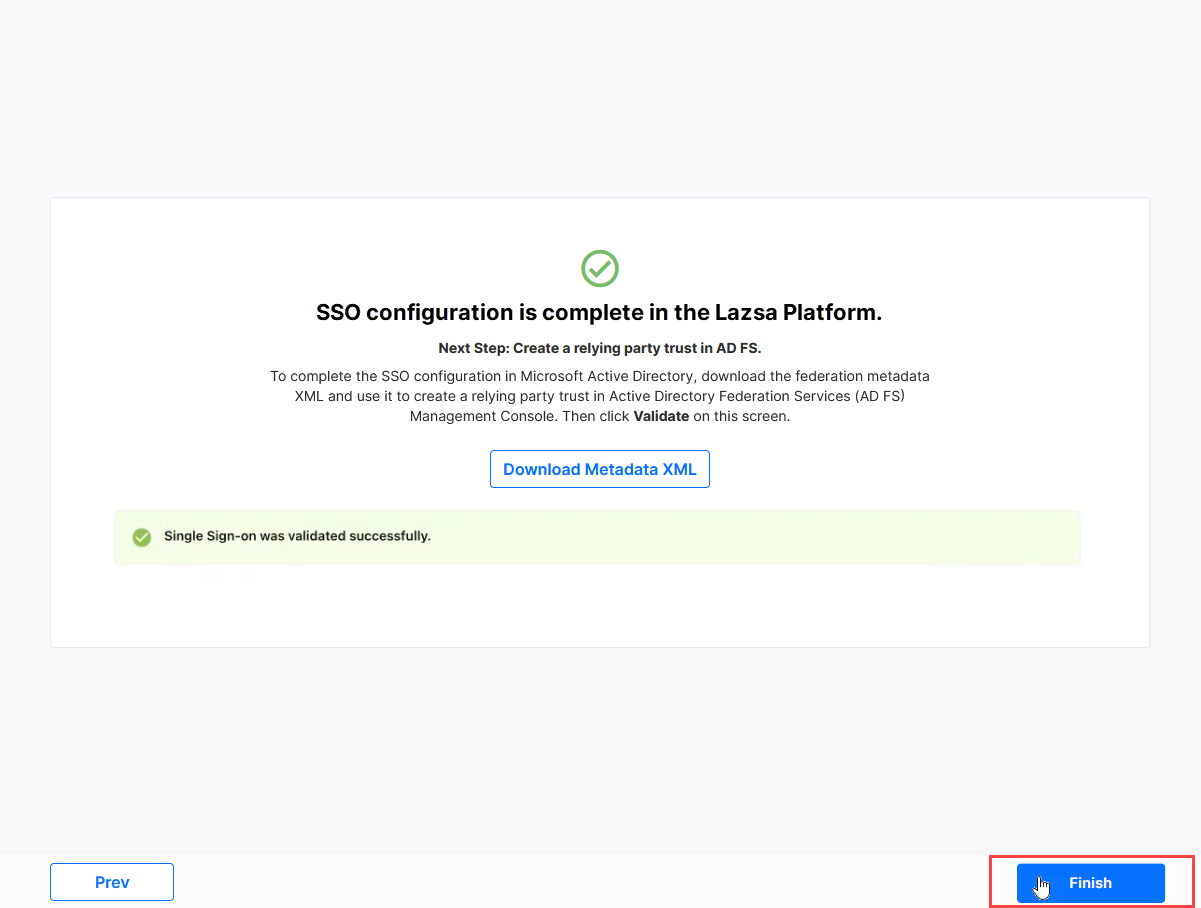
After you click Finish, your current session will automatically end. You will be logged out of the platform and will need to sign in again using the SSO credentials associated with your newly configured IdP.