Change Identity Provider: Switch to OpenID Connect (OIDC) Configuration
If your organization plans to replace the current Identity Provider (IdP) with an OpenID Connect (OIDC)-based provider, you can use the Change Identity Provider option in the Security & SSO section.
This process enables you to update your Single Sign-on (SSO) configuration in Calibo Accelerate to authenticate users through a new OIDC-compliant IdP while maintaining the same tenant domain and user access.
OIDC allows users to authenticate with their existing corporate credentials while maintaining centralized identity control and reducing password management overhead.
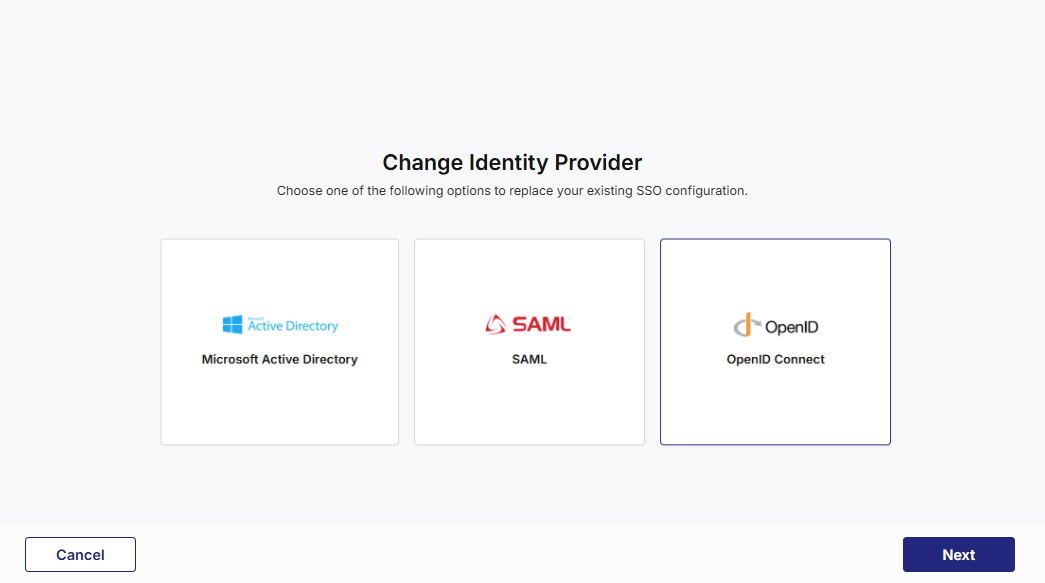
In the following sections, review the prerequisites and configuration steps carefully before making any changes to your existing IdP configuration.
Before You Start (Prerequisites)
Before setting up OIDC-based Single Sign-on (SSO) in Calibo Accelerate, make sure your organization’s identity and access management setup meets the following prerequisites.
-
Have Administrative Access to Your Identity Provider (IdP)
You must have administrator privileges in your organization’s OIDC-compatible Identity Provider.
This allows you to:
-
Create a new OIDC client/application for Calibo Accelerate.
-
Retrieve essential credentials such as the Client ID and Client Secret.
-
Configure the Redirect URI and Logout URI provided by Calibo.
-
Access the IdP’s Discovery URL or related metadata endpoints (if supported).
-
-
Register Calibo Accelerate as an Application in Your IdP
Before starting configuration in Calibo:
-
Log in to your IdP’s admin console.
-
Create a new OIDC application (client).
-
Select Web Application (if prompted for application type).
-
Note the following generated values:
-
Client ID (unique identifier for Calibo)
-
Client Secret (used for secure token exchange)
-
Issuer URL (base URL of your IdP tenant, often ending with /oauth2/default)
When you reach the Redirect URI step in the F24H wizard, you will need to return to your IdP and add the provided URI (for example, https://accelerate-dis.example.com/auth/realms/<TenantID>/broker/oidc/endpoint)
-
-
Prepare Users in Your Identity Provider
The users you plan to add in Calibo Accelerate must already exist in your IdP with valid email addresses on the configured domain.
At least one of these users (typically a real business user or admin) will be used for validating the SSO connection after setup.
Unlike SAML integrations, OIDC does not require manual attribute mapping in advance.
However, your IdP should expose the standard OIDC claims — email, given_name, and family_name — through its user profile or token scopes.
-
Define Attribute and Scope Requirements
Confirm that your IdP application is configured to include the following scopes and claims:
-
Scopes: openid, email, profile (minimum required).
-
Claims:
-
email – used as the Calibo login identifier.
-
given_name and family_name – populate user profile fields.
Without these scopes, Calibo may not receive the information needed to create or map user accounts correctly.
-
-
-
Plan for Credential and Token Management
OIDC relies on short-lived tokens and periodically rotated secrets.
Plan how your organization will handle these securely:
-
Store the Client Secret in a password vault or secret manager.
-
Rotate the secret periodically and update it in Calibo.
-
Ensure your IdP’s JWKS endpoint is publicly accessible and automatically refreshed when signing keys rotate.
-
After all the above prerequisites are in place, you can proceed with configuring OIDC in Calibo Accelerate using either the Manual Configuration or Discovery Endpoint option.
Configuring OIDC Details in Calibo Accelerate
Configured Domain
When switching IdPs, the domain field is auto-populated with the domain that was used in your previous configuration.
You cannot edit this field — Calibo enforces the same domain to ensure continuity of user identity mapping.
Select the following check box:
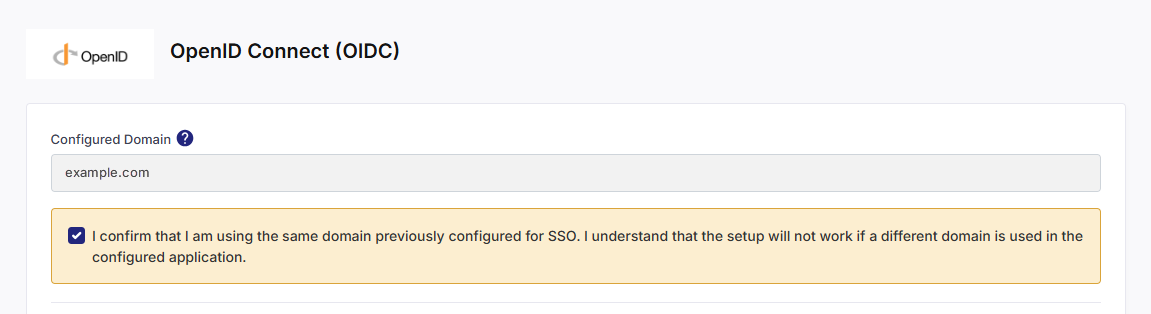
You can configure OIDC details either manually or via discovery endpoint (if supported by your IdP).
Option A — Configure Manually
Select this method if your IdP requires explicit configuration or does not expose a discovery endpoint.
You’ll need to provide the following details:
| Field | Description |
|---|---|
| Domain | The corporate email domain associated with your Calibo Accelerate tenant (for example, mycompany.com). Only users with this domain can be added to the tenant. |
| Client ID | A unique identifier for your OIDC application, generated when you register Calibo in your IdP. |
| Client Secret | A confidential key issued by your IdP to authenticate Calibo when exchanging authorization codes for tokens. |
| Authorization URL |
The endpoint in your IdP where users are redirected to sign in. Typically ends with /authorize. Example: https://dev-123456.okta.com/oauth2/default/v1/authorize. |
| Token URL |
The endpoint used to exchange the authorization code for access and ID tokens. Example: https://dev-123456.okta.com/oauth2/default/v1/token. |
| Logout URL | The endpoint used to terminate the user session in the IdP. Ensures logout from both Calibo and the IdP. |
| Issuer URL | The unique identifier for your IdP as the token issuer. Must match the iss claim in the ID token. |
| JWKS URL |
The endpoint where your IdP hosts JSON Web Key Sets (JWKS) used to verify token signatures. Example: https://dev-123456.okta.com/oauth2/default/v1/keys. |
| User Info URL | The endpoint that returns user profile information (email, firstName, lastName, etc.) after authentication. |
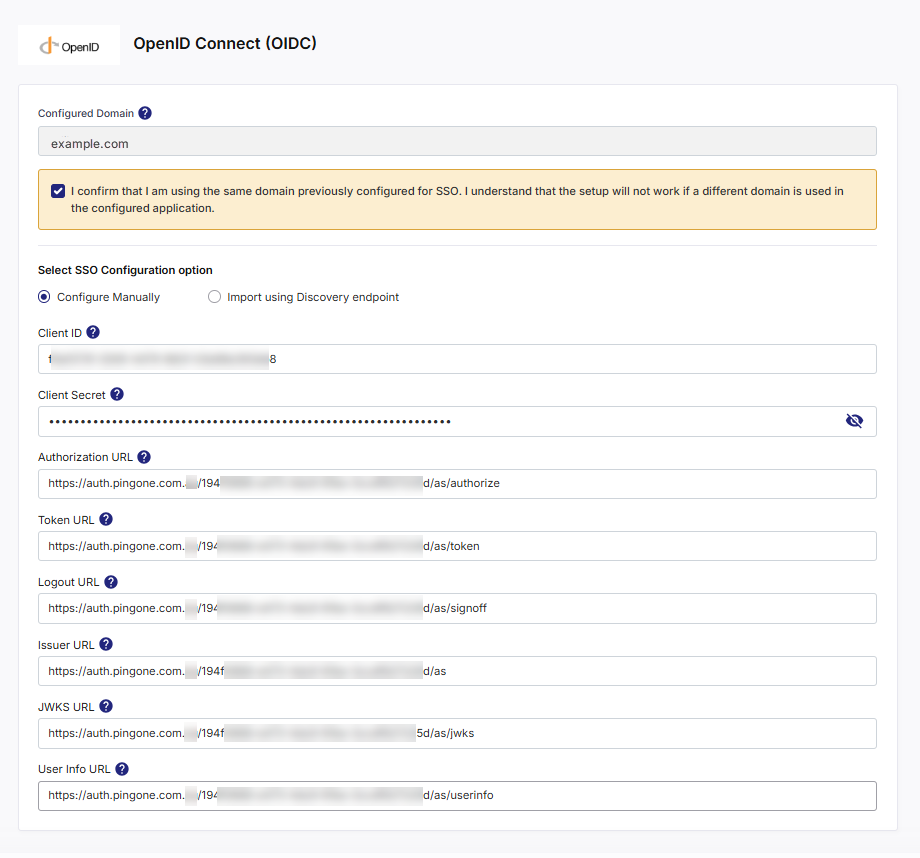

Tip:
You can obtain most of these URLs from your IdP’s .well-known/openid-configuration endpoint if available.
Option B — Import Using Discovery Endpoint
If your IdP supports OIDC discovery, simply provide the Discovery URL — the standard .well-known/openid-configuration endpoint.
Calibo Accelerate automatically retrieves the required URLs (Authorization, Token, Issuer, JWKS, and User Info).
Most modern identity providers (IdPs) such as Ping Identity, Okta, Auth0, Keycloak, Google Identity Platform, and Azure AD (OIDC mode) expose a discovery endpoint that automatically provides all the required metadata for the connection.
When you choose the Import using Discovery Endpoint option, Calibo retrieves the necessary configuration details directly from your IdP — including the Authorization URL, Token URL, JWKS URL, Issuer, and User Info URL — without requiring manual entry.
Do the following:
-
Select Import using Discovery Endpoint.
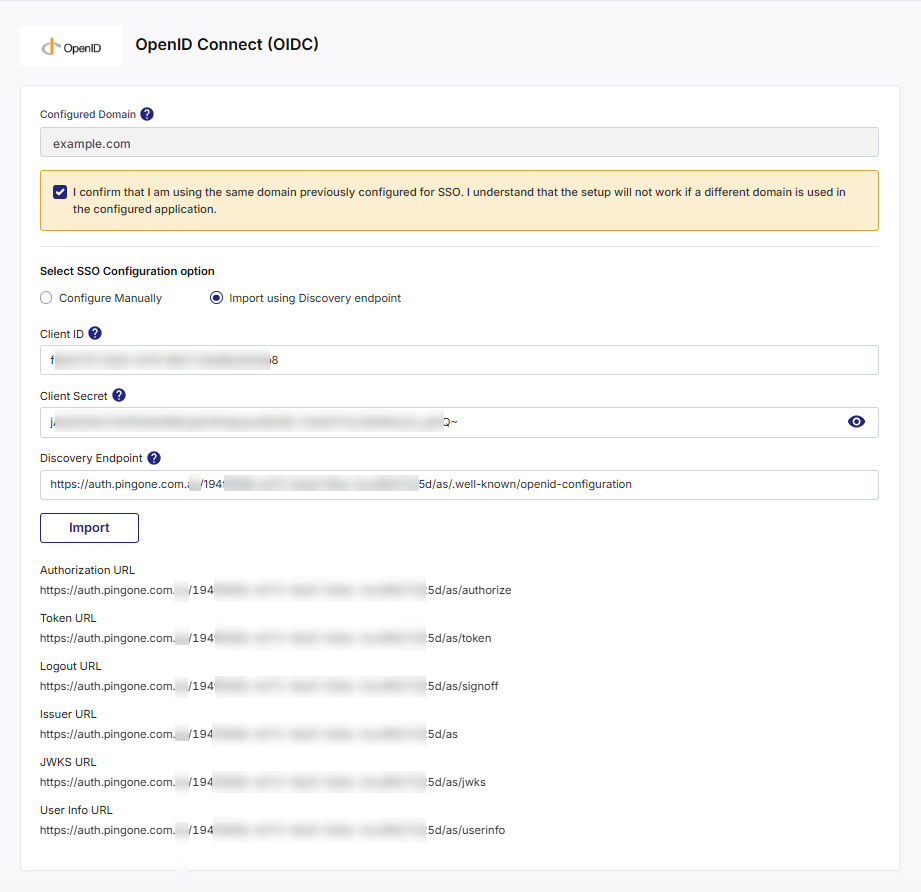
On the Configure Single Sign-on screen, select the Import using Discovery Endpoint option.
-
Enter the following details:
Field Description Domain Specify the corporate email domain associated with this tenant (for example, mycompany.com). Only users whose email addresses match this domain can be added to the Calibo Accelerate platform. Client ID Provide the unique identifier assigned to the Calibo Accelerate application when it was registered in your IdP. This identifies Calibo as a trusted OIDC client. Client Secret Enter the confidential key generated by your IdP. Calibo uses this key to securely authenticate itself when exchanging authorization codes for tokens. Discovery Endpoint Provide the URL of your IdP’s OpenID Connect Discovery Document — usually ending with: /well-known/openid-configuration.
Example: https://auth.<your-idp-domain>.au/<application-id>/as/.well-known/openid-configuration
-
Click Import
After entering the above details, click Import.
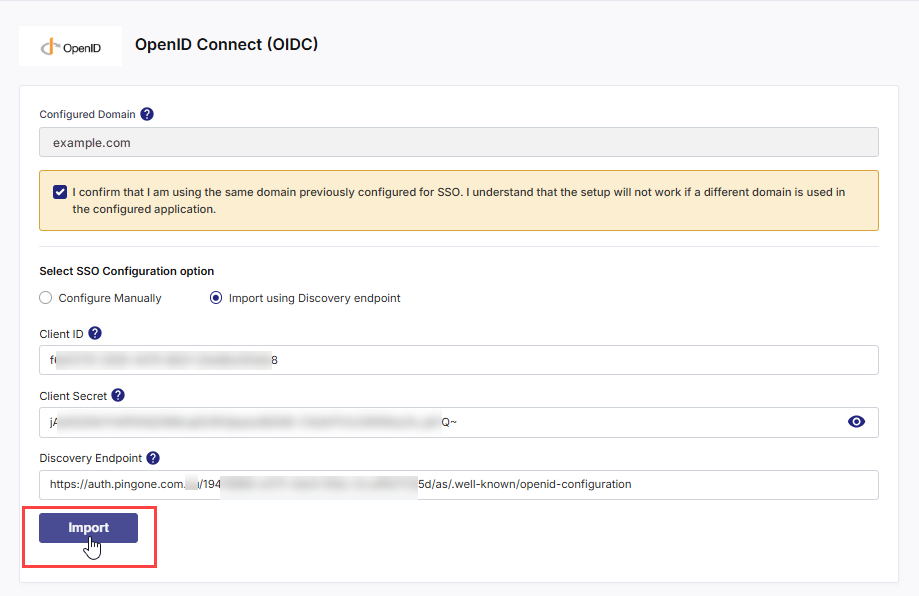
Calibo Accelerate automatically retrieves and populates the following configuration values:
-
Authorization URL
-
Token URL
-
Logout URL (if provided)
-
Issuer URL
-
JWKS URL (for public key verification)
-
User Info URL
-
Click Previous to return to the previous screen.
Click Next to proceed.
Click Cancel and then, in the confirmation message, click Yes to discard your unsaved identity provider configuration changes and go back to the previous screen.
Completing and Validating OIDC Configuration
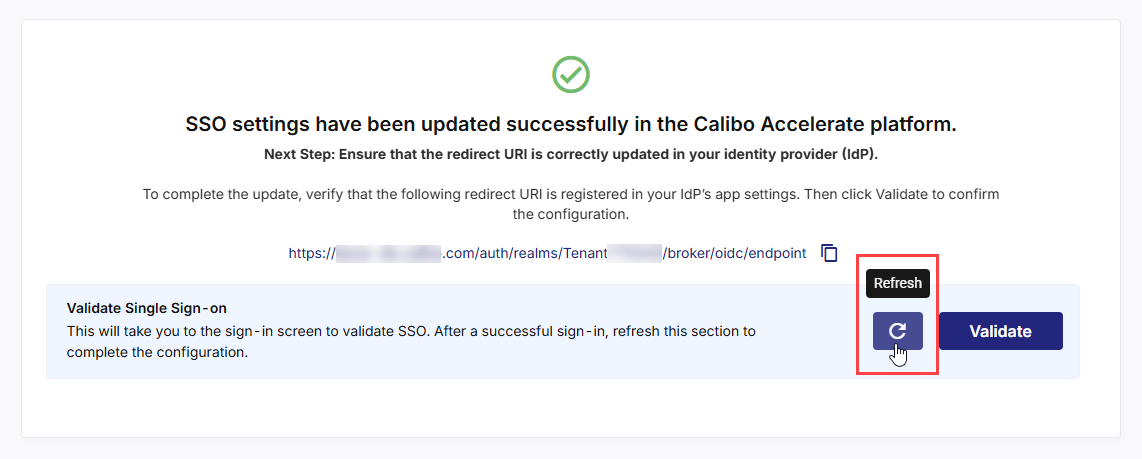
After the above configuration is complete, the next screen confirms that your SSO settings have been successfully updated in Calibo Accelerate.
As a next step, you must ensure that the redirect URI is correctly updated in your identity provider (IdP).
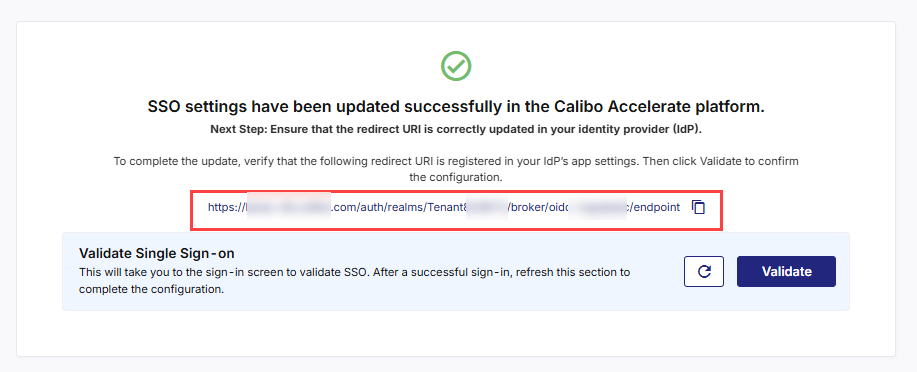
Next Step: Update Redirect URI in IdP's App Settings
To complete the update, you must add the Redirect URI shown on this screen to your IdP’s OIDC application settings.
This URI ensures that your IdP can redirect authenticated users back to Calibo after successful sign-in.
The redirect URI looks similar to the following:
https://accelerate-<environment>.<your domain>/auth/realms/<Calibo Accelerate tenantID>/broker/oidc/endpoint
To add this redirect URI to your IdP, do the following:
-
Copy the Redirect URI displayed on this screen.
-
Go to your IdP’s admin console and open your registered Calibo application.
-
Locate the Redirect URIs or Authorized Redirect URLs section.
-
Paste the URI exactly as shown and save the configuration.
If the redirect URI is not added in your IdP, validation will fail and users will not be able to log in via SSO.
Validating Single Sign-on
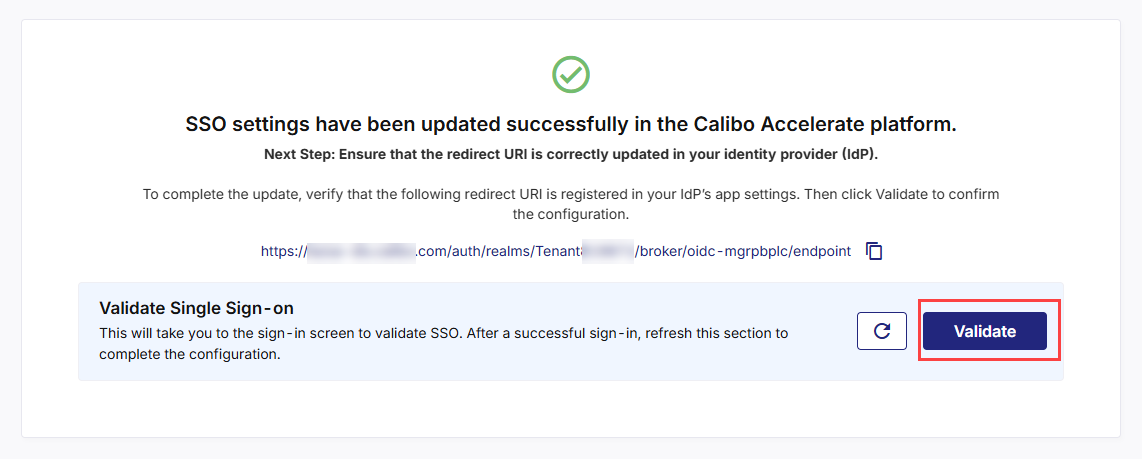
After adding the Redirect URI in your IdP, on the screen from where you copied the redirect URI, do the following:
-
In the Validate Single Sign-on section, click Validate.
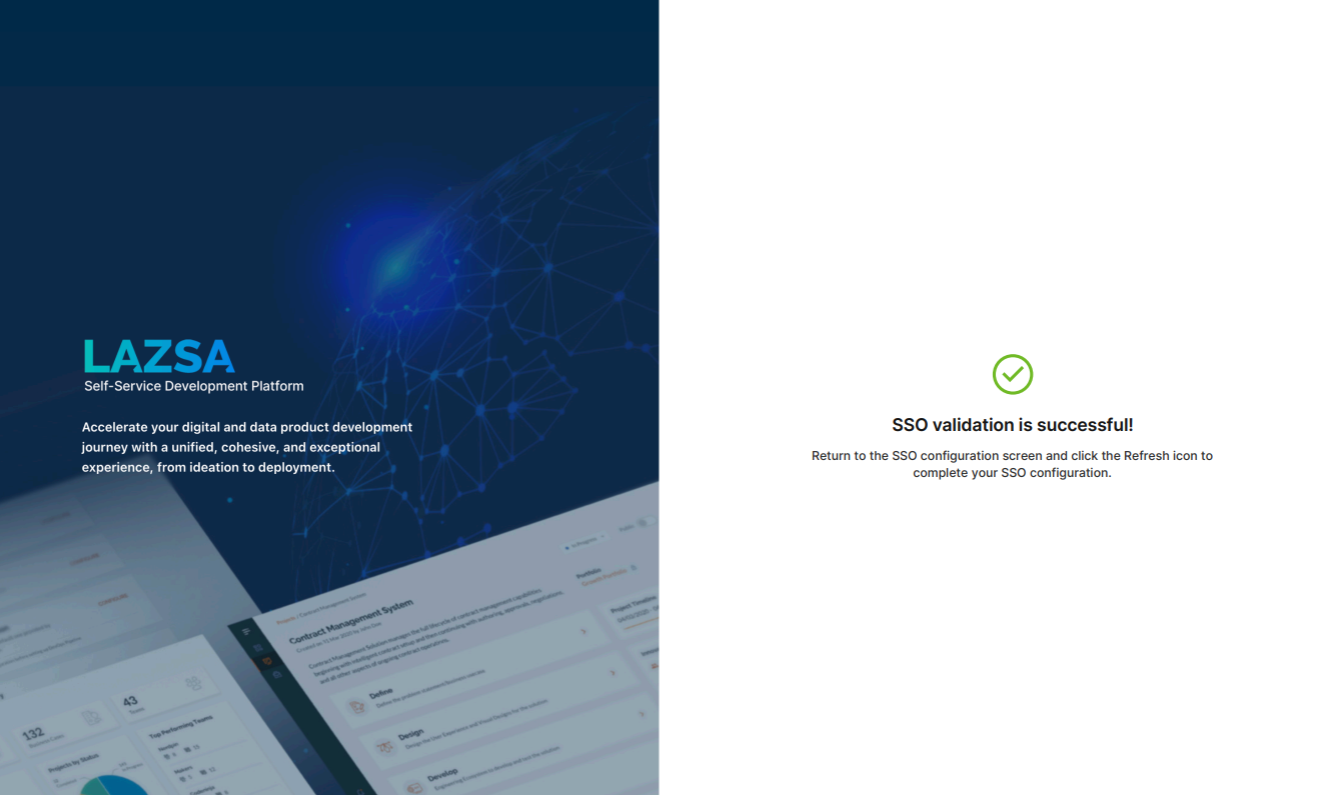
This takes you to the Calibo Accelerate sign-in screen. Sign in using an existing user with SSO credentials from the configured domain. After a successful authentication redirection and SSO validation, the following success message is displayed.
-
Return to the SSO configuration screen and click the Refresh icon to complete your SSO configuration.
-
After you see the message confirming that your SSO validation is successful, click Finish.
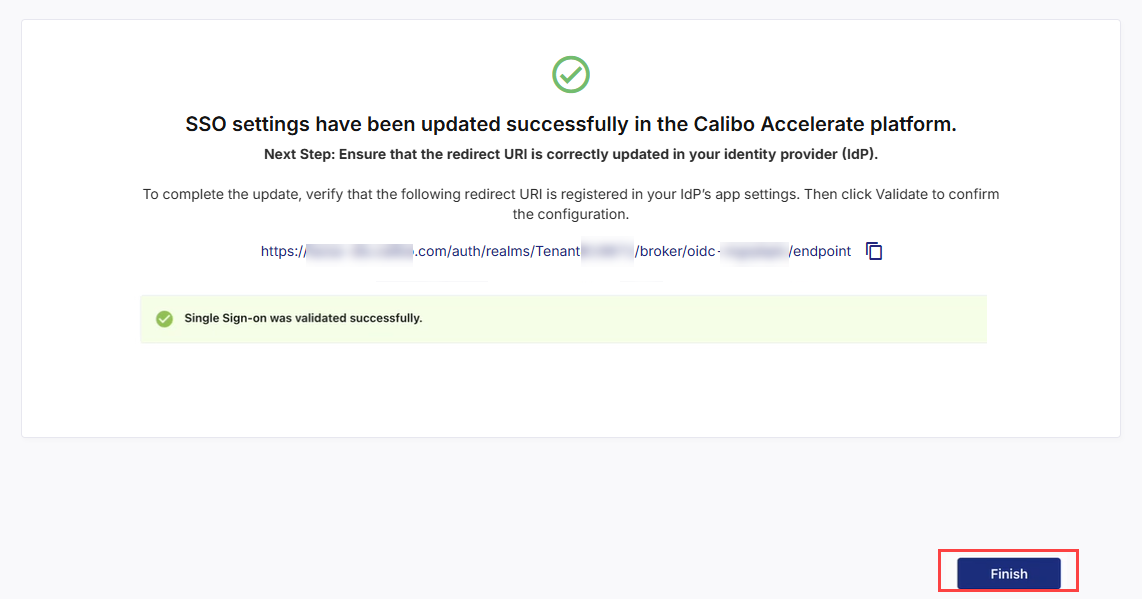
If validation fails, verify the Redirect URI, Client ID, Client Secret, and Discovery Endpoint settings in your IdP configuration.
After you click Finish, your current session will automatically end. You will be logged out of the platform and will need to sign in again using the SSO credentials associated with your newly configured IdP.